Templates
A template is a saved snapshot of a sandbox its WordPress and PHP versions plus all of its content. Build a sandbox once, save it, and create fresh copies whenever you need them.
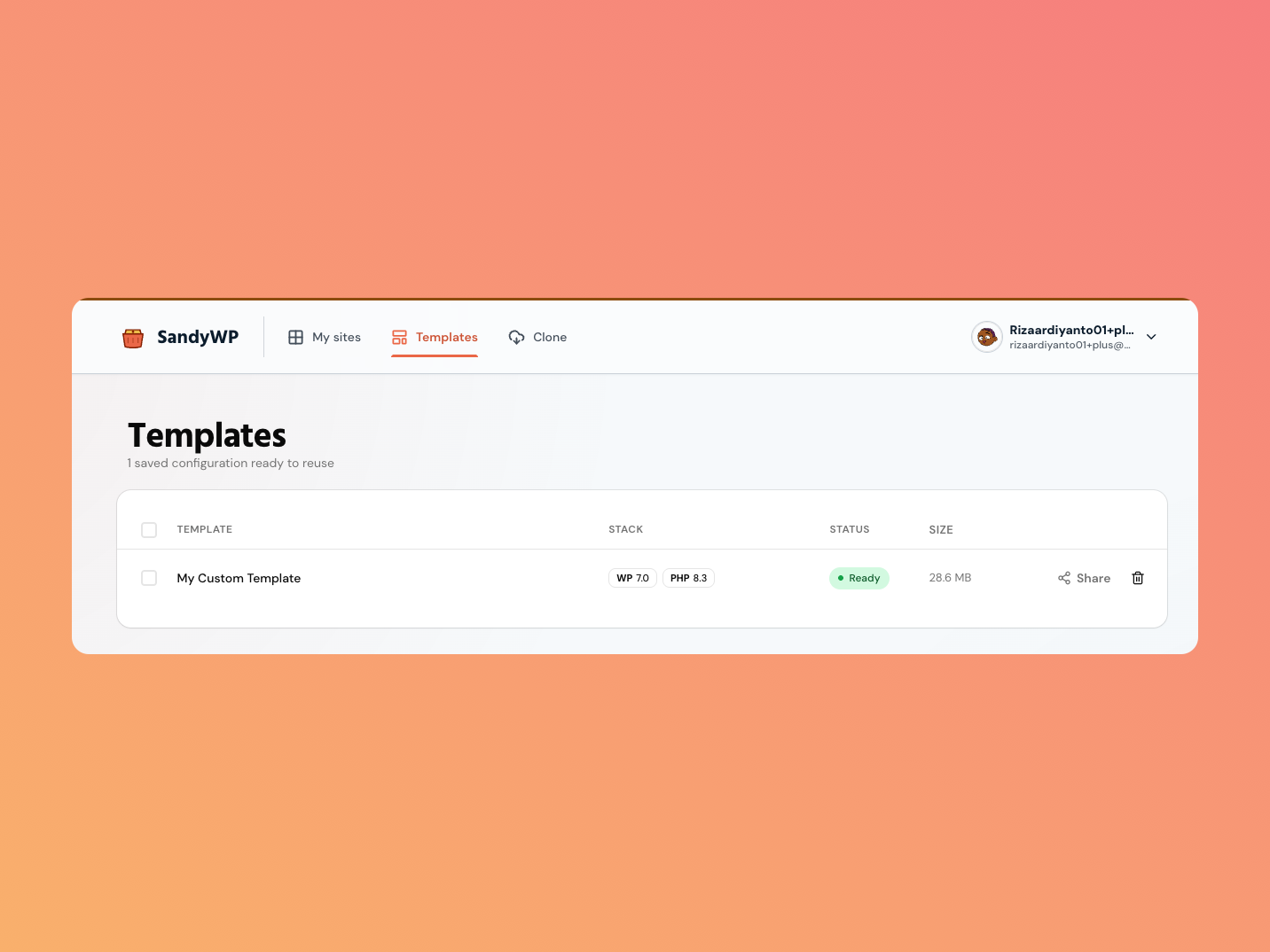
What a template captures
Templates snapshot the whole sandbox: the WordPress and PHP versions, installed plugins and themes, settings, and database content. New sandboxes created from a template start exactly where the template left off.
Save a sandbox as a template
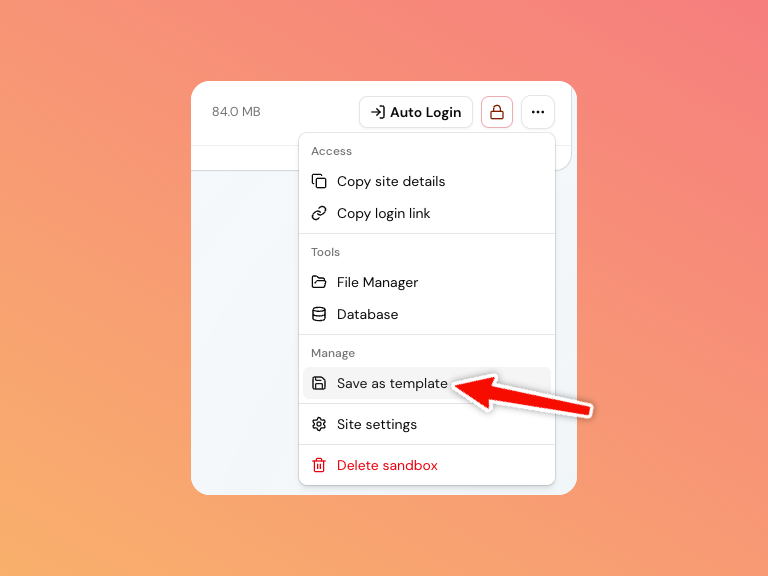
- On a
readysandbox, open the actions menu (the…button) and choose Save as template. - Give it a name and an optional description.
- Click Save template.
The template builds in the background (status building → ready). Once
ready, you can create sandboxes from it.
Create a sandbox from a template
There are a few ways:
- In the create form, pick the template from the Templates dropdown (this locks the stack to the template's versions). See Create a sandbox.
- On the dashboard's Templates tab, click New sandbox next to a ready template.
- Right after saving, click Create a site from it in the progress dialog.
Manage templates
Open the Templates tab in your dashboard (or Templates in the top nav) to see each template's stack, status, and size. To remove one, click the delete (trash) button this can't be undone.
Choose where public demos open
When a ready template has a public launch link, open its Share settings and set the Demo destination. Visitors are authenticated first, then sent to that sandbox-local path.
/wp-admin/opens the WordPress dashboard (the default)./opens the site homepage./shop/opens a storefront or another public page./wp-admin/site-editor.phpopens the Site Editor.
/. External URLs are not accepted, so a launch
link always keeps visitors inside the new sandbox.Next steps
- Lifespan & permanence save a template before a sandbox expires.
- Clone a site start from an existing live site instead.