Create a sandbox
Creating a sandbox is a short form. Most of the time you can leave everything on its defaults and just click Create but every option is here when you need it.
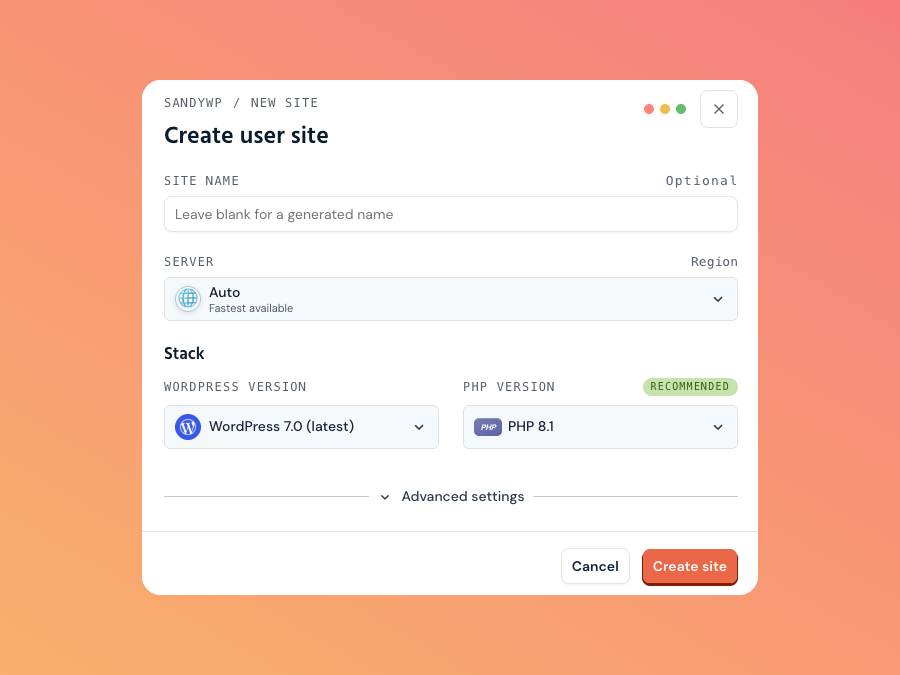
Start the form
- From your dashboard, click New sandbox.
- Or, without an account, click Create a free sandbox on the homepage.
A sandbox provisions in about 30 seconds. A progress window shows the live stages, and as
soon as it's ready you can open wp-admin.
Basic options
Site name
Optional. It's just a label, and the sandbox's slug (its URL) is
derived from it. Leave it blank and SandyWP generates a friendly name like breezy-cove for you.
Template
If you've saved any templates, a Templates picker appears. Choose Blank WordPress for a clean install, or a template to start from its saved content. Picking a template locks the WordPress and PHP versions to whatever the template was built with.
Server
Choose which region runs the sandbox. Leave it on Auto to use the best available region, or pin it to a specific one (for example Europe or Southeast Asia). Regions that are full or offline are shown but can't be selected.
Stack
Pick the versions WordPress runs on:
- WordPress version the latest release by default, or an older line down to 6.6.
- PHP version 8.5, 8.4, 8.3 (default), 8.2, 8.1, or 7.4. You can change this later in PHP settings. PHP 8.5, 8.4, and 7.4 provision cold.
Advanced settings
Click Advanced settings to reveal lifespan and configuration options.
Site lifespan
How long the sandbox lives before it expires: 1 hour, 1 day, 1 week (default), 2 weeks, 1 month, or Permanent. Permanent never expires and requires a paid plan. See Lifespan & permanence.
Configuration: Standard vs Debugging
Standard is a clean production-style install. Switch to Debugging to provision the sandbox with developer tooling turned on:
| Option | What it does |
|---|---|
| Enable WP_DEBUG | Turns on WordPress debug mode. |
| Install Query Monitor | Adds the Query Monitor plugin for deep debugging insight. |
| Save debug log | Writes errors to wp-content/debug.log (requires WP_DEBUG). |
| Show debug display | Shows errors on the site itself, visible to visitors (requires WP_DEBUG). |
| Unminified core assets | Enables SCRIPT_DEBUG so WordPress loads unminified scripts and styles. Found under More options. |
After it's created
The new sandbox appears in your dashboard. Click Auto Login to drop into wp-admin, or open Site settings for PHP and Git tools. From here you can also make it permanent, open the File Manager, or open the database.
Next steps
- Open wp-admin magic login and credentials.
- Templates save a configured sandbox to reuse.