Git deployment
Deploy a plugin, theme, or wp-content folder straight from a git repository into a
sandbox manually with one click, or automatically on every push.
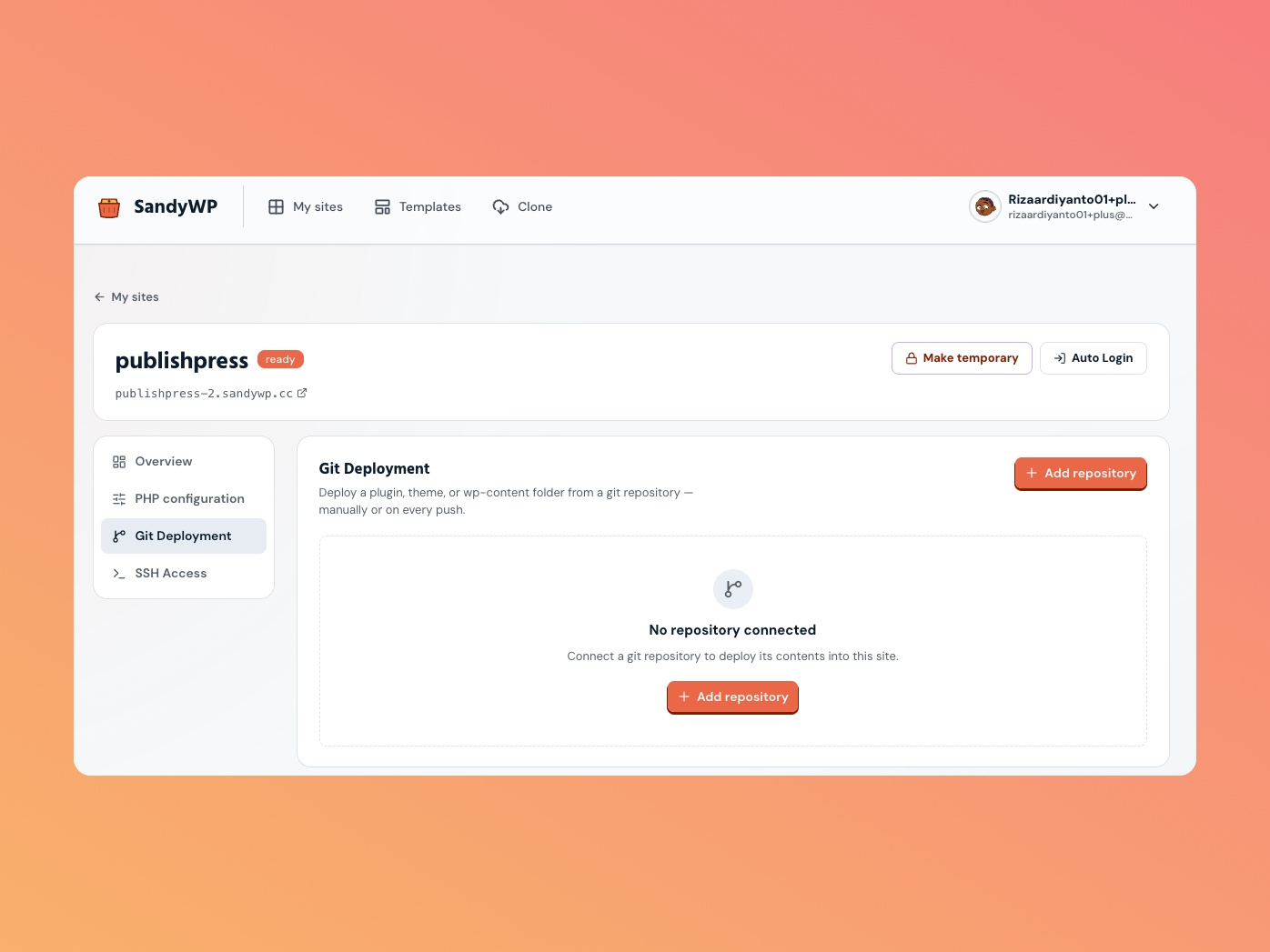
Open Git deployment
Open a sandbox's Site settings, then choose Git Deployment in the side nav, and click Add repository.
Connect a repository
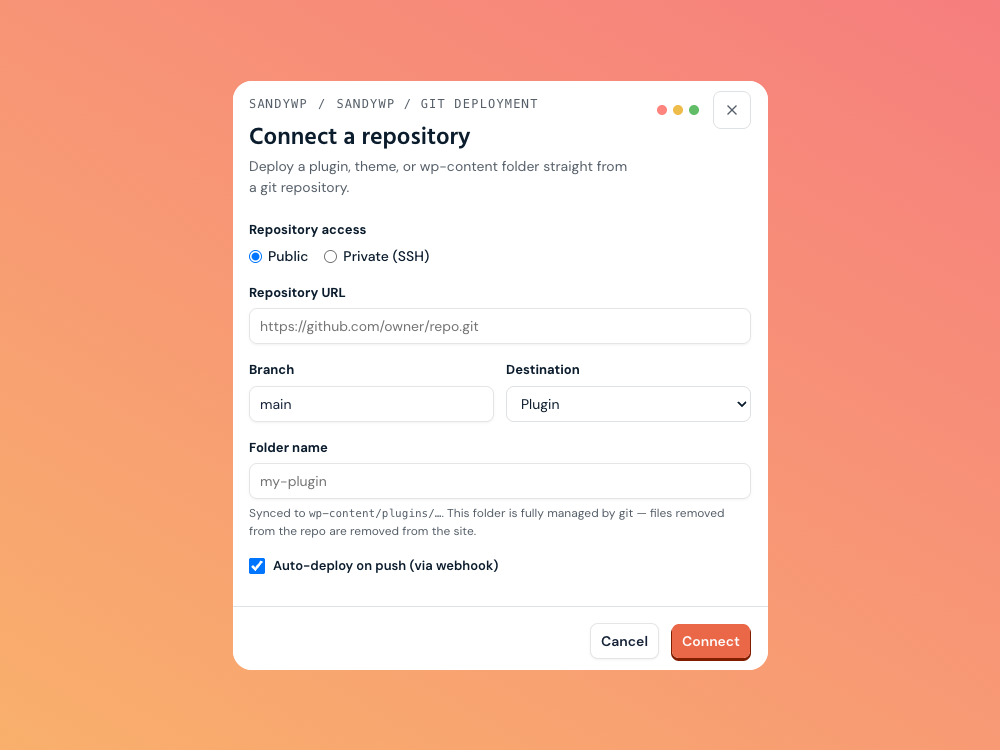
| Field | What to enter |
|---|---|
| Access | Public (clone over HTTPS) or Private (SSH) for repos that need a key. |
| Repository URL | For public, an HTTPS URL like https://github.com/owner/repo.git. For private, an SSH URL like [email protected]:owner/repo.git. |
| Branch | The branch to deploy (defaults to main). |
| Destination | Plugin, Theme, or wp-content folder. |
| Folder name | The folder name to sync into, e.g. my-plugin. |
| Auto-deploy on push | Deploy automatically whenever you push (via webhook). |
The destination plus folder name decide where files land in the sandbox:
- Plugin →
wp-content/plugins/your-folder - Theme →
wp-content/themes/your-folder - wp-content folder →
wp-content/your-folder
Private repositories
When you connect a private (SSH) repo, SandyWP generates a deploy key on connect. Add its public key as a read-only deploy key in your repository host (GitHub: Settings → Deploy keys; GitLab: Settings → Repository → Deploy keys). Without it, the clone will fail. You can copy the key again later from the repository card.
Auto-deploy on push
If you enable auto-deploy, SandyWP gives you a webhook URL after connecting. Add it to your git host as a webhook with a JSON content type and push events only. From then on, every push to the chosen branch triggers a deploy.
Deploy manually
Click Deploy now on the repository card to pull the latest commit and sync it.
The card shows the last deployed commit, and a deployment history table records each deploy and
its status. Deploys run on a ready sandbox.
Disconnect a repository
Click the disconnect (unplug) button on the repository card. The files already deployed stay on the sandbox, and the deploy history is kept only the connection is removed.
Next steps
- GitHub pull request previews use an ephemeral, exact-SHA site for PR review.
- File Manager inspect what a deploy wrote.
- Clone a site bring an entire existing site in instead.