SSH access
Open a real shell inside your sandbox over SSH run wp (WP-CLI), edit files, and inspect logs with full access, just like SSHing to a server. Access
is key-based and scoped to your own sandbox: you land inside your sandbox's
container, never the host or anyone else's site.
Fastest way: the SandyWP CLI
If you have the SandyWP CLI, one command connects you no key to generate and no panel to open. It turns SSH on for the sandbox, mints a short-lived key that's returned once and never stored, and drops you into a shell:
# With the SandyWP CLI nothing to configure
sandywp ssh my-site

# Run a single command and exit instead of opening a shell
sandywp ssh my-site --cmd "wp plugin list"
It needs only OpenSSH (built into macOS and Linux) and a sandbox you own. Add --cmd "<command>" to run one command instead of opening a shell. To edit the
sandbox's files locally, mount it as a folder with sandywp mount <name>.
Prefer to manage your own key, or connect without the CLI? The manual dashboard-and-key flow is below.
Before you start
- A sandbox on a paid plan SSH access is available on every paid plan.
- An account-owned sandbox (not a throwaway guest sandbox), in the
readystate. - An SSH key pair on your machine. We'll generate one below if you don't have one.
What you can do over SSH
You get a normal Bash login shell inside the sandbox's container, so you can:
- Run WP-CLI
wp plugin list,wp search-replace,wp db query, and the rest. It's preinstalled. - Edit files with the editors on the box, tail logs, and poke around
wp-content. - Run one-off commands non-interactively for scripts and automation (see Connect).
- Transfer files over SFTP
sftp, FileZilla, or an IDE's SFTP extension, all scoped to your own sandbox. You can also mount the sandbox as a local folder (sandywp mount <name>, orrclone/sshfsby hand) and point an AI agent or editor straight at it.
A few things are deliberately switched off, because the session only ever bridges into your sandbox:
- No port forwarding (
-L/-R/-D) and no agent or X11 forwarding. - No shell on the host. You're always inside your own sandbox container.
Turn on SSH for a sandbox
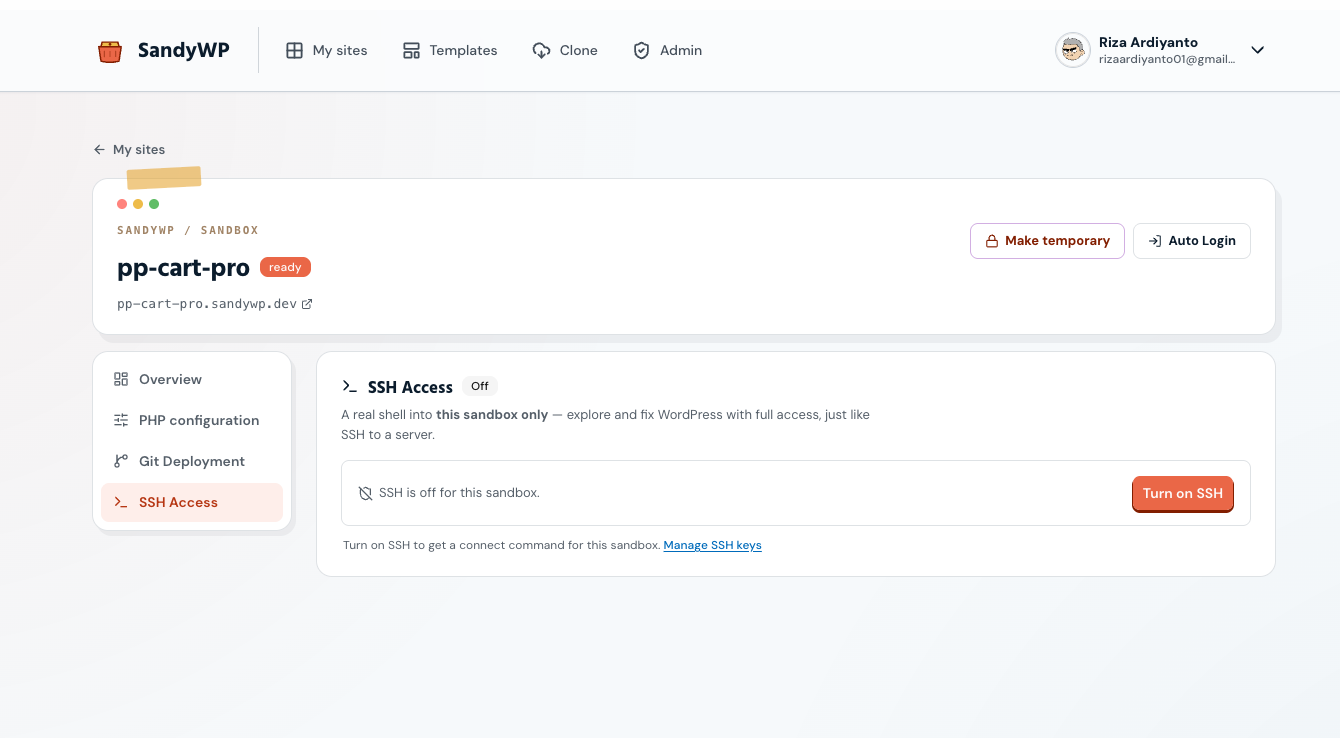
SSH is off by default and opt-in per sandbox. Open your sandbox and choose SSH Access in the side nav (alongside PHP configuration and Git Deployment), then click Turn on SSH.
Once it's on, the panel shows your exact connect command (with a copy button), the server's host-key fingerprint, and how many of your keys can connect. Turning SSH off again immediately stops new connections to that sandbox.
Generate an SSH key
SandyWP authenticates you by public key you keep the private key, and only ever
paste the public half into SandyWP. Supported key types are ed25519 (recommended) and RSA of at least 3072 bits. If you already have a key
(~/.ssh/id_ed25519.pub), you can skip this step and reuse it.
macOS & Linux
In a terminal:
# Recommended an ed25519 key, saved as ~/.ssh/sandywp
ssh-keygen -t ed25519 -C "you@laptop" -f ~/.ssh/sandywp

# Show the PUBLIC key to paste into SandyWP (note the .pub)
cat ~/.ssh/sandywp.pub
Press Enter to accept the file location, and set a passphrase when prompted (recommended).
Windows
In PowerShell (OpenSSH ships with Windows 10 and 11):
# Windows 10/11 (PowerShell) OpenSSH is built in
ssh-keygen -t ed25519 -C "you@laptop" -f $env:USERPROFILE\.ssh\sandywp

# Show the PUBLIC key to paste into SandyWP
Get-Content $env:USERPROFILE\.ssh\sandywp.pub
Using RSA instead
# Prefer RSA? Use at least 3072 bits (4096 is a good default)
ssh-keygen -t rsa -b 4096 -C "you@laptop" -f ~/.ssh/sandywp.pub file is your public key that's the one you add to SandyWP.
Never share or upload the private key (the file without .pub).Add your public key to SandyWP
In the SSH Access panel, click Manage keys to open Your SSH keys. Under Add a public key, paste the full contents of
your .pub file it's a single line that starts with ssh-ed25519 or ssh-rsa and looks like ssh-ed25519 AAAA… you@laptop. Give it an optional
label (e.g. work laptop) and click Add key.
- Account keys work everywhere. A key you add here can connect to every sandbox you own that has SSH turned on you add it once, not per sandbox.
- Only the public key is stored. SandyWP never sees your private key.
- Revoke anytime. Deleting a key from this list takes effect immediately the gateway refuses any future connection using it.
Connect with your own key
The CLI above is the quickest path. To connect manually with a key you manage,
grab the command from the SSH Access panel (or build it from the parts below) and
run it. The username is your sandbox's id (it starts with site_) and the host is ssh.sandywp.dev. The gateway listens on port 2222:
# Use the exact command from the SSH Access panel. It looks like:
ssh [email protected] -p 2222

# If your key isn't the default one, point to it with -i:
ssh -i ~/.ssh/sandywp [email protected] -p 2222
Verify the host key on first connect
The first time you connect, SSH shows the server's fingerprint and asks whether to continue.
Compare it with the host key fingerprint (SHA256:…) shown in the
SSH Access panel if they match, type yes. This confirms you've reached the real
SandyWP gateway.
Save it in your SSH config
Add an entry to ~/.ssh/config so you can connect with a short name:
# ~/.ssh/config then just run: ssh my-sandbox
Host my-sandbox
    HostName ssh.sandywp.dev
    User site_3fde97313bd284103bea
    Port 2222
    IdentityFile ~/.ssh/sandywp
    IdentitiesOnly yes
Then just run ssh my-sandbox.
Run one-off commands
Pass a command to run it inside the sandbox and exit handy for scripts:
# Run a single WP-CLI command without opening a shell
ssh [email protected] -p 2222 'wp plugin list'

# wp-cli is preinstalled, so anything works
ssh [email protected] -p 2222 'wp cache flush'
One-click session key
Don't want to manage a key? On a ready sandbox with SSH on, the panel offers a quick throwaway key for one session. Click Generate and SandyWP
hands you a short paste-and-run script that saves a temporary private key and connects. The key is
shown once, is scoped to that one sandbox, and expires after about an hour.
Session limits
To keep sandboxes healthy, sessions have a few limits (current defaults):
- Idle timeout a session with no activity for ~15 minutes is disconnected.
- Maximum duration a session is capped at ~4 hours; reconnect to continue.
- Concurrent sessions up to 3 at once per sandbox.
- Connect rate rapid reconnects from the same key/IP are briefly throttled.
Troubleshooting
Permission denied (publickey)
- Make sure you added the matching public key in Manage keys, and that it hasn't been revoked or expired.
- If your key isn't in a default location, point to it explicitly:
ssh -i ~/.ssh/sandywp …. - Confirm SSH is turned on for that sandbox, and that you own it (SSH only reaches your own account's sandboxes).
Too many authentication failures
Your SSH agent is offering too many keys before the right one. Point at the key directly and stop
offering others add -o IdentitiesOnly=yes to the command, or set IdentitiesOnly yes in your ~/.ssh/config entry (as shown above).
Connection refused or timed out
- Check the port it must be 2222, not the default 22.
- The sandbox must be
ready. If it's still provisioning or expired, SSH won't accept the connection. - If the panel says Not available, the gateway isn't live for that region yet.
“Too many concurrent sessions for this sandbox”
You've hit the per-sandbox session cap. Close an existing session (or wait for an idle one to time out) and reconnect.
The session dropped on its own
That's expected after the idle timeout or the maximum-duration cap just reconnect. Long-running work should be resilient to a reconnect.
Host key warning on connect
If your client warns that the host key changed, don't blindly accept it. Compare the fingerprint against the one in the SSH Access panel; if it doesn't match, stop and check with support before continuing.
Security
- Key-based only. There's no password auth you authenticate with your SSH key, and SandyWP stores only its public half.
- Scoped to your sandbox. A session bridges straight into your own sandbox container; it can't reach the host, the database server, or another tenant.
- No tunneling. Port, agent, and X11 forwarding are disabled. SFTP is the one subsystem allowed, and only into your own sandbox container the same scope as the shell.
- Verifiable endpoint. The published host-key fingerprint lets you confirm you reached the real gateway.
- Revocable. Revoke a key, or turn SSH off for a sandbox, and access stops immediately.
Next steps
- Mount a sandbox edit the sandbox's files locally with
sandywp mount. - File Manager browse and edit files without SSH.
- Database a web-based database manager for the same sandbox.
- CLI push a local site and script SandyWP from your terminal.