Open wp-admin
SandyWP is built so there's no friction between you and wp-admin. No password
emails, no credential resets most of the time you just click one button.
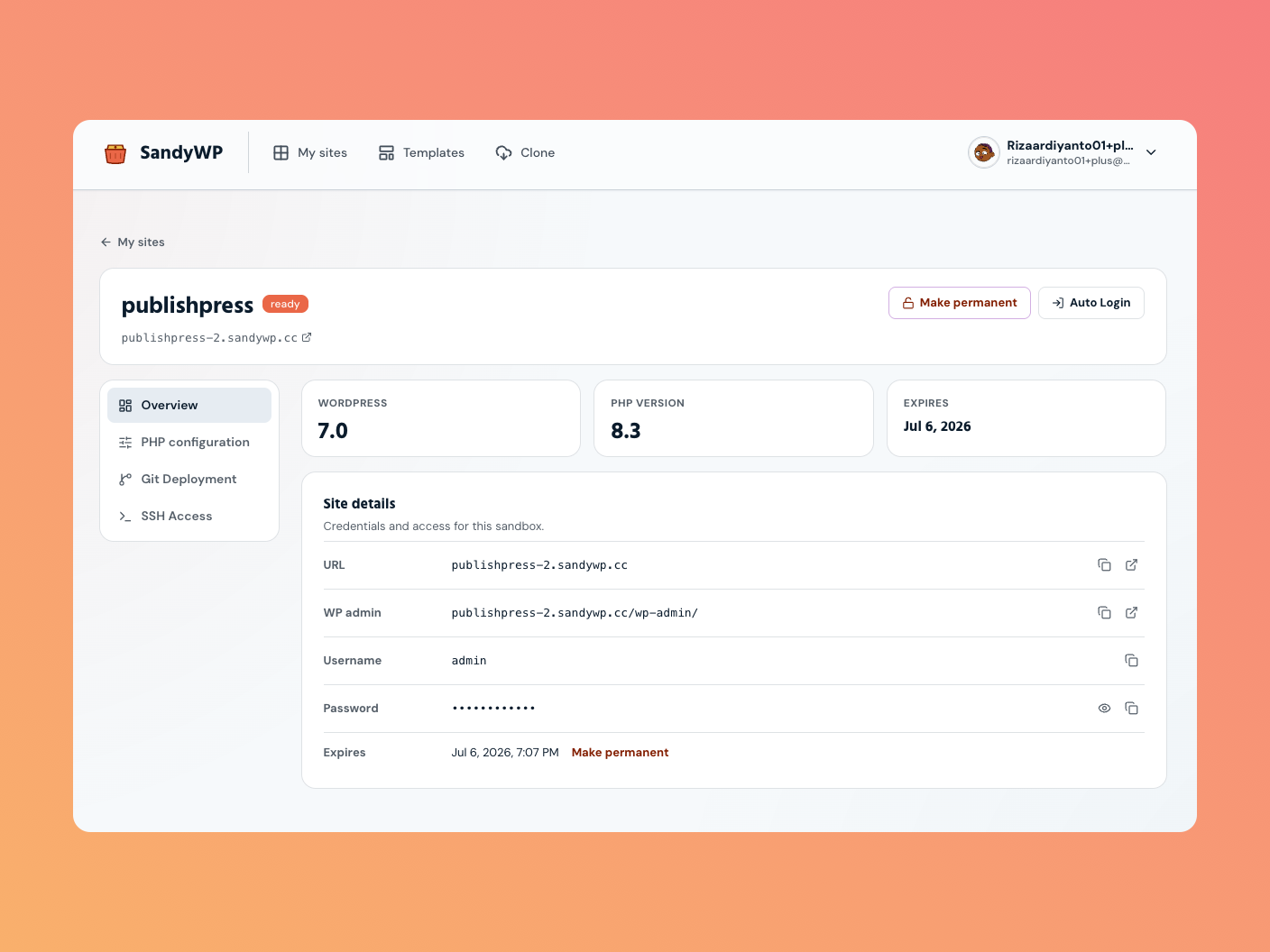
Auto Login (magic login)
On any ready sandbox, click Auto Login in your dashboard (or on
the sandbox's detail page). SandyWP mints a reusable link and opens it in a new tab you
land in wp-admin already signed in as the admin user. There are no credentials to
copy or remember.
Copy a login link
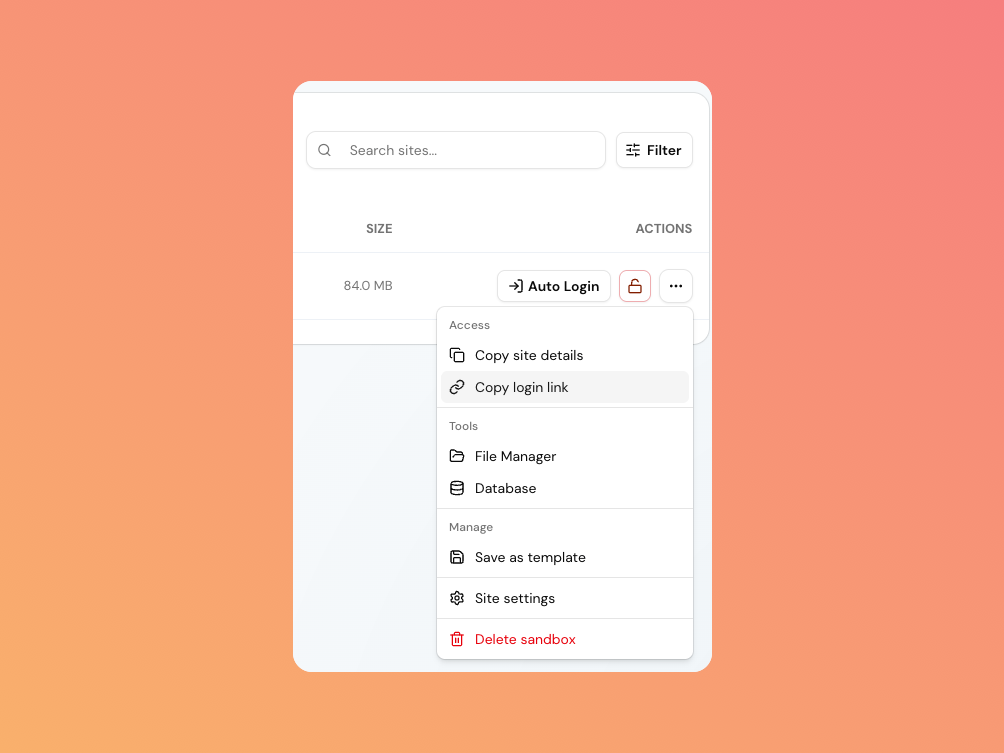
Need to open the sandbox elsewhere, or hand admin access to a teammate? Open the actions menu (the … button on a sandbox row) and choose Copy login link. This generates a fresh magic-login link and copies it to your
clipboard. Anyone who opens it lands in wp-admin as admin, so treat it like a
password.
Use the admin username & password
Some workflows need the actual credentials (for example logging in from another device, or a tool that drives the WordPress login form). You have two ways to get them:
- Copy site details in the actions menu, this copies the wp-admin URL, username, and password as a block of text.
- Sandbox detail page open Site settings and, under Site details, reveal or copy the password, username, and admin URL individually.
The WordPress admin lives at /wp-admin/ on the sandbox URL, and the default admin
username is admin.
Open the public site
To see the sandbox as a visitor would, click its URL anywhere it appears in the dashboard, or use the open-in-new-tab icon next to the URL on the detail page. That opens the front end without logging you in.
Troubleshooting
- Auto Login is greyed out. The sandbox isn't
readyyet wait for provisioning to finish. - A copied link stopped working. The link expired (it lasts until the sandbox expires) or the sandbox was deleted; generate a new one with Auto Login or Copy login link.
Next steps
- File Manager edit files without leaving the dashboard.
- Lifespan & permanence keep the sandbox around longer.