File Manager
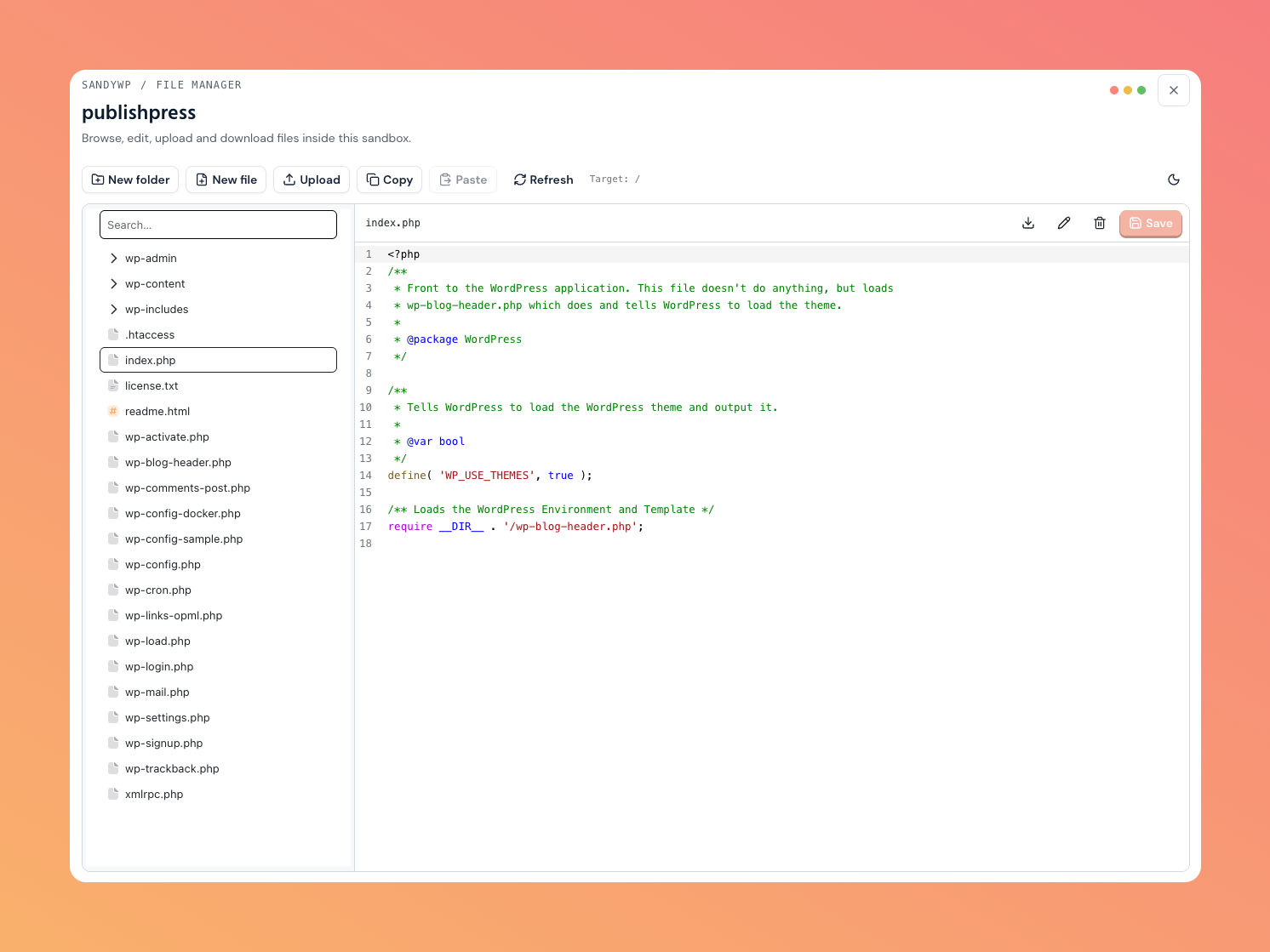
The File Manager lets you browse and edit a sandbox's files right in your browser no SSH client or SFTP setup needed. A file tree on the left, a code editor on the right.
Open it
On any ready sandbox, open the actions menu (the … button) and choose File Manager. The sandbox's own page lists File Manager under Tools in its left sidebar too. It opens over the page you are on.
Browse and edit
- Tree (left): click a folder to expand it; click a file to open it. There's a search box to jump to a path.
- Editor (right): a full code editor with syntax highlighting. Make changes and click Save.
- Theme: toggle the light/dark theme with the sun/moon button; it remembers your choice.
Manage files
The toolbar acts on the Target folder shown in the toolbar and set by your tree selection (a folder selects itself; a file selects its parent folder).
| Action | What it does |
|---|---|
| New folder / New file | Create an empty folder or file in the target folder. |
| Upload | Upload a file into the target folder, with a live progress bar. |
| Copy / Paste | Copy the selected file or folder, then paste it into the target folder. |
| Refresh | Re-read the tree (keeps your expanded folders). |
With a file open in the editor, its header has Download, Rename, and Delete as well.
Folders cannot be downloaded directly. Select a folder and use Compress (toolbar or right-click menu) to zip it in the sandbox and download the .zip. The limit is 256 MB uncompressed or 20,000 files, and the temporary archive is deleted after the download starts.
Read-only files
Some files open in read-only mode:
- Protected files SandyWP's own File Manager and database-helper files can be viewed but not edited. Your
wp-config.phpremains editable. - Binary files images and other non-text files can't be edited in the editor; download them instead.
- Very large files files too big for the editor are download-only.
Notes
- The File Manager works on a
readysandbox; it isn't available while a sandbox is still provisioning. - On sandboxes with a very large number of files, the tree may be truncated a note tells you when that happens.
- Uploads count toward your storage.
Next steps
- Database edit data, not just files.
- Git deployment sync a plugin or theme folder from git instead.