To edit the header in a block theme (every default theme since Twenty Twenty-Three), go to Appearance, Editor, Patterns, open the Header template part, change the logo, title or menu, and click Save. In a classic theme, use Appearance, Customize for the logo, title and header image, Appearance, Menus for the menu, and a child theme's header.php for anything else.
That much is on every guide that ranks. What none of the four we read (WPForms, Themeisle, Hostinger and IONOS) says is that a block-theme header is two records, not one, and they follow different rules.
The layout is saved per theme. The menu is saved for the whole site, and if you never chose one, WordPress picks it for you every time the page loads.
Everything below is checked against the WordPress 7.1.5 source and Twenty Twenty-Five 1.5.
Is my theme a block theme or a classic theme?
Look at Appearance. If it has Editor, the header is a template part and the next section is for you.
If it has Customize and no Editor, you run a classic theme. Skip to the classic section.
How do I edit the header in a block theme?
- Go to Appearance, Editor.
- Click Patterns, then Header under Template parts.
- Click the header to edit it. The logo is a Site Logo block, the title a Site Title block, the menu a Navigation block.
- Click Save.
One save changes the header on every template that uses that part.
Twenty Twenty-Five ships three headers in its parts folder: header.html, header-large-title.html and vertical-header.html. Open a template such as Pages and select the header in the List View to see which one your templates actually use.
Where is my header edit saved?
In the database, as a wp_template_part post tagged with your theme's folder name. From then on it overrides the theme's parts/header.html.
That is the same mechanism as the footer, so we will not repeat it here. Our footer post covers why theme updates stop reaching a saved part, why a theme switch hides it, and how Reset and Export work.
All of it applies to the header unchanged.
The menu is the part that behaves differently.
Where is the header menu saved?
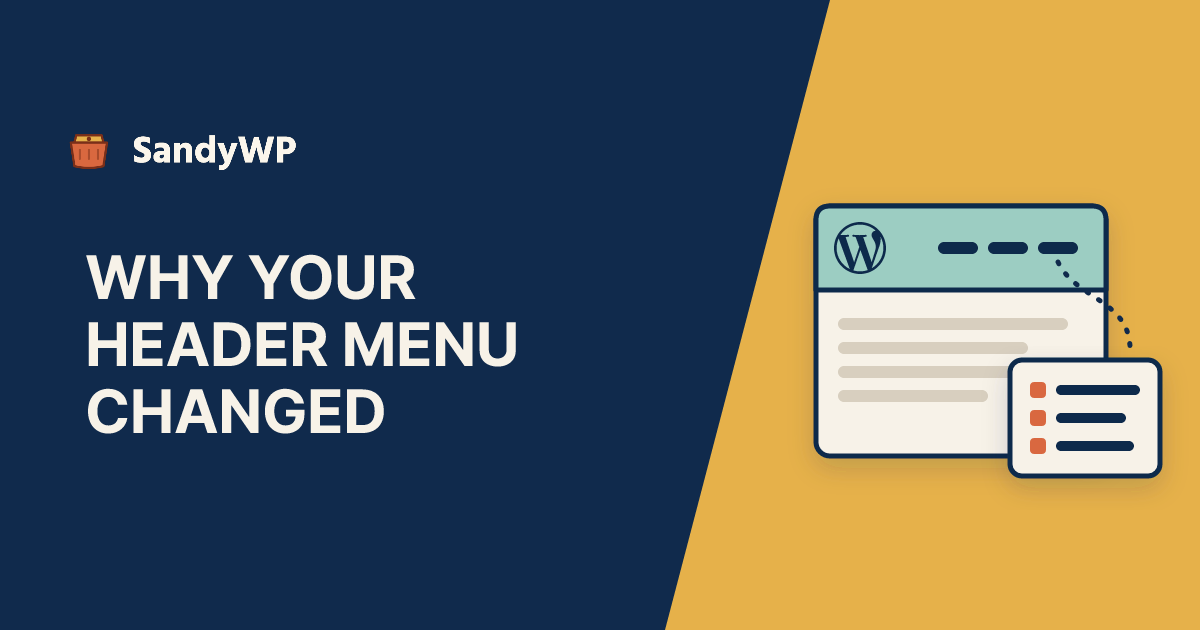
In its own post, of type wp_navigation. The Navigation block in your header only holds a pointer to it, an attribute called ref.
You can see every menu in Appearance, Editor, Navigation, or over SSH:
wp post list --post_type=wp_navigation --fields=ID,post_title,post_date
Unlike template parts, wp_navigation posts are not tagged with a theme. In core's taxonomy.php, the wp_theme taxonomy is registered for wp_template, wp_template_part and wp_global_styles only.
So when you switch themes, the header layout stays behind with the old theme, but the menus are still there for the new one.
Why did my header menu change by itself?
Because your header's Navigation block has no ref, so WordPress chooses a menu on every page load. Twenty Twenty-Five's header pattern ships the block as <!-- wp:navigation {...} /-->, with no menu named.
With no ref, the block renders block_core_navigation_get_fallback_blocks(). That calls WP_Navigation_Fallback::get_fallback(), which queries wp_navigation posts ordered by date, descending, and takes the first one.
In plain terms: the header shows the most recently published menu. Create a new menu for the footer or a landing page, and an untouched header can switch to it.
If no wp_navigation post exists at all, core converts a classic menu into one: the menu at the primary location, else the menu with the slug primary, else the newest. With no classic menu either, it creates a menu titled "Navigation" holding a Page List block, which lists all your pages.
Why does the editor show the right menu when the site does not?
The editor fills the gap for you, without saving it. When the block has no ref, the editor picks the fallback menu and sets ref behind a call named __unstableMarkNextChangeAsNotPersistent().
So the editor looks settled while the saved header still has no pointer. The pointer is only written if you then save the header part for some other reason.
The fix is to choose explicitly. Select the Navigation block, open its menu picker in the toolbar or the block settings, choose the menu you want, and save the header.
After that the header names a menu by ID, and new menus elsewhere cannot displace it. You can confirm it in the code editor: the block comment should now contain "ref": followed by a number.
How do I make the header sticky in a block theme?
Select the Group block that wraps the header, open Styles, and set Position to Sticky. WordPress describes it as "The block will stick to the top of the window instead of scrolling."
This is the advice WPForms gives, and in a default theme it does not stick. A sticky element sticks inside its parent, and the Group's parent is the template part's own <header> element, which is exactly as tall as the Group.
We checked this in Chromium with the same nesting: scrolled 800 px, a sticky Group inside the <header> wrapper sat 800 px off the top of the window, gone. The same Group inside a sticky outer wrapper stayed at 0.
So put the sticky setting one level up. Open each template (Pages, Single Posts, Blog Home and so on), select the Header template part block, wrap it in a Group (Options, Group), and set that Group's Position to Sticky.
That edits templates, not the header part, so it is saved per template. A new template you add later needs the same wrap.
The Sticky option only appears if the theme enables it. Core reads settings.position.sticky from theme.json, which appearanceTools: true turns on.
Twenty Twenty-Five has appearanceTools set, so the option is there.
How do I edit the header in a classic theme?
Start in Appearance, Customize. Site Identity holds the logo, site title and tagline; many themes add a Header or Header Image section of their own.
For the menu, use Appearance, Menus and assign it to the theme's header location under Manage Locations.
Like everything in the Customizer, those location assignments are theme mods. get_nav_menu_locations() reads get_theme_mod( 'nav_menu_locations' ), and the header image is the header_image theme mod, both stored in an option named theme_mods_<theme-folder>.
So in a classic theme the menu itself survives a theme switch, but its place in the header does not, so you reassign it under Manage Locations.
Our logo post goes through the same per-theme storage for the logo.
How do I edit header.php without losing the change?
In a child theme. Edit the parent's header.php and the next theme update replaces the file.
get_header() passes header-{name}.php and header.php to locate_template(), which looks in the child theme's folder first. Copy the parent's file into the child and edit the copy.
Keep two calls in it. wp_head() must stay just before </head>, and wp_body_open() just after <body>.
Core hangs a lot on wp_head: the title tag, styles and head scripts (wp_print_styles at 8, wp_print_head_scripts at 9), the canonical link, the site icon, and your Additional CSS at 101. Drop the call and all of that goes with it.
The Theme File Editor reverts a PHP edit that causes a fatal error on the active theme. SFTP has no such safety net, and a broken header.php breaks every page.
How do I add code to the WordPress header?
When people say "header" they sometimes mean <head>, for a verification tag, an analytics snippet or a font preconnect. Do not paste that into a header template part: blocks render inside <body>, not <head>.
Hook wp_head from a must-use plugin instead, so the code survives theme switches and updates:
<?php
// wp-content/mu-plugins/head-snippet.php
add_action( 'wp_head', function () {
    echo '<meta name="example-site-verification" content="abc123">' . "\n";
}, 20 );
Swap in the tag your provider gives you. A plugin such as WPCode does the same from a settings screen.
Should I test header changes on a copy first?
For swapping a logo or editing a menu item, no. Revisions and Reset are undo enough.
A copy is worth it when you do not know what will happen. Will choosing a menu change what visitors see today, because the header was quietly showing a different one? Will wrapping the header for sticky break a template the client customised? Does the header survive the theme switch you are planning?
The SandyWP Cloner copies a live site's database and files into a disposable sandbox, and it only reads from production. Your wp_template_part, wp_navigation and theme mod records come across with the database, so the copy shows the header and the menu fallback you actually have.
With SSH and WP-CLI you can list the menus, check which one is newest, and see what the header will fall back to before you touch anything. If you build themes, our theme developers page covers how we use disposable sites for that loop.
If the change works, repeat it on production. If it does not, delete the sandbox.