sandywp / plugins / wp-asset-clean-up
Asset CleanUp: Page Speed Booster
Speed up your WordPress site by unloading unnecessary CSS and JavaScript, reducing page bloat, and managing your own Critical CSS per page type.
Ready in seconds.
v1.4.0.5 100,000+ installs WP 4.7+ PHP 5.6+
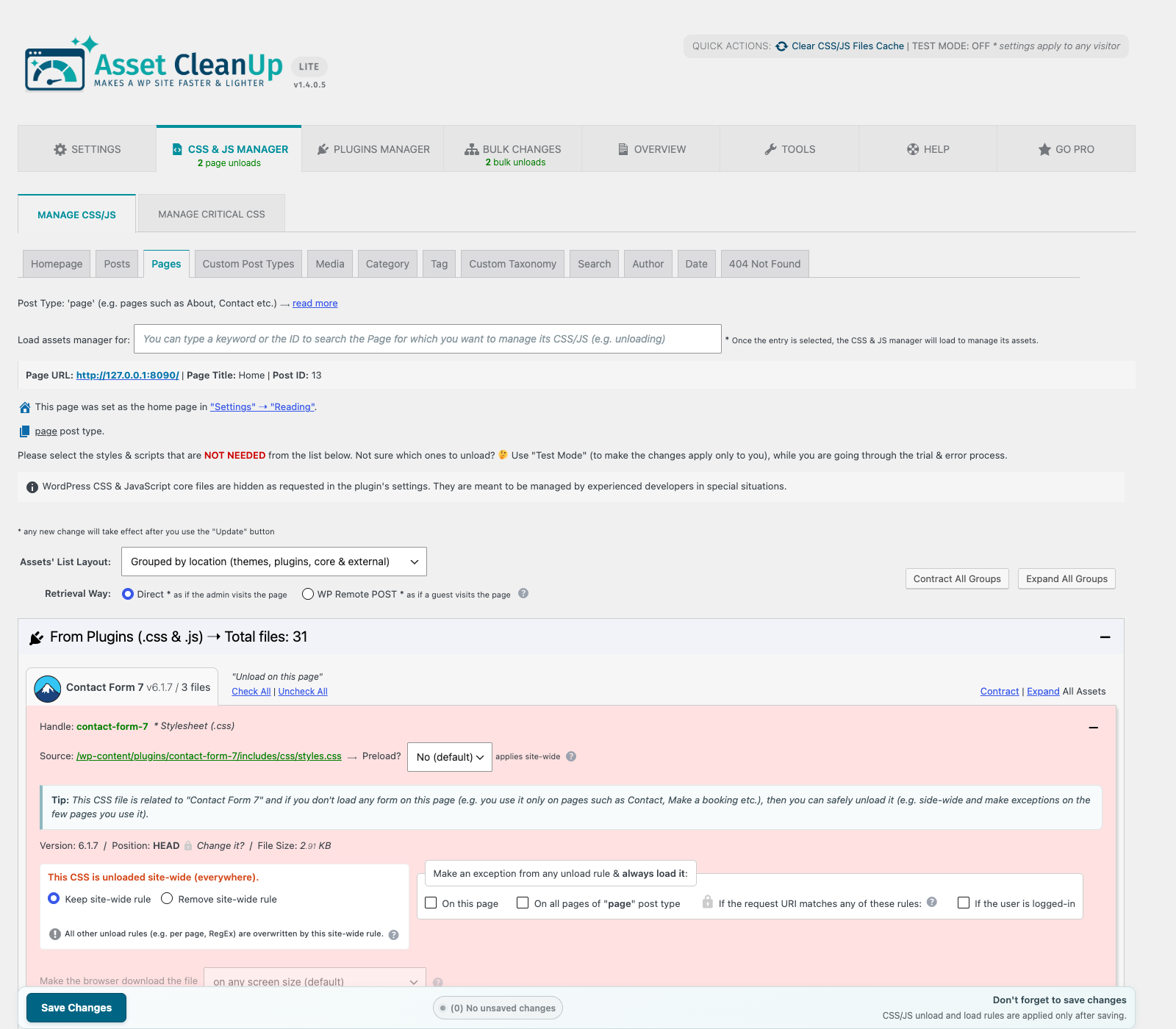
What you get inside
5 screens-
CSS & JS Manager — inspect the assets loaded on a page and unload unneeded CSS or JavaScript by page or site-wide.
-
Overview — review active unload rules, load exceptions, async/defer attributes, and stale entries in one place.
-
Manual Critical CSS — add and manage your own Critical CSS for individual pages and other WordPress contexts.
-
Getting Started — follow a guided, safety-first workflow from Test Mode to your first optimization.
-
Settings — configure asset retrieval, cleanup, Test Mode, and plugin behavior from clearly organized sections.
About this plugin
WordPress themes and plugins often load CSS and JavaScript on pages that do not use them. A contact form may load on the homepage, a slider may load on a plain article, or store-related files may load outside the shop.
Asset CleanUp shows you what each page loads and lets you unload what is not needed. This can reduce HTTP requests, page weight, and browser work while complementing your existing caching setup.
Use Test Mode to validate changes as an administrator before they affect visitors.
Asset CleanUp gives you precise, testable control over every optimization.
A safer workflow, without giving up control
The Dashboard keeps the technical detail experienced users need while guiding first-time users through Getting Started, Test Mode, and the central Overview page. Test changes before they affect visitors, then review and manage existing or leftover rules from one place.
CSS and JavaScript management
- View loaded stylesheets and scripts, organized by their source.
- Unload unnecessary CSS and JavaScript on the homepage and on individual posts, pages, and custom post types.
- Manage assets from the Dashboard, the post/page edit screen, or the front-end view.
- Review unload rules, exceptions, asset attributes, page options, and leftover entries from the Overview page.
- Minify and combine supported CSS and JavaScript, including supported inline code.
- Preload selected CSS and JavaScript files when they need to be discovered earlier.
Granular manual Critical CSS management
Add, edit, and remove your own Critical CSS directly from the Dashboard. Keep manual CSS organized by supported page context instead of maintaining one large global block.
Asset CleanUp does not automatically generate Critical CSS. It gives you a structured way to manage CSS that you prepare yourself.
Fonts and resource loading
- Combine, preload, asynchronously load, or remove Google Fonts requests, with
font-displayand preconnect controls. - Preload local font files and apply
font-display. - Add
fetchpriority,loading, anddecodingattributes to images using simple matching or regular expressions. - Lazy-load images where appropriate.
WordPress cleanup options
- Remove unused WordPress features such as Emojis, Dashicons for guests, and Comment Reply.
- Remove selected discovery links, metadata, and oEmbed resources from the document HEAD.
- Disable RSS feed links or feeds when they are not needed.
- Restrict or disable XML-RPC when your site does not rely on it.
- Strip supported HTML comments, with exceptions where required.
Works with your caching setup, it does not replace it
Asset CleanUp is not a page-caching plugin. It controls what WordPress outputs; a page cache, server cache, or CDN can then store and deliver the optimized result.
After changing rules, clear every active cache layer. Avoid enabling the same minify or combine feature in multiple optimization plugins at the same time.
Asset CleanUp Lite and Pro
Lite includes page-level asset management, Test Mode, manual Critical CSS for supported contexts, resource-loading controls, and WordPress cleanup options.
Go beyond individual CSS and JavaScript files with the Plugins Manager.
Lite includes an interactive preview of the Plugins Manager (rules can be explored, but saved only in Pro). In Pro, it can prevent entire plugins from running on frontend or Dashboard pages where they are not needed, not merely remove their CSS and JavaScript. This can reduce PHP work, database queries, and potential conflicts before the page is generated.
Asset CleanUp Pro also adds broader conditional rules, hardcoded asset management, device-specific rules, and advanced JavaScript attribute and placement controls.
Documentation and support
- Read the Asset CleanUp documentation.
- Ask a question in the WordPress.org support forum.
External Services and Privacy
WordPress.org plugin icon service
When an authorized administrator opens an Asset CleanUp Dashboard screen and the local plugin-icon cache is missing or incomplete, Asset CleanUp may request public plugin information from https://api.wordpress.org/plugins/info/1.2/. The request is used only to retrieve icons for active plugins displayed inside Asset CleanUp. It can include the corresponding WordPress.org plugin slugs and standard HTTP metadata, including the server IP address. Asset CleanUp does not intentionally include the site URL, administrator details, or site content. See the WordPress.org Privacy Policy.
Google Fonts preload audit
When an authorized administrator explicitly runs the Google Fonts preload audit, Asset CleanUp may request discovered Google Fonts stylesheets from https://fonts.googleapis.com/ and process font-file URLs from https://fonts.gstatic.com/. Requests can include the stylesheet URL and its font-family, variant, subset, or text parameters; the browser user-agent used by the audit; and standard HTTP metadata, including the server IP address. These requests are made only as part of the administrator-initiated audit. See the Google Privacy Policy.
The following two Asset CleanUp-operated services are optional. Both are disabled by default and require an administrator to opt in from Asset CleanUp > Settings > Plugin Usage Preferences.
Dashboard announcements
When an administrator explicitly enables announcements, Asset CleanUp periodically requests the Asset CleanUp Lite announcements feed. The feed is used to show maintenance information, important update notices, optimization guides, and occasional product offers in the WordPress Dashboard. Asset CleanUp does not intentionally add the site URL, administrator details, or site content to this request. As with any HTTP request, the service receives the server IP address and standard HTTP metadata. When announcements are disabled, this feed is not requested.
Optional usage tracking
When an administrator explicitly enables usage tracking, Asset CleanUp sends an initial technical check-in and then no more than one check-in per week to the Asset CleanUp usage-tracking endpoint. The payload can include the PHP, WordPress, and Asset CleanUp versions; Asset CleanUp settings; first-use and review-notice state; server software; multisite status; the active theme name and version; active and inactive plugin file identifiers; and the WordPress locale. The site URL, administrator name, and administrator email are not intentionally included in the tracking payload. Disabling the setting stops future check-ins.
The announcements and usage-tracking services are operated by the Asset CleanUp developer. See the privacy policy. CloudFront infrastructure is provided by Amazon Web Services and is also subject to the AWS Privacy Notice.
Questions
- Is Asset CleanUp a caching plugin?
No. Asset CleanUp controls which CSS, JavaScript, and other optimizations WordPress outputs. It works best alongside a page cache, server cache, or CDN.
- Does Asset CleanUp automatically remove unused CSS or generate Critical CSS?
No. You decide which assets to unload and provide any Critical CSS yourself. This keeps each optimization inspectable and under your control, but it also means that every change should be tested.
- Can Asset CleanUp improve Core Web Vitals or PageSpeed scores?
It can help when unnecessary CSS or JavaScript contributes to transfer size, render blocking, or browser work. Results still depend on your theme, plugins, hosting, caching, media, third-party scripts, and configuration. No plugin can guarantee a particular score.
- Can unloading a CSS or JavaScript file break the page?
Yes, if that file is required for the page’s layout or functionality. Use Test Mode, make one meaningful change at a time, and test desktop, mobile, forms, navigation, popups, and other interactive elements before publishing the rule to visitors.
- I am not sure which assets to unload. Where should I start?
Start with obvious candidates:
- Contact-form assets on pages without a form.
- Slider or gallery assets on pages without a slider or gallery.
- Store-related assets on pages outside the shop flow.
Avoid unloading WordPress core files or dependency files unless you understand what relies on them.
- Why are my changes not taking effect?
The most common cause is caching. Clear plugin, server, browser, and CDN caches, then test as a logged-out visitor. Also check whether Test Mode is still enabled and whether another optimization plugin is applying the same type of rule.
See the detailed troubleshooting guide.
- Why is a CSS or JavaScript file missing from the manager?
WordPress-enqueued assets are the easiest to detect and manage. Some files may be hardcoded, injected dynamically after the page loads, removed earlier by another plugin, or hidden by a cached response. Try another asset-retrieval method or the front-end manager. Advanced hardcoded asset management is available in Asset CleanUp Pro.
- Can I use Asset CleanUp with another performance plugin?
Yes. Asset CleanUp is commonly used with caching plugins and CDN services. Do not enable the same minify, combine, or related optimization in more than one tool, because overlapping transformations can cause conflicts or make troubleshooting difficult.
sandywp / also on the shelf
Try another plugin

Jetpack Boost – Website Speed, Performance and Critical CSS
4.7 · 200K+ installs
Speed up your WordPress site with one-click optimizations like Page Cache, Critical CSS, and Image CDN to improve Core Web Vitals.

Hummingbird Performance – Cache & Page Speed Optimization for Core Web…
4.7 · 70K+ installs
Optimize PageSpeed Performance & Core Web Vitals, Advanced Cache, Minify CSS & JavaScript, Inline Critical CSS, Defer CSS…
Reduce Unused CSS Solution with Critical CSS For WP
3.8 · 1K+ installs
Critical CSS For WP removes the unused CSS which helps to paint fast and render the above fold content, before downloading the…
Spin up a real WordPress site in seconds.
Test plugins, build a demo, hand a client a link — then squash it and start again. No local setup, no Docker.