sandywp / plugins / sticky-buttons
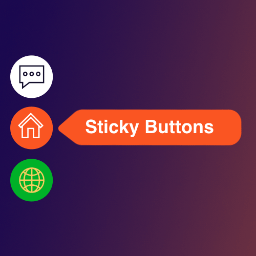
Sticky Buttons
Floating Buttons Builder
Increase user engagement by incorporating sticky buttons that highlight relevant information on your website.
Ready in seconds.
v4.3.6 10,000+ installs WP 5.5+ PHP 7.4+

What you get inside
2 screens-
Sticky Buttons 1
-
Sticky Buttons 2
About this plugin
Try Free Demo | 🚀 Try Pro Demo | Documentation
Sticky Buttons is a free WordPress plugin that lets you quickly create customizable floating buttons. These attractive buttons stay visible as visitors scroll your site, guiding users to essential actions and boosting engagement effortlessly.
🌟 Key Benefits:
- Easily create eye-catching floating buttons
- Increase user interaction and conversions
- Lightweight & optimized for performance
- Simple setup – works seamlessly with any theme
✅ Transform user experience with Sticky Buttons!
Main Features
Enhance your website’s navigation with the Sticky Buttons plugin for WordPress. Designed to simplify browsing, this plugin helps visitors easily find the information they need and navigate between sections with ease. Site administrators can fully customize the button menu to fit their specific needs.
🎨 Customization & Design
- Create unlimited sticky buttons.
- Choose from 4 different button shapes.
- Set individual button colors and backgrounds.
- Flexible Positioning: Choose between Fixed (Sticky), Absolute, or Static placement.
- Organize your menus using Custom Tags for quick filtering and management.
- Access over 2000 Font Awesome 6 icons.
- Add custom labels to each button.
🔗 Links & Accessibility
- Insert any type of link to buttons.
- Add custom attributes:
ID,class,aria-label. - Responsive Visibility: Control visibility by hiding or showing menus on specific screen sizes.
- Mobile-friendly and responsive design.
🛠 Efficient Management
- Bulk Actions: Quickly change status or test mode for multiple menus at once.
- Test Mode: Preview menus privately (visible only to admins) before going live.
- Export/Import: Effortlessly transfer your button sets between websites via JSON.
⚡ Performance & SEO
- Optimized for speed – doesn’t slow your website.
- SEO-friendly button structure to improve indexing.
—
Ideal Uses for Sticky Buttons
- Instant Messaging: Add quick-access buttons for WhatsApp, Telegram, Skype, or Messenger.
- Floating CTA: Keep “Book Now” or “Get a Quote” buttons always visible to boost sales.
- Mobile App Experience: Create a professional bottom or side navigation bar for mobile users.
- Quick Support: Provide easy access to your Help Center, FAQs, or Support tickets.
- Anchor Navigation: Build a floating table of contents to navigate between long page sections.
- Social Presence: Link to your Instagram, Facebook, LinkedIn, or TikTok profiles.
- Membership Access: Quick links for Login, Register, and User Account pages.
- Special Offers: Highlight time-limited promotions or discount codes.
Check the FAQ section below for step-by-step guides on how to set up these features!
—
Pro Version
Unlock the full power of Sticky Buttons with advanced features designed to elevate your site’s engagement and user experience:
🎨 More Customization
- Hold Label Open – Keep button labels always visible.
- Custom Icons – Upload your own icons to match your brand.
- Icon Animations – Enhance engagement with 7 elegant animation effects.
🔗 Enhanced Functional Links
- Translate Page – Instant, one-click website translation.
- Social Sharing – Easy sharing via Facebook, Twitter, LinkedIn, and more.
- Next/Previous Post – Smooth navigation between posts.
- Forced Download – Direct file downloads (ebooks, PDFs, software).
- Smooth Scrolling – Effortlessly scroll to specific page sections.
- Scroll to Top/Bottom – Quick page navigation buttons.
- Print Page – Convenient printing for your content.
- Font Size Adjuster – Allow users to customize page readability.
- Bookmark & URL Sharing – Simple bookmarking and URL copy actions.
🎯 Advanced Display Rules
- Scroll-Based Visibility – Dynamically show or hide buttons based on scroll position.
- Timer Action – Control button visibility after a specified time interval.
- User Role Permissions – Show or hide buttons based on user roles.
- Multilingual Support – Custom menus tailored for different languages.
- Scheduled Visibility – Automatically display buttons at specific dates and times.
- Activate by URL – Display buttons conditionally based on URL parameters or specific pages.
- Activate by Referrer URL – Control button visibility based on visitors’ referrer.
- Browser Compatibility Control – Automatically hide buttons for outdated browsers.
🚀 Upgrade to Sticky Buttons Pro and supercharge your website!
—
🚀 Maximize Results with Complementary Plugins
Enhance your website’s functionality and user engagement by combining Sticky Buttons with these powerful plugins:
- Popup Box – Create engaging, custom popups to boost conversions.
- Counter Box – Easily add counters, timers, and countdowns to highlight urgency.
- Calculator Builder – Build custom interactive calculators for your users.
- WP Coder – Add custom HTML, CSS, PHP and JS code to your site easily.
- Modal Window – Design beautiful, custom modal windows for capturing leads or displaying content.
👉 View all plugins by Wow-Company
✅ Combine Sticky Buttons with these plugins to build a highly interactive, engaging, and user-friendly website.
Support
Need help? Ask questions and get quick answers in our support center.
Installation Instructions
📌 Option 1: Install via WordPress Dashboard
- Go to your WordPress admin dashboard (
wp-admin). - Navigate to
Plugins→Add New. - Search for “Sticky Buttons” and click “Install Now”.
- After installation, click “Activate”.
📌 Option 2: Manual Installation (Upload)
- Download the plugin’s zip file.
- In your WordPress dashboard, go to
Plugins→Add New→Upload Plugin. - Select the downloaded zip file, then click “Install Now”.
- After installation, click “Activate”.
Alternatively (FTP):
- Unzip the downloaded plugin file.
- Upload the extracted
sticky-buttonsfolder to your server’s/wp-content/plugins/directory via FTP. - Go to
Pluginsin your WordPress dashboard and click “Activate” next to Sticky Buttons.
🚀 Getting Started
- Once activated, a new
Sticky Buttonssection will appear in your WordPress admin menu (on the left side). - Click “Add New” to create your first button set.
- Configure your buttons as needed.
- Click “Save” to finalize and display your sticky buttons on the website.
Questions
- The buttons do not appear on my website. How can I fix this?
If the buttons don’t appear, it’s often due to caching. Follow these steps to resolve the issue:
- Clear your browser cache – Press
Ctrl + Shift + R(Windows) orCmd + Shift + R(Mac) to reload without cache. - Clear your WordPress cache – If you’re using a caching plugin (like WP Rocket, W3 Total Cache, or LiteSpeed Cache), clear the cache from its settings.
- Purge server cache – If your hosting uses caching (e.g., Cloudflare, SiteGround, Nginx), clear the cache from your hosting control panel.
- Disable caching temporarily – If the issue persists, deactivate your caching plugin temporarily and verify whether the buttons appear.
- Clear your browser cache – Press
- Buttons are visible only to administrators, not regular users. Why?
Check if “Test Mode” is enabled. When Test Mode is activated, sticky buttons are visible only to site administrators and not to regular visitors.
- Can I change the position of the sticky buttons?
Yes! You can easily position the buttons on the left, right, top, or bottom of the screen from the plugin settings.
- Can I display buttons only on certain pages?
Yes! In the Lite version, you can:
– Show buttons sitewide (on all pages).
– Insert buttons manually using the shortcode[Sticky-Buttons id="1"]to display them only on specific pages or posts.In the Pro version, you gain advanced controls to display buttons based on categories, post types, specific pages, user roles, and more.
- Can I use multiple sets of buttons on the same page?
Absolutely! You can create and display multiple sets of sticky buttons simultaneously. Each set can be individually configured and controlled.
- How does the “Mobile Rules” (Double Click) feature work?
On touch devices, there is no “hover” state. When Mobile Rules is enabled:
1. First Click: Displays the button’s label so the user can see what the button does.
2. Second Click: Opens the link or triggers the action.
If the user doesn’t click a second time, the label automatically hides after 3 seconds.- What is the difference between Fixed, Absolute, and Static positions?
- Fixed (Sticky): Buttons “float” over the content and stay visible while scrolling.
- Static: Buttons are placed directly where you insert the shortcode (e.g., inside a post or page content).
- Absolute: Buttons are positioned relative to the nearest parent container, useful for specific layout designs.
- How can I use Tags to organize my menus?
Tags allow you to group your menus (e.g., “Promo”, “Social”, “Contact”). You can assign a tag in the menu settings and then use the filter at the top of the menu list to quickly find all sets belonging to that category.
sandywp / also on the shelf
Try another plugin

Buttonizer – Floating Menus, Sticky Buttons, & Popup Builder
4.5 · 70K+ installs
Floating Menus, Sticky Buttons, & Popup builder. WhatsApp Chat, Facebook Messenger, Telegram, Live Chat, Call, SMS, Email…

5.0 · 4K+ installs
Floating button that opens the WhatsApp chat to the technical support on turn. It allows asign the work schedule up to 2…
-
Easily build floating, social share, and print buttons in WordPress. Engage visitors, increase clicks, and let users share or…
Spin up a real WordPress site in seconds.
Test plugins, build a demo, hand a client a link — then squash it and start again. No local setup, no Docker.