sandywp / plugins / protect-uploads

Protect Uploads
Protect your uploads directory. Prevent browsing, add watermarks, disable right-click, and password-protect files. For more information, visit protect …
Ready in seconds.
v0.7.1 30,000+ installs WP 5.0+ PHP 7.4+
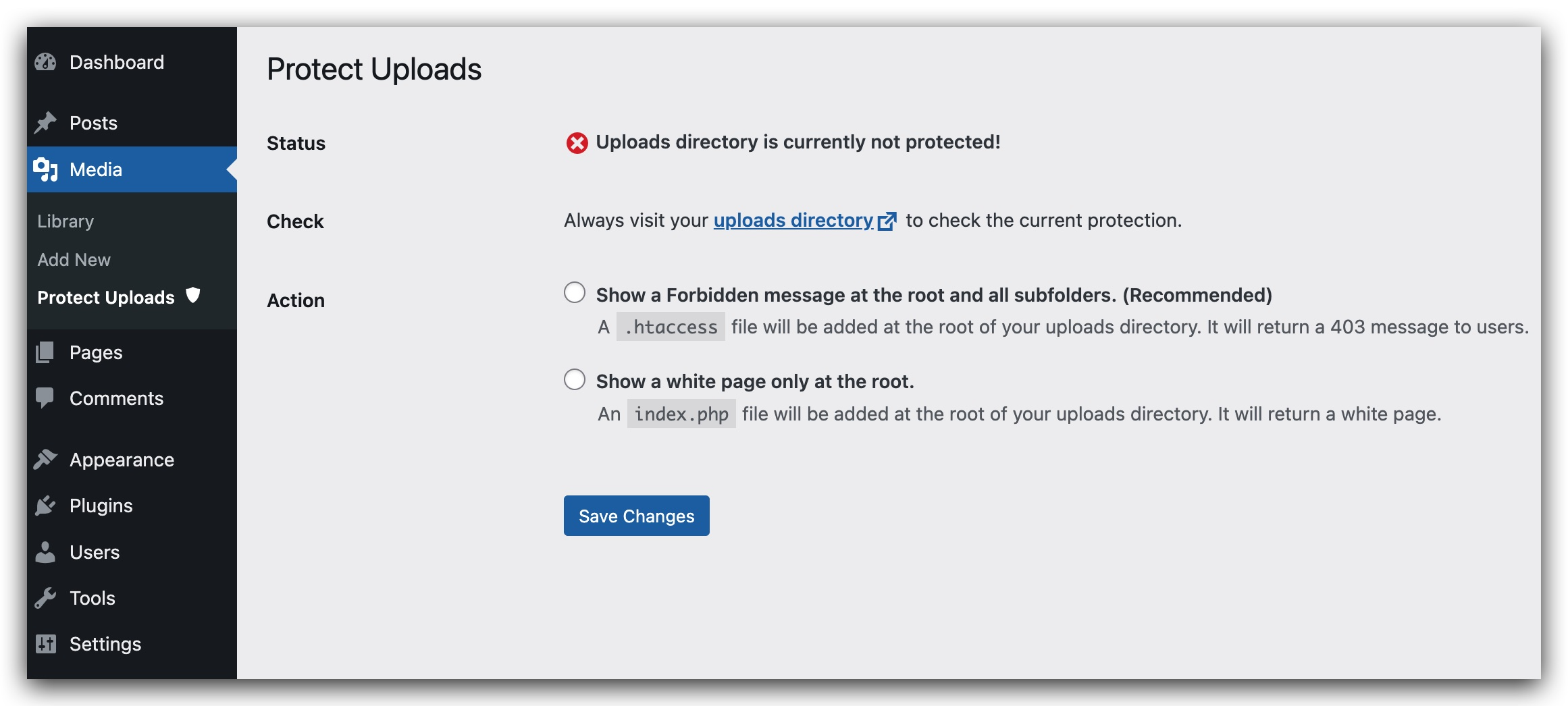
What you get inside
1 screen-
Administration Page for the plugin.
About this plugin
The uploads directory is where the files of the WordPress library are stored. Unfortunelty, this directory is not protected. A person who wants to see all your library could list it instantly going to : http://yourwebsite/wp-content/uploads . This plugin will hide the content by adding an index.php file on the root of your uploads directory or by setting an htaccess which will return a 403 error (Forbidden Access).
- Depending on your server setting, the htaccess option could be disabled.
New in Version 0.7.0:
- Site Health checks: See at a glance — under Tools → Site Health — whether your uploads directory is protected from browsing, what server you are running, and whether any risky file types are sitting in your uploads folder.
- WordPress 7.0 ready: Fully tested on WordPress 7.0 and PHP 8.3.
All features:
- Directory Protection: Stop visitors from browsing your uploads directory (index.php or .htaccess 403).
- Image Watermarking: Add text watermarks to your uploaded images with customizable position, opacity, and font size.
- Right-Click Protection: Prevent users from right-clicking to download or save your images.
- Password Protection: Secure individual media files with passwords. Multiple passwords can be set for each file with custom labels.
- Access Logging: Track who accesses your password-protected files with detailed logs including IP address and user agent.
- Site Health Checks: Built-in protection status tests with actionable advice.
Need more protection? Protect Uploads Pro adds image watermarks with bulk operations, expiring download links, role-based access with server-level enforcement, hotlink protection, download analytics, and a Protected Download block.
Available languages:
- English
- Français
- Español
- Italian (thanks to Marko97)
Questions
- How do I add a password to a media file?
- Enable password protection in Settings → Media → Protect Uploads
- Edit any media file in your Media Library
- Scroll down to the “Password Protection” section
- Add one or more passwords with descriptive labels
- How does watermarking work?
When enabled, watermarking automatically adds text to images when they are uploaded. You can customize:
– The watermark text (defaults to your site name)
– Position (top-left, top-right, bottom-left, bottom-right, center)
– Opacity (0-100%)
– Font size (small, medium, large)- Can I password protect only certain file types?
Yes, password protection works for all media file types including PDFs, images, videos, and documents.
sandywp / also on the shelf
Try another plugin

Kadence Security – Password, Two Factor Authentication, and Brute Force…
4.6 · 700K+ installs
Harden your site security with Login Security, Two-Factor Authentication (2FA), Vulnerability Scanner, Firewall, and more.…

Password Protected — Lock Entire Site, Pages, Posts, Categories, and Partial…
4.4 · 300K+ installs
Protect your WordPress site, pages, posts, WooCommerce products, and categories with single or multiple passwords.

4.5 · 80K+ installs
Powerful Download Manager Plugin for WordPress
Spin up a real WordPress site in seconds.
Test plugins, build a demo, hand a client a link — then squash it and start again. No local setup, no Docker.