sandywp / plugins / backup-backup

Backup Migration
Backup, migrate, and create staging sites with free cloud storage and support.
Ready in seconds.
v2.1.7 80,000+ installs WP 4.6+ PHP 5.6+
What you get inside
8 screens-
Backup Migration plugin front
-
What will be backed up
-
Backup in progress
-
Backup finished
-
Manage & Restore backups
-
Restoring in progress
-
Restore finished
-
Staging Sites
About this plugin
TL;DR:
- 🚀 Lightning fast backups
- 🪶 Lightweight – just over 1MB
- ⚡ Super-quick migration with only a few clicks
- 🎯 Incredibly easy to use – no tech skills required
- ☁️ Many free storage options: Google Drive, Dropbox, OneDrive, pCloud, Amazon S3 & more
- 🔒 Exclusive own storage solution with 1GB of free space – unique on the market!
👉 Try it out instantly on a live demo
—
Creating a backup of your site has never been easier!
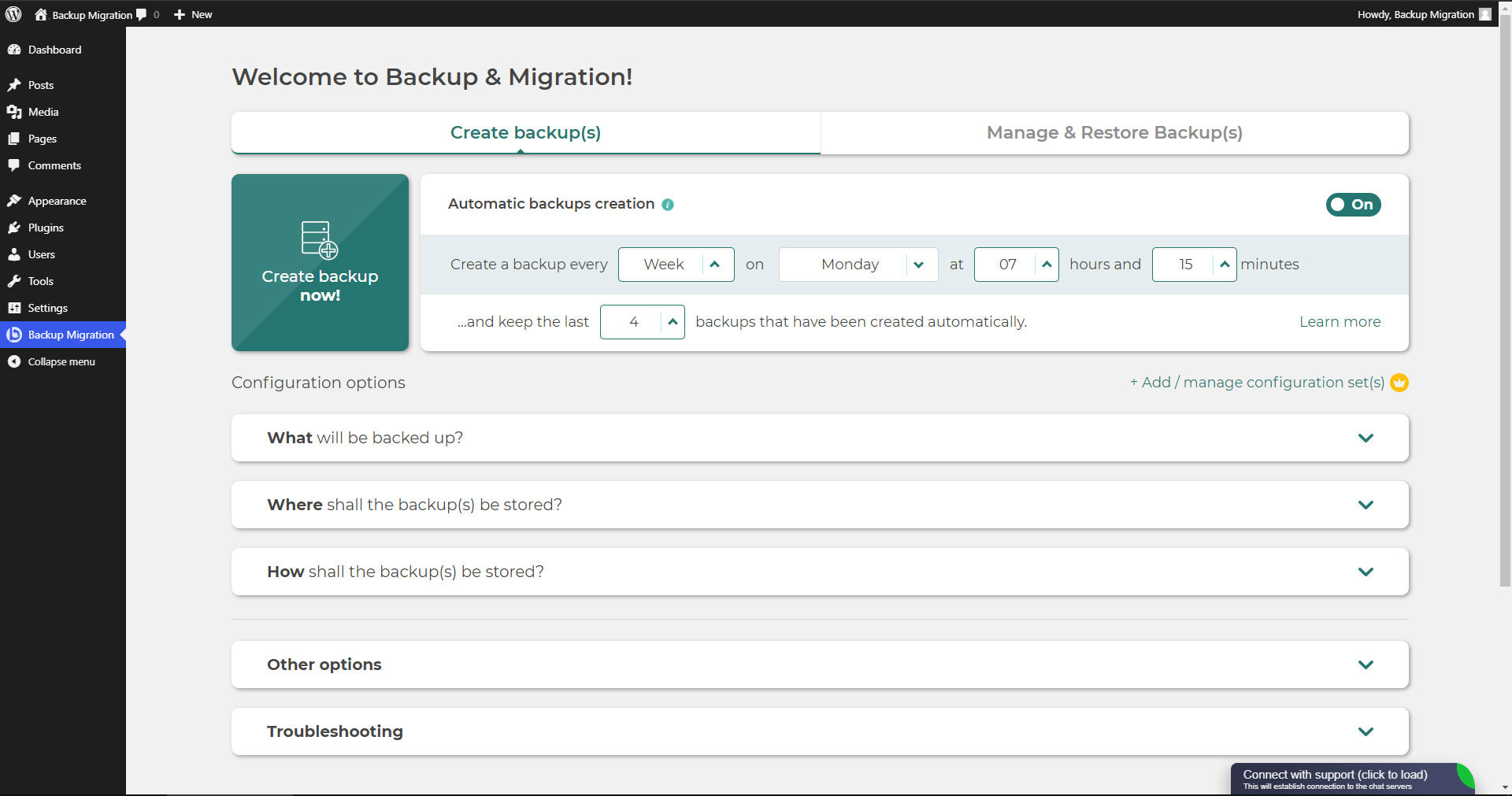
Simply install the plugin, click on “Create backup now” – done.
Website migration is just as easy and FREE, with just two clicks!
Wide range of available cloud storage locations: Google Drive, Dropbox, OneDrive, Amazon S3, Wasabi, pCloud, SFTP & FTP, and free cloud storage BackupBliss.
You can also schedule backups, e.g. define that a backup should be taken automatically every week (or every day/month).
Use a wide choice of configuration options:
- Define exactly which files / databases should be in the backup, and which should not
- Define where the backup will be stored (store locally and/or backup to cloud)
- Define what name your backup should have, in which instances you should receive a notification email, and much more
- Additional advanced features included in the premium: smart exclusion rules, Tar and GZip compression methods, full email notifications, automatic backups before updates, and more.
This plugin is all in one solution if you need to migrate your site to another host or just restore the local backup.
Note: This (free) version is limited to backups of 4GB in size, due to native WordPress ZIP limitations. For unlimited sizes and increased stability for larger sites, please have a look at the Premium Plugin. The code of this free plugin is licensed under GPLv3, however, we claim rights to other content. Please read the full Terms of Use that touch other points as well and apply in entirety.
If any questions come up, please ask us in the Support Forum – we’re always happy to help!
Questions
- How do I create my first backup?
Click on “Create backup now” on the settings page of the BackupBliss – Backup Migration Staging plugin.
BackupBliss – Backup Migration Staging will by default create a backup that contains everything from your site, except the BackupBliss plugin’s own backups and WordPress installation – if you want to include the WordPress installation as well, tick the checkbox in the section “What will be backed up?”.
You can download or migrate your backup (use the plugin as a WordPress duplicator) immediately after the backup has been created.
- How do I restore a backup?
-
If your backup is located on your site: Go to the BackupBliss Backup Migration Staging plugin screen, then to the Manage & Restore Backup(s) tab where you have your backups list, click on the Restore button next to the backup you would like to restore.
-
If your backup is located on another site: Go to the BackupBliss – Backup Migration Staging plugin screen on site #1, then to the Manage & Restore Backup(s) tab where you have the backups list, click on the “Copy Link”-button in the “Actions”-column. Go to the BackupBliss – Backup Migration Staging plugin screen on site #2, then to the Manage & Restore Backup(s) tab, click on “Super-quick migration”, paste the copied link, and hit “Restore now!” button. This process will first import the backup and then restore it, i.e. Backup Migrate also serves as backup importer.
-
If your backup is located on another device: Go to the BackupBliss – Backup Migration Staging plugin screen, then to the Manage & Restore Backup(s) tab, and click on the “Upload backup files” button. After the upload, click on the Restore button next to the backup you would like to restore.
-
If your backup is located on Google Drive, OneDrive, Dropbox, Amazon S3, Wasabi, BackupBliss Storage, pCloud, FTP or SFTP: Go to the BackupBliss – Backup Migration Staging plugin screen, then to the plugin section “Where shall the backup(s) be stored?”, turn ON the respective external storage option, and connect to your account. After that, the plugin will sync the available backup files in the plugin section “Manage & Restore Backups” from where you will be able to run Restore.
-
- How do I migrate or clone my site?
Migrate (or clone) a WordPress site by creating a full backup on the site that you want to migrate (clone) – site #1.
-
To transfer website directly from site #1 to site #2: Go to the BackupBliss – Backup Migration Staging plugin screen on site #1, then to the Manage & Restore Backup(s) tab where you have the backups list, click on the Copy Link button in the Actions column. Go to the BackupBliss – Backup Migration Staging plugin screen on site #2, then to the Manage & Restore Backup(s) tab, click on “Super-quick migration”, paste the copied link, and hit the “Restore now!” button. Make sure that the backup file on site #1 is accessible by setting “Accessible via direct link?” to “Yes” in the plugin section “Where shall the backup(s) be stored?”
-
To migrate the website indirectly: Go to the BackupBliss – Backup Migration Staging plugin screen, then to the Manage & Restore Backup(s) tab, and click on the “Upload backup files” button. After the upload, click on the Restore button next to the backup you would like to restore.
-
To migrate the website with Google Drive, OneDrive, Dropbox, Amazon S3, Wasabi, BackupBliss Storage, pCloud, FTP or SFTP: Go to the BackupBliss – Backup Migration Staging plugin screen, then to the plugin section “Where shall the backup(s) be stored?”, turn ON the respective external storage option, and connect to your account. After that, the plugin will sync the available backup files in the plugin section “Manage & Restore Backups” from where you will be able to run Restore.
-
- Where can I find my backups?
BackupBliss – Backup Migration Staging allows you to download backups, migrate backups, or delete backups directly from the plugin screen Manage & Restore Backup(s). By default, the migrator plugin will store backups locally on the server to /wordpress/wp-content/backup-migration but you can change the backup location to anywhere you please. If you have backups stored on the cloud – OneDrive, Dropbox, Google Drive, BackupBliss Storage, Amazon S3, Wasabi, pCloud, FTP or SFTP, you will need to connect the plugin with the respective storage account, so that the plugin can synchronize the data.
- How to run automatic backups?
Enabling automatic backups is done on the BackupBliss – Backup Migration Staging plugin’s home screen, just next to the “Create backup now!” button. Auto backup can run on a monthly, weekly, or daily basis. You can set the exact time (and day) and how many automatic backups you would like to keep in the same BackupBliss – Backup Migration Staging plugin section. We recommend that you optimize the number of backups that will be kept according to available space. With the premium version, you can also set partial automatic backups before theme, plugin, or WordPress core updates.
- How big are backup files?
Backup file size depends on the criteria you select in the “What will be backed up?” section of the BackupBliss – Backup Migration Staging plugin. There you can see file/folder size calculations as you save your settings. Usually, WordPress’ Uploads folder is the heaviest, while Databases are the lightest. If you are looking to save up space, you might want to deselect Plugins and WordPress installation folders, as you can usually download those anytime from WP sources.
- Is the backup creation and site migration free?
Yes. You can create full site backups, and automatic backups, and migrate your site (duplicate site) free of charge. BackupBliss – Backup Migration Staging Pro provides more sophisticated filters and selections of files that will be included/excluded from backups (affecting backup size), faster backup creation times, number of external backup storage locations, backup encryption, backup file compression methods, advanced backup triggers, additional backup notifications by email, priority support, and more.
- How to create staging sites?
You can easily set up a staging environment for your website with the BackupBliss plugin. You can choose to create a staging site either on your server / machine or on TasteWP. Both options are free!
-
To create a staging site on your server, navigate to the plugin section “Create a staging site”, select “Your server & domain”, define a custom path if you wish, and click on the button “Create staging site!”.
-
To create a stage site on a free WordPress sandbox platform – TasteWP, select the option “TasteWP (external server)”, then select a backup file that will be used, and click on the button “Create staging site!”.
-
sandywp / also on the shelf
Try another plugin

All-in-One WP Migration and Backup
4.5 · 5M+ installs
Trusted by 60M+ sites: The gold standard for WordPress migration and backup. Migrate, backup, and restore your WordPress site…

UpdraftPlus: WP Backup & Migration Plugin
4.8 · 3M+ installs
Backup, restore or migrate your WordPress website to another host or domain. Schedule backups or run manually. Migrate in minutes.

Jetpack – WP Security, Backup, Speed, & Growth
3.7 · 3M+ installs
Improve your WP security with powerful one-click tools like backup, WAF, and malware scan. Includes free tools like stats, CDN…
Spin up a real WordPress site in seconds.
Test plugins, build a demo, hand a client a link — then squash it and start again. No local setup, no Docker.