To export a WordPress site, go to Tools > Export, choose All content, and click Download Export File. You get a single XML file, called WXR, that you import on the other side under Tools > Import.
That file is not your site. Core says so itself, in a comment it writes into the top of every export:
<!-- This file is not intended to serve as a complete backup of your site. -->
Every guide that ranks for this phrase shows you the button. This post shows you what comes out of it, line by line, and when to stop using it.
What the export file actually contains
The exporter is one function, export_wp() in wp-admin/includes/export.php. It runs a query against the posts table and prints XML. Nothing else.
What it writes:
- Every post type registered with
can_exportset to true, which by default is posts, pages, attachments, navigation menu items, reusable blocks, block templates, global styles and fonts. - All post meta except
_edit_lock. That is the only key core skips. - Categories, tags, custom taxonomy terms, term meta, and navigation menus as
nav_menuterms. - Comments and comment meta, unless you filter them out.
- Six fields per author: ID, login, email, display name, first name, last name.
Menus and reusable blocks do come across, which is worth saying because a lot of guides claim they do not.
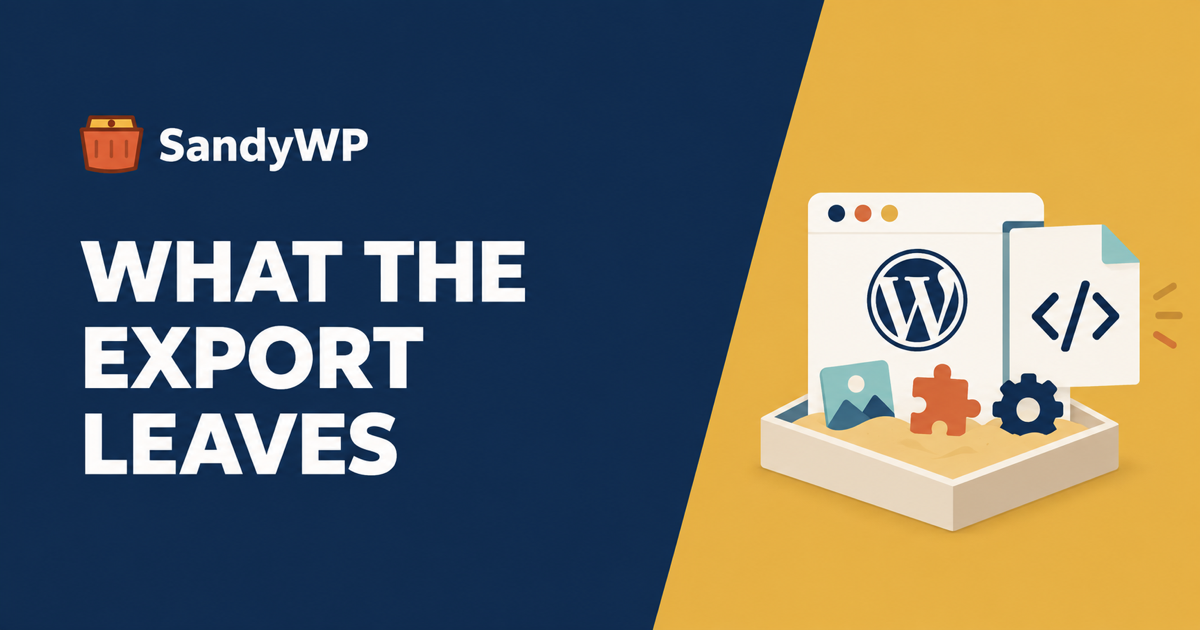
What it leaves behind
This is the part the export screen does not tell you.
Your media files. The XML holds a <wp:attachment_url> pointing at the image on your live site. The image itself stays where it is.
Everything in the options table. Site title, permalink structure, active plugin list, widget layout, theme settings, every plugin's configuration. None of it is exported. WP-CLI's own documentation for wp export says the command excludes "site configuration (options) or the attachment files themselves".
Plugins and themes. The code in wp-content is on disk, not in the database, so it is not in the file.
User accounts. The six author fields above are all you get. No passwords, no roles, no capabilities, no other users.
Custom database tables. WooCommerce order data, form entries, analytics tables. The exporter only ever reads posts, postmeta, comments, commentmeta, terms and users.
Revisions. Core registers the revision post type with can_export => false.
The trap: post types registered by a deactivated plugin
export_wp() builds its list with get_post_types( array( 'can_export' => true ) ). That is a runtime call, so it only sees post types that are registered right now.
A custom post type registered by a plugin exists only while that plugin is active. Deactivate the plugin, export, and every one of those posts is silently missing from the file. There is no warning and no error.
The same is true in reverse on import. Import a WXR full of product items into a site without WooCommerce and the rows land in the database with a post type nothing will ever query.
Activate every plugin that owns content before you export, and activate them on the destination before you import.
Does the export include images or not?
Both answers you will read are half right, and the mechanism explains why.
The XML contains no image data. But the WordPress Importer plugin has a checkbox on its first screen: Download and import file attachments. Tick it and fetch_remote_file() makes an HTTP request to each <wp:attachment_url> and saves the response into the new uploads folder.
So media transfers only while the old site is still online and serving those URLs publicly. If you exported the file, cancelled your hosting, and then tried to import, the images are gone. The same happens if the source is behind HTTP basic auth, a maintenance-mode plugin, or a Coming Soon page.
Three more things worth knowing about that download:
- The importer forces a 60-second timeout per file (
bump_request_timeout). A large video on a slow origin will fail. - It rejects a file whose size does not match the
Content-Lengthheader with "Downloaded file has incorrect size". import_attachment_size_limitdefaults to 0, meaning unlimited, but some hosts filter it.
Why page-builder pages break after an import
After downloading attachments, the importer runs backfill_attachment_urls(), which rewrites the old URLs to the new ones. Read the function and you will see it touches exactly two places:
UPDATE wp_posts SET post_content = REPLACE(post_content, %s, %s)
UPDATE wp_postmeta SET meta_value = REPLACE(meta_value, %s, %s) WHERE meta_key='enclosure'
post_content and the enclosure meta key. That is the whole remap.
Elementor, Beaver Builder, Divi and most block-based page builders store their layout in other postmeta keys, usually as serialised or JSON data. Those keys are imported verbatim and still contain the old domain's image URLs.
The pages look fine until the old site goes away. Then every builder image breaks at once, and it looks like an import that worked a month ago suddenly failed.
If you have to do it this way, fix the URLs afterwards with a serialisation-aware search and replace, not a SQL REPLACE. We wrote up why a plain find and replace corrupts serialised data and how wp search-replace handles it.
Exporting from the command line
If you have SSH, wp export is the same exporter with better controls:
wp export --dir=/tmp/export
wp export --post_type=post --start_date=2026-01-01 --dir=/tmp/export
wp export --max_file_size=-1 --dir=/tmp/export
It splits at 15 MB per file by default, which the browser export does not do, so it is the fix for an export that times out or downloads as a truncated file.
For an actual copy of the site, the database dump is a different command, and it is the one people usually want:
wp db export site.sql
tar -czf content.tar.gz wp-content
Those two files, together, are the site. The WXR file is a subset of the first one. Our WP-CLI commands reference covers the flags in more depth, and SandyWP sandboxes give you WP-CLI and SSH on a throwaway install if you want to try the commands somewhere that does not matter.
When WXR is the right tool
It is genuinely good at one job: moving content between two sites that are otherwise different.
Use it when you are consolidating two blogs, pulling a year of posts into a new site on a new theme, moving off WordPress.com to self-hosted, or seeding a test site with real articles. In all of those cases you want the posts and not the configuration.
Do not use it as a backup, a host migration, or a way to duplicate a site. For those you need the database and wp-content, and the export file is neither.
What to do instead for a full copy
For a real duplicate, you need three things: the database, the wp-content directory, and a search and replace across the database for the URL change.
You can do that by hand over SSH and phpMyAdmin. You can use a migration plugin such as All-in-One WP Migration or Duplicator, which package all three. Or, if what you want is a disposable copy to test something on, the SandyWP Cloner does the same three steps into a sandbox with its own URL, and only ever reads your production site.
We have longer write-ups on cloning a WordPress site safely and on what your host's staging button actually copies, both of which cover the same URL problem from the other direction.
A short checklist before you export
- Activate every plugin that registers a custom post type, or its content will not be in the file.
- Keep the source site online and publicly reachable until the import has finished downloading media.
- Tick Download and import file attachments on the importer's first screen.
- Export from the command line with
--max_file_size=-1if the browser download stalls. - After importing, check a page-builder page for broken images before you switch the DNS.
- If you wanted a backup, take
wp db exportpluswp-contentinstead. The XML is not one.