sandywp / plugins / yikes-inc-easy-custom-woocommerce-product-tabs

Custom Product Tabs for WooCommerce
Add custom tabs with content to products in WooCommerce.
Ready in seconds.
v1.8.6 80,000+ installs WP 3.8+ PHP 7.4+
What you get inside
4 screens-
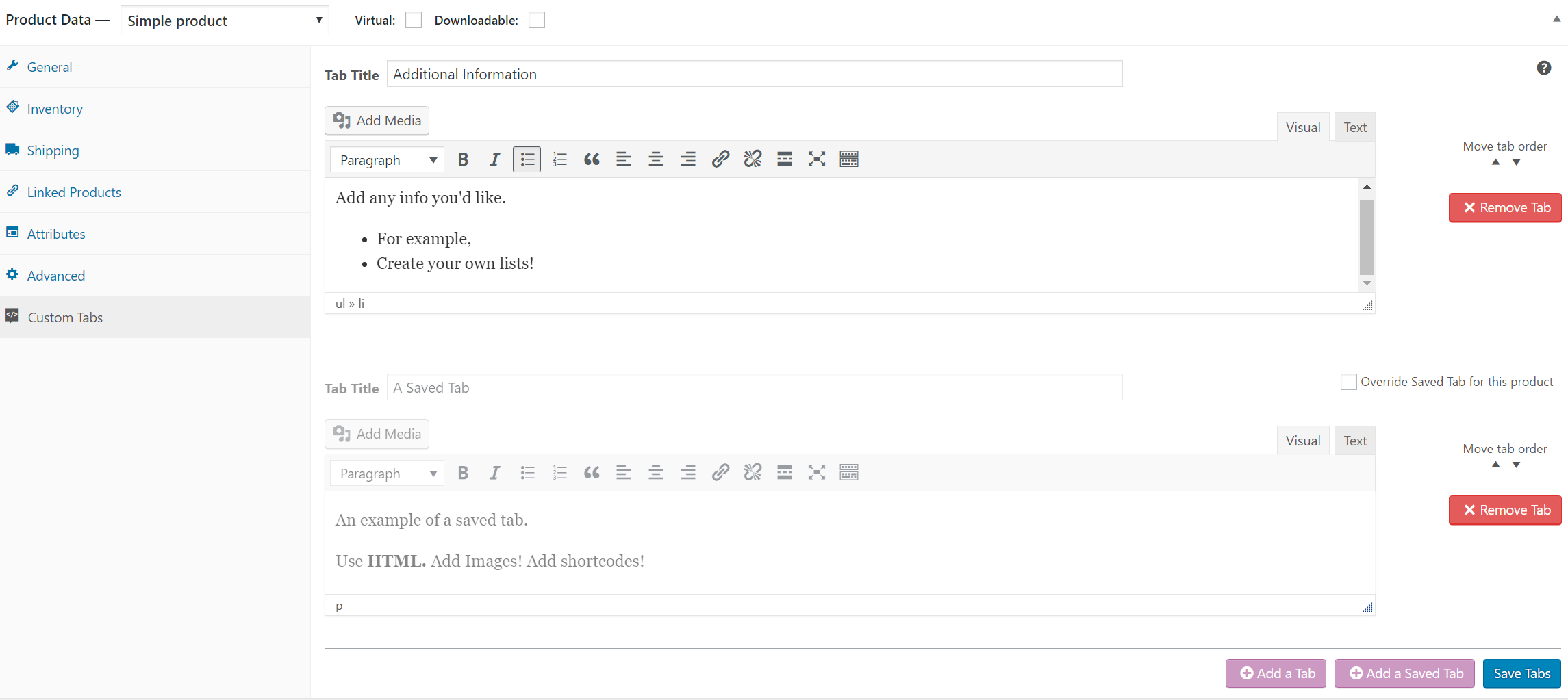
Custom Tabs manager on the 'Edit Product' screen
-
Custom product tab content displayed on the front end
-
All of the saved tabs on the settings page
-
Editing a single saved tab
About this plugin
This plugin extends WooCommerce to allow shop owners to add custom tabs to products. The tabs are displayed on the individual product pages to the right of the default “Description” tab.
Individual product tabs are managed on the WooCommerce Edit Product screen and can be added on a per product basis. You can also create saved tabs and add them to multiple products as needed. Tabs can be easily added, deleted and rearranged.
Tab content areas use the standard WordPress text editor and may contain text, images, HTML or shortcodes.
If you experience any problems, please submit a ticket on our Free WordPress Support Forums and we’ll look in to it as soon as possible.
This plugin is compatible with WPML.
Upgrade to Custom Product Tabs Pro for great enhanced features!
Questions
- Where do I go to add tabs to a product?
When editing a product in WooCommerce, you will find “Custom Tabs” in the bottom left corner of the Product Data box. Click on “Custom Tabs” to reveal the custom tab manager.
- Where will these tabs appear?
When the product is viewed on your website you will see the tabs you created to the right of the default “Description” tab.
- How do I change the order of the tabs?
To change the order of custom tabs use the up and down “Move tab order” arrows.
- How do saved tabs work?
Saved tabs are tabs you can create and then add to as many products you would like. If you update a saved tab, the changes will be updated for all products using that tab.
- How do I create saved tabs?
To create a saved tab, click on the ‘Custom Product Tabs’ item on the WordPress dashboard menu and click the “Add Tab” button.
- How do I add a saved tab to a product?
To add a saved tab to a product, go to the custom tabs section on the edit product screen, click the ‘Add a Saved Tab’ button above the tab, and choose which tab you would like to add.
- What does overriding a saved tab do?
When using a saved tab on a product, a checkbox appears with the message ‘Override Saved Tab’ If you click that checkbox, edit the tab and save, the tab will be changed for that product only. Any edits to that saved tab under ‘Custom Product Tabs’ will not be applied to that product.
- Why does the WYSIWYG editor default to the ‘Visual’ tab?
This was added in version 1.5 to support the dynamic adding and removing of the wp_editor/WYSIWYG editor. Without this setting, the WYSIWYG editor does not load the correct toolbar and the editor can potentially break.
sandywp / also on the shelf
Try another plugin

3.7 · 60K+ installs
The ultimate login branding solution! Theme My Login offers matchless customization of your WordPress user experience!

4.9 · 40K+ installs
Customize the logo on the WP login screen by simply dropping a file named login-logo.png into your WP content directory. CSS is…

4.1 · 30K+ installs
Style your WordPress site visually. Discover the most popular front-end design plugin! Try live demo.
Spin up a real WordPress site in seconds.
Test plugins, build a demo, hand a client a link — then squash it and start again. No local setup, no Docker.