sandywp / plugins / wp-pagenavi

WP-PageNavi
Adds a more advanced paging navigation interface.
Ready in seconds.
v3.0.1 500,000+ installs WP 6.8+ PHP 8.2+
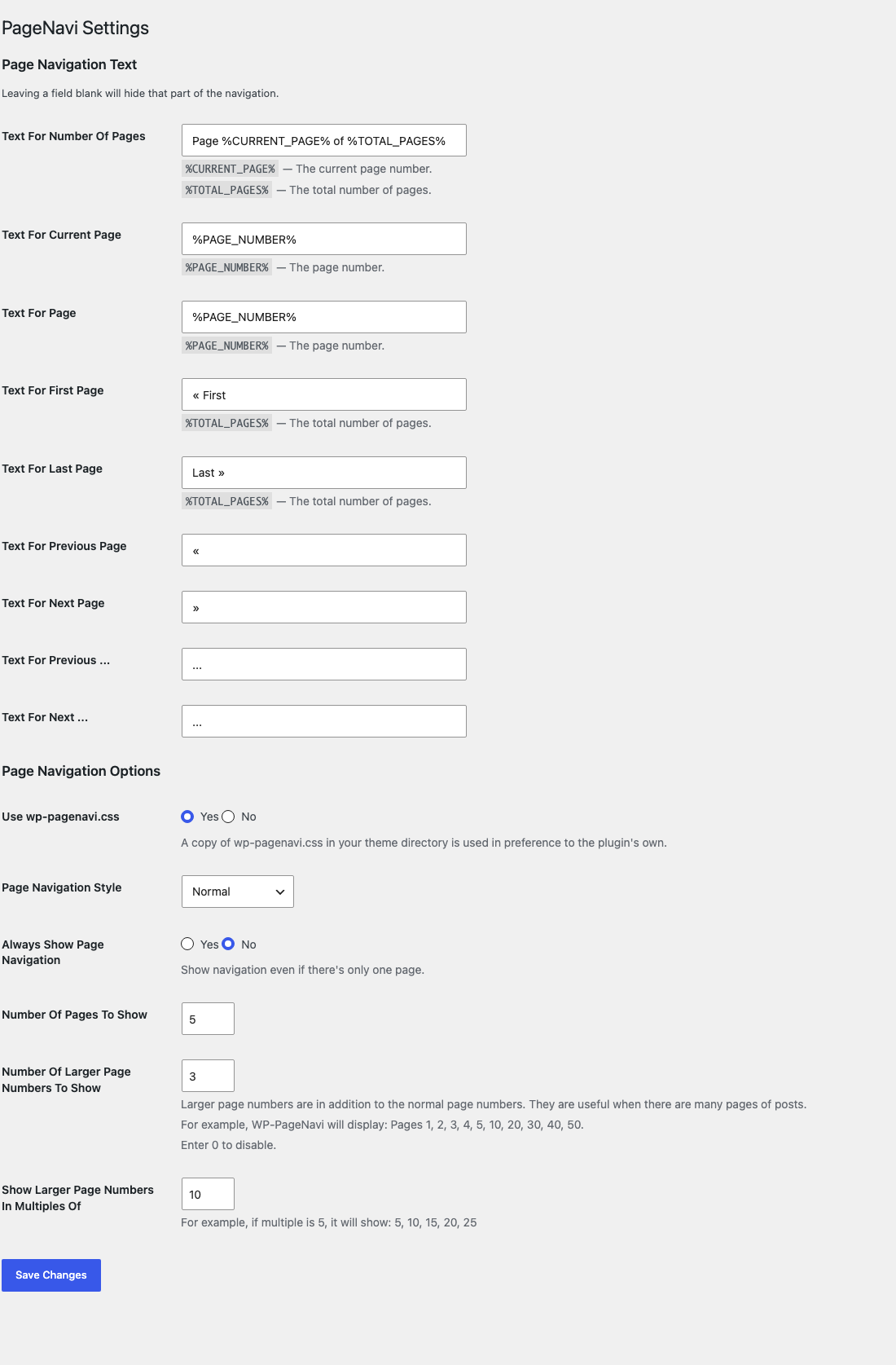
What you get inside
2 screens-
Settings -> WP-PageNavi, where every piece of the navigation text is set
-
The page links under the loop, on a front page forty-two pages long
About this plugin
Want to replace the old ← Older posts | Newer posts → links with some page links?
This plugin provides the wp_pagenavi() template tag which generates fancy pagination links.
Much of the 2.x line was the work of scribu, whose write-ups on using it with secondary queries are still the ones the FAQ below points at. The plugin icon is by SimpleIcon from Flaticon.
Donations
I spent most of my free time creating, updating, maintaining and supporting these plugins, if you really love my plugins and could spare me a couple of bucks, I will really appreciate it. If not feel free to use it without any obligations.
Usage
In your theme, you need to find calls to next_posts_link() and previous_posts_link() and replace them.
In the Twentyten theme, it looks like this:
<div class="nav-previous"><?php next_posts_link( __( '<span class="meta-nav">←</span> Older posts', 'twentyten' ) ); ?></div>
<div class="nav-next"><?php previous_posts_link( __( 'Newer posts <span class="meta-nav">→</span>', 'twentyten' ) ); ?></div>
You would replace those two lines with this:
<?php wp_pagenavi(); ?>
For multipart pages, you would look for code like this:
<?php wp_link_pages( ... ); ?>
and replace it with this:
<?php wp_pagenavi( array( 'type' => 'multipart' ) ); ?>
Go to WP-Admin -> Settings -> PageNavi for configuration.
Changing the CSS
If you need to configure the CSS style of WP-PageNavi, you can copy the css/wp-pagenavi.css file from the plugin directory into your theme’s directory as wp-pagenavi.css and make your modifications there. This way, you won’t lose your changes when you update the plugin.
The stylesheet sets no font and no text colour, so it inherits both from your theme, and its two border colours are CSS custom properties. A small change needs no copy of the file at all:
.wp-pagenavi {
    --wp-pagenavi-border-color: #d0d0d0;
    --wp-pagenavi-border-color-current: rebeccapurple;
}
Alternatively, you can set “Use wp-pagenavi.css” to No on the settings page and add the styles to your theme’s style.css file directly.
Changing Class Names
There are filters that can be used to change the default class names that are assigned to page navigation elements.
Filters
wp_pagenavi_class_pageswp_pagenavi_class_firstwp_pagenavi_class_previouspostslinkwp_pagenavi_class_extendwp_pagenavi_class_smallerwp_pagenavi_class_pagewp_pagenavi_class_currentwp_pagenavi_class_largerwp_pagenavi_class_nextpostslinkwp_pagenavi_class_last
Filter Usage
// Simple Usage - 1 callback per filter
add_filter('wp_pagenavi_class_previouspostslink', 'theme_pagination_previouspostslink_class');
add_filter('wp_pagenavi_class_nextpostslink', 'theme_pagination_nextpostslink_class');
add_filter('wp_pagenavi_class_page', 'theme_pagination_page_class');

function theme_pagination_previouspostslink_class($class_name) {
  return 'pagination__control-link pagination__control-link--previous';
}

function theme_pagination_nextpostslink_class($class_name) {
  return 'pagination__control-link pagination__control-link--next';
}

function theme_pagination_page_class($class_name) {
  return 'pagination__current-page';
}


// More Concise Usage - 1 callback for all filters
add_filter('wp_pagenavi_class_previouspostslink', 'theme_pagination_class');
add_filter('wp_pagenavi_class_nextpostslink', 'theme_pagination_class');
add_filter('wp_pagenavi_class_page', 'theme_pagination_class');

function theme_pagination_class($class_name) {
  switch($class_name) {
    case 'previouspostslink':
      $class_name = 'pagination__control-link pagination__control-link--previous';
      break;
    case 'nextpostslink':
      $class_name = 'pagination__control-link pagination__control-link--next';
      break;
    case 'page':
      $class_name = 'pagination__current'
      break;
  }
  return $class_name;
}
Questions
- When I go to page 2, I see the same posts as on page 1!
You’re using
query_posts()wrong. See The Right Way To use query_posts()- Does PageNavi work with secondary WP_Query instances?
Yes; read this tutorial
- How do I ignore the options page?
If you are running a multi-language plugin, you will probably want to ignore the strings in the options page.
You can do that like so:
<?php wp_pagenavi( array( 'options' => WP_PageNavi_Options::defaults() ) ); ?>Before 3.0.0 this was written as
PageNavi_Core::$options->get_defaults(). That property was backed by the bundled SCB framework, which 3.0.0 removes, so the old form no longer works and must be updated.- Can I use an SVG arrow for the previous and next links?
Yes. The navigation text settings accept the inline SVG elements as well as everything
wp_kses_post()allows, so an icon typed into the settings screen survives the save. That allow-list is thewp_pagenavi_allowed_htmlfilter if you need to widen or narrow it.
sandywp / also on the shelf
Try another plugin

4.6 · 800K+ installs
Adds breadcrumb navigation showing the visitor's path to their current location.

4.8 · 300K+ installs
An easy to use mega menu plugin. Written the WordPress way.

4.9 · 100K+ installs
Create links that scroll the page smoothly to any id within the document.
Spin up a real WordPress site in seconds.
Test plugins, build a demo, hand a client a link — then squash it and start again. No local setup, no Docker.