sandywp / plugins / wp-maximum-upload-file-size

EasyMedia
Increase Media Upload File Size | Role-Based Upload Limit | Increase Execution Time
EasyMedia - Increase the maximum upload file size limit to any value. Increase upload limit - upload large files effortlessly.
Ready in seconds.
v3.0.5 70,000+ installs WP 4.0+ PHP 7.0+
What you get inside
3 screens-
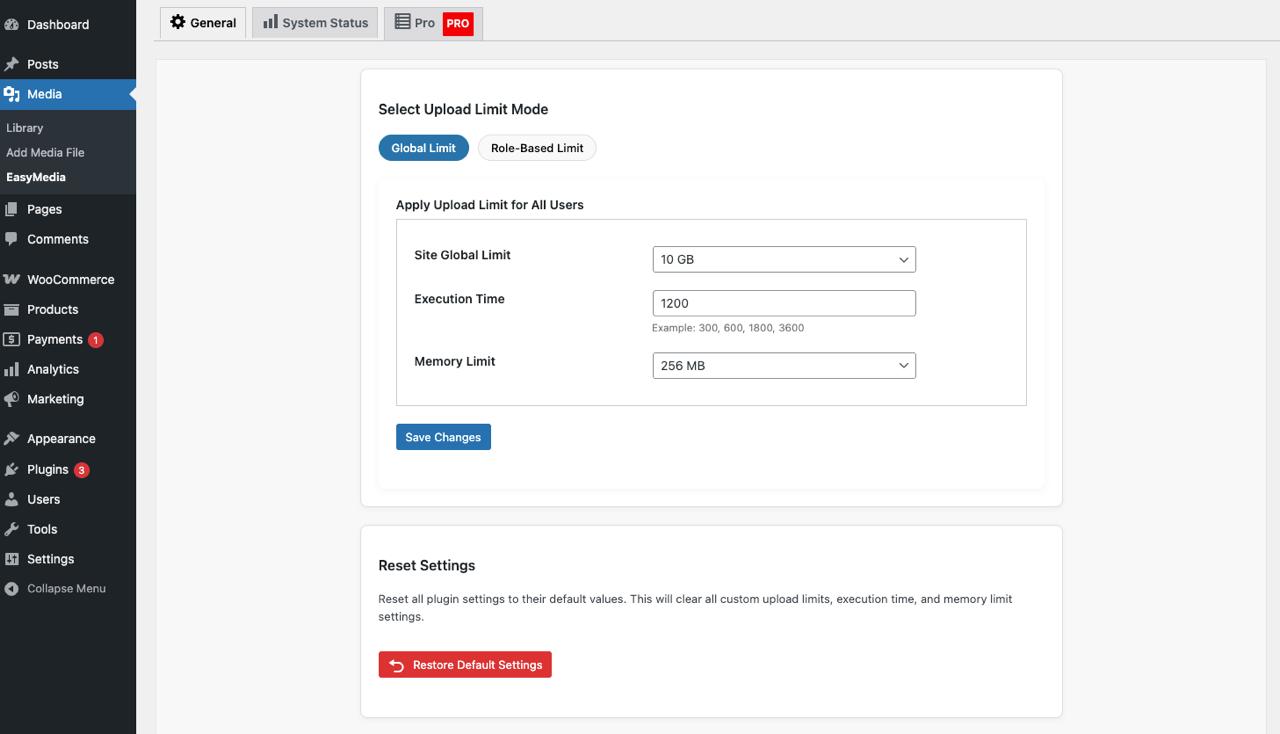
Admin Panel for maximum upload file size.
-
Set upload limit by role.
-
System status dashboard showing current limits.
About this plugin
Increases the upload file size limit to any value with one click
The EasyMedia plugin automatically detects your WordPress and server upload limits, displaying them in a simple dashboard. Instantly increase your upload size and easily upload large files like backups, videos, or ZIP archives directly to your WordPress media library — even if your hosting restricts upload limits.
If you ever searched for:
- “Increase WordPress upload limit plugin”
- “Best plugin to upload large files”
- “Set upload quota for users or roles”
- “Restrict file types for authors”
- “Show upload logs in WordPress”
- “Media manager plugin with file stats”
✅ Then EasyMedia is the solution you need.
🧩 Core Features (Free Version)
🔼 Increase Upload File Size Limit
Raise your WordPress upload limit to any value without editing code or php.ini files. Upload big videos, ZIPs, and backups seamlessly.
⏱️ Increase Maximum Execution Time
Avoid “Maximum Execution Time Exceeded” errors. Increase execution time to handle large file uploads smoothly.
👥 Role-Based Upload Limits
Set custom upload size limits for different WordPress roles (Administrator, Editor, Author, etc.) to prevent storage overuse.
💾 Memory Limit Set
Large file uploads often fail due to low PHP memory limits. You can easily increase the memory limit from the plugin setting page.
💽 System Status Dashboard
View your current PHP upload limit, max execution time, memory limit, and other important settings at a glance.
🧰 Simple, Clean UI
Access settings easily from your WP Dashboard → Media → EasyMedia.
Where to find the Option to Increase Upload Limit.
After installing and activating the plugin, go to your dashboard and navigate to Media > EasyMedia. From there, you can easily adjust your upload limits and execution time settings.
Increase Maximum Execution Time.
Sometimes WordPress users can’t upload new files due to extended execution time limits. With this plugin, you can increase the execution time to avoid these issues. Simply set the execution time in the input field according to your needs.
Plugin Renamed: MaxUploader is now EasyMedia
We’ve rebranded MaxUploader to EasyMedia for a better, more user-friendly experience.
Don’t worry — all your existing settings will remain intact. The plugin continues to provide the same core functionality, including increasing upload file size limits and execution time, with an improved interface and additional features.
If you previously used MaxUploader, you can safely update to EasyMedia — it’s the same plugin, just with a new name and enhanced design.
💬 Why EasyMedia?
- 🖼️ Upload large files easily (no manual PHP editing)
- 👥 Limit upload size by role or user
- 🧩 Restrict specific file types
- ⚡ Increase execution time in one click
- 📊 Monitor uploads and media usage
- 💪 Compatible with all hosting providers
- 🔒 Improves security and accountability
- 🧠 Recommended by developers for smart file management
🚀 Upgrade to EasyMedia Pro for Advanced Features
Take your media management to the next level with EasyMedia Pro!
Pro Features Include:
-
📊 Upload Logs & Tracking – Monitor all file uploads with detailed logging, including user, file name, size, type, and timestamp. With the EasyMedia Pro Upload Logs module, you can see where each attachment is used across your site (posts, pages, or products).
-
👥 Set User Storage Disk Limit – Set individual upload limits for specific users that override global settings. With this module, you can specially set the disk limit per individual user. This way we can handle over upload issue from the Editor and Author
-
📄 File Type Restriction – The EasyMedia plugin sets user file type restriction. With this module, you can only allow specific types of files for the user. Sometimes, Editor or Author roles only need specific file types (like images), and ZIP or executable uploads can be disallowed for them. This feature makes that possible.
-
🎭 Role-Based Restrictions – Configure different upload limits based on WordPress user roles (Administrator, Editor, Author, etc.) This module can help to define the upload limit per role which WordPress by default does not come with
-
📁 Media Manager – Display file sizes directly in media library columns and attachment details. This feature is acting as a File management plugin where you can manager your WordPress site all files and folders.
-
📈 Upload Statistics Dashboard – View comprehensive statistics including top uploads, recent uploads, and overall usage. You can see the graphical interface of your media library and the top uploader list.
-
🔍 Advanced Reporting – Export upload logs and generate detailed reports for analysis
-
⚡ Auto-Install Dependency – Automatically installs and configures the main plugin if needed
-
🛡️ Better Security – Track who uploads what and when for improved security and accountability
-
🎯 Priority Support – Get faster support and regular updates. We focus on one-to-one priority support.
Get EasyMedia Pro Now → Get Read Documentation →
Recommended Elementor Plugin
Questions
- Does this plugin work with all servers and hosting providers?
Yes, it works with all servers. However, please note that server-adjusted limits can’t be changed from a WordPress plugin. If the server’s set limit is 16MB, you can’t increase it to 128MB via WordPress. However, in that case, we chunk the large uploaded file into smaller pieces as a reflection of the upload time, which can be slower. But its possible to upload a big file if your server set upload limit is higher. Install the plugin, and it’ll inform you of the limits and the necessary actions. inally we upload file files even your site dose not allow it.
- Increase maximum execution time, but not working?
Usually, we upload large files by chunking to a small size, but if your WordPress upload directory is protected, then we can’t create a chunk directory. Please open a support ticket — our team will investigate and help resolve the issue.
- What’s the difference between free and pro versions?
The free version allows you to increase upload limits and execution time. The pro version adds advanced features like upload logging, user-based limits, role restrictions, statistics dashboard, and enhanced media library display. Learn more about EasyMedia Pro
- Can I upgrade from free to pro?
Yes! You can upgrade anytime. The pro version works alongside the free version and adds additional features without affecting your current settings.
- Do I get support with the free version?
Yes, we provide community support for the free version. Pro users get priority support with faster response times.
Spin up a real WordPress site in seconds.
Test plugins, build a demo, hand a client a link — then squash it and start again. No local setup, no Docker.