sandywp / plugins / wp-crontrol

WP Crontrol
Take control of the cron events on your WordPress website or WooCommerce store with WP Crontrol.
Ready in seconds.
v2.0.0 300,000+ installs WP 6.6+ PHP 7.4+
What you get inside
3 screens-
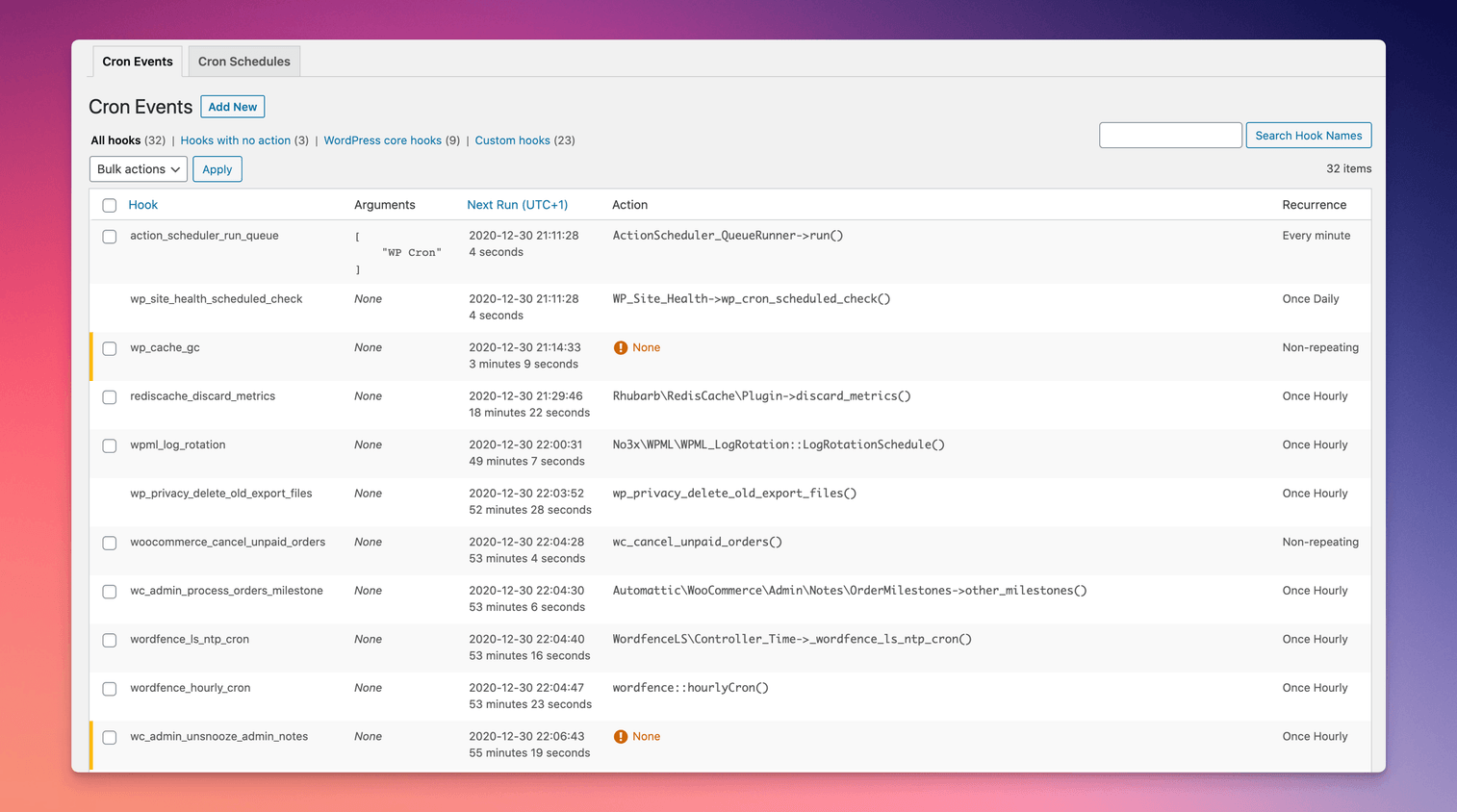
Cron events can be modified, deleted, and executed
-
New cron events can be added
-
New cron schedules can be added, giving plugin developers more options when scheduling events
About this plugin
Take control of the cron events on your WordPress website or WooCommerce store with WP Crontrol. From the admin screens you can:
- View all scheduled cron events along with their arguments, schedule, callback functions, and when they are next due.
- Log each run of the events you choose, with its duration, errors, HTTP requests, and emails sent.
- Get an email when a logged event fails.
- Let an AI assistant check, run, and pause cron events and read their logs, through the WordPress Abilities API (WordPress 6.9 and later).
- Edit, delete, pause, resume, and immediately run cron events.
- Add new cron events.
- Bulk delete cron events.
- Add and remove custom cron schedules.
- Export and download cron event lists as a CSV file.
WP Crontrol is aware of timezones, will alert you to events that have no actions or that have missed their schedule, and will show you a helpful warning message if it detects any problems with your cron system.
Usage
- Go to the
Cron → Cron Eventsmenu to manage cron events.Tools → Cron Eventsstill works too. - Go to the
Cron → Cron Logsmenu to see what ran, once you turn on logging for an event. - Go to the
Cron → Cron Insightsmenu to see how your events behaved over the last week. - Go to the
Cron → Cron Alertsmenu to get an email when a logged event fails. - Go to the
Cron → Cron AImenu to see what an AI assistant can do with your cron events. - Go to the
Cron → Cron Schedulesmenu to manage cron schedules.
Documentation
For site owners
Owners of WordPress websites and WooCommerce stores use WP Crontrol to ensure that scheduled cron events run correctly and efficiently. By providing complete control over cron events, WP Crontrol helps you:
- Improve reliability: Address missed or failed cron events, ensuring your website or WooCommerce store continues to function as expected.
- Enhance security: Monitor and control cron events to ensure automatic update checks are performed as they should.
- Simplify management: Add, edit, delete, and pause cron events from a user-friendly interface, without needing to write any code.
- Gain insights: Export cron event data for analysis or reporting.
- Action Scheduler compatibility: Full support for the Action Scheduler system in WooCommerce, which is used to process recurring payments, subscriptions, and background orders.
- Clarity of times and timezones: All times are shown with a clear and accurate indication of which timezone applies. No more guesswork!
For developers
Developers use WP Crontrol to streamline and debug their WordPress development process:
- Enhanced debugging: Identify and troubleshoot issues with scheduled tasks, ensuring your scheduled events and their callbacks run as expected.
- Custom schedules: Create and manage custom cron schedules to fit the specific needs of your website, plugins, or themes, providing greater flexibility than just the core schedules.
- Efficient workflow: Add, edit, and delete cron events directly from the WordPress admin interface, saving time and reducing the need for manual coding.
- Insightful monitoring: Get insight into the performance and behavior of your scheduled tasks, allowing for optimization and better resource management.
- Accurate debugging: WP Crontrol goes to great lengths to ensure that running an event manually does so in a manner which exactly matches how WordPress core runs schdeuled events. This ensures that you can debug events accurately and with confidence.
Other Plugins
WP Crontrol was built by John Blackbourn, who also maintains these plugins for developers:
- Query Monitor is the developer tools panel for WordPress.
- User Switching provides instant switching between user accounts in WordPress.
More Plugins From Our Team
WP Crontrol is now looked after by the Duplicator team. If it’s useful to you, these might be too:
- WPVibe connects AI assistants like Claude and ChatGPT to your WordPress site, so they can build and manage it for you.
- Duplicator backs up, migrates, and clones WordPress sites.
- WP Mail SMTP fixes WordPress email delivery, so the emails your scheduled tasks send actually arrive.
- WPCode adds custom code snippets to WordPress safely, without editing your theme’s functions.php file.
Privacy Statement
WP Crontrol is private by default and always will be. It does not send data to any third party, nor does it include any third party resources. WP Crontrol’s full privacy statement can be found here.
Cron alerts are sent by your site’s own email setup, only to the addresses you choose. When you install or activate one of our other plugins from a WP Crontrol screen, WP Crontrol notes which one in your site’s database, so you can see what came from WP Crontrol. That note stays on your site and is never sent anywhere.
Accessibility Statement
WP Crontrol aims to be fully accessible to all of its users. WP Crontrol’s full accessibility statement can be found here.
Legal
Crontrol® is a registered trademark of Clever Things For The Web Limited.
Questions
- Does this plugin work with PHP 8?
Yes, it’s actively tested and working up to PHP 8.4.
- I get the error “There was a problem spawning a call to the WP-Cron system on your site”. How do I fix this?
You can read all about problems spawning WP-Cron on the WP Crontrol website.
- Why do some cron events miss their schedule?
You can read all about cron events that miss their schedule on the WP Crontrol website.
- Why do some cron events reappear shortly after I delete them?
If the event is added by a plugin then the plugin most likely rescheduled the event as soon as it saw that the event was missing. To get around this you can instead use the “Pause this hook” action which means it’ll remain in place but won’t perform any action when it runs.
- Is it safe to delete cron events?
This depends entirely on the event. You can use your favourite search engine to search for the event name in order to find out which plugin it belongs to, and then decide whether or not to delete it.
If the event shows “None” as its action then it’s usually safe to delete. Please see the other FAQs for more information about events with no action.
- Why can’t I delete some cron events?
The WordPress core software uses cron events for some of its functionality and removing these events is not possible because WordPress would immediately reschedule them if you did delete them. For this reason, WP Crontrol doesn’t let you delete these persistent events from WordPress core in the first place.
If you don’t want these events to run, you can use the “Pause this hook” action instead.
- What happens when I pause an event?
Pausing an event will disable all actions attached to the event’s hook. The event itself will remain in place and will run according to its schedule, but all actions attached to its hook will be disabled. This renders the event inoperative but keeps it scheduled so as to remain fully compatible with events which would otherwise get automatically rescheduled when they’re missing.
As pausing an event actually pauses its hook, all events that use the same hook will be paused or resumed when pausing and resuming an event. This is much more useful and reliable than pausing individual events separately.
- What happens when I resume an event?
Resuming an event re-enables all actions attached to the event’s hook. All events that use the same hook will be resumed.
sandywp / also on the shelf
Try another plugin

Advanced Cron Manager – debug & control
4.7 · 30K+ installs
View, pause, remove, edit and add WP Cron events and schedules.
Missed Scheduled Posts Publisher by WPBeginner
4.9 · 20K+ installs
Are your scheduled posts missing their publication times? Missed Scheduled Posts Publisher effectively resolves the 'missed…

5.0 · 20K+ installs
Provides a familiar interface to view, search, edit, and delete Transients.
Spin up a real WordPress site in seconds.
Test plugins, build a demo, hand a client a link — then squash it and start again. No local setup, no Docker.