sandywp / plugins / wp-add-mime-types

Add MIME Types
The plugin additionally allows the mime types and file extensions to WordPress.
Ready in seconds.
v3.2.0 50,000+ installs WP 6.2+ PHP 7.4+
What you get inside
4 screens-
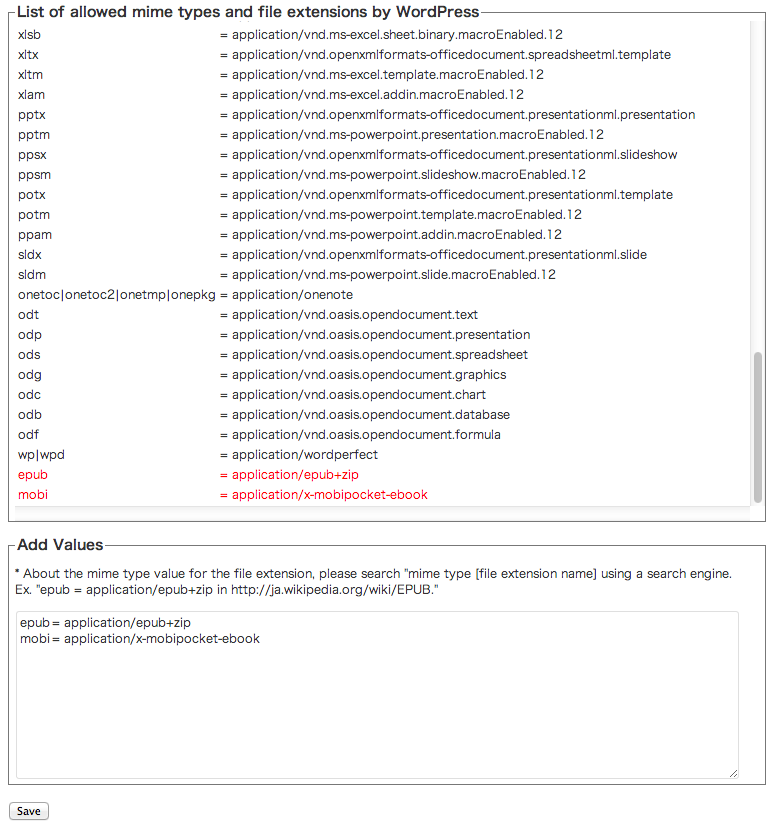
Setting Menu
-
Setting Menu in case of the multisite
-
Ignore to the right of '#' on a line
-
Security Options
About this plugin
The plugin additionally allows the mime types and file extensions to WordPress. In other words, your WordPress site can upload various file extensions.
Questions
- It fails to upload a file for the security reasons of WordPress despite having set it up with this plugin!
If it fails to upload a file for the security reasons of WordPress despite having set it up with this plugin, then the MIME type of the uploaded file recognised by WordPress may be different from the MIME type you have set. In that case, you need to find out how WordPress recognised the MIME type of the file.
So, turn on “Enable to debug output for file types recognized by WordPress when a file is uploaded by the media.” setting.
and upload a file and set “mime type” recognized by WordPress in the setting of this plugin.
Please keep in mind that the “Enable to debug output for file types recognised by WordPress when a file is uploaded by the media.” setting must be turned off after you finish checking the mime type. If it is left on, file uploads will not work.
Reference: https://docs.google.com/presentation/d/1o4YHqP7s-EcctYSEYM2L7HLJtqhjA_mkY4VMjvTdj20/edit?usp=sharing (Google Slide)- How to check the uploaded file type from Media.
WordPress recognizes the file mime type by finfo_file function (wp-includes/functions.php). However, sometimes, the standard MIME type of a file and the MIME type of a WordPress-recognized file are different. By enabling both this option (in setting menu) and the “Enable the attempt to determine the real file type of a file by WordPress core.”, the file type is displayed if it is from Media. PLEASE keep in mind that a file uploads are stopped while they are being processed if the both of two options are enabled. Therefore, be sure to disable this debugging option after debugging.
- Cannot work
If the added mime type does not work, please deactivate other mime type plugins or the setting of other mime type plugins.
For example, if you install Media Library Assistant plugin, please turn off “Enable Upload MIME Type Support” in the Upload tag in this plugin setting.
- Can the plugin support the multi extensions?
Yes. The function was supported by Version 2.4.0.
WordPress sanitizes the filename in case of 2 or more extensions.
ex. XXX.YYY.ZZZ –> XXX_.YYY.ZZZ.
The plugin fixes the sanitized extension when a file is uploaded in the media in case of allowed extensions.
ex. XXX.YYY.ZZZ — sanitized –> XXX_.YYY.ZZZ — fixed the plugin –> XXX.YYY.ZZZ
In detail, please see sanitize_file_name function in “wp-includes/formatting.php”.- Can I comment out in the setting value?
Yes. You can comment out above version 2.3.0.
- Can the plugin avoid the security check for a file content by WordPress core?
Yes. WordPress core has implemented the security check for a file content since version 4.7.1.
The plugin’s default setting disables this security check .- How do the plugin behave when it is installed and activated on the multisite network administration dashboard?
The setting in the multisite network administration dashboard is taken precedence. The setting in each site administration dashboard is displayed, but the values aren’t applied.
- How do the plugin behave when it is deactivated/uninstalled on the multisite network administration dashboard?
The setting values in each site administration dashboard in case of activating the plugin in each site is applied.
Spin up a real WordPress site in seconds.
Test plugins, build a demo, hand a client a link — then squash it and start again. No local setup, no Docker.