sandywp / plugins / wicked-block-conditions

Wicked Block Conditions
Show or hide blocks based on conditions.
Ready in seconds.
v1.2.5 600+ installs WP 5.0+ PHP 7.4+

What you get inside
4 screens-
The block with the dark background will only be displayed if the user is logged in
-
Use and/or operators and group conditions for more complex conditional blocks
-
Various conditions can be used to show or hide blocks
-
Every condition can be assigned a custom label. You can also negate conditions. Each condition has its own configuration settings.
About this plugin
Wicked Block Conditions is a powerful tool for creating conditional blocks. A conditional block is a block that can be shown (or hidden) if the conditions you define are met. For example, you can create blocks that are only shown to logged-in users (great for membership sites).
Define simple conditions or combine conditions into groups using and/or operators for more complex scenarios.
Show or hide blocks based on:
- User login status
- User role
- Date and time
- Post categories or tags
- Post status
- The value of a query string parameter
- The result of a custom PHP function
Features:
- Show or hide any block using conditions
- Specify an unlimited number of conditions
- Combine conditions with “and” or “or” operators
- Group conditions to create complex display rules
- Works with any Gutenberg block including third-party blocks
Support
Please see the FAQ section below for common questions. Visit the support forum if you have a question or need help.
About Wicked Plugins
Wicked Plugins specializes in crafting high-quality, reliable plugins that extend WordPress in powerful ways while being simple and intuitive to use. We’re full-time developers who know WordPress inside and out and our customer happiness engineers offer friendly support for all our products. Visit our website to learn more about us.
Questions
- I installed the plugin, now what?
Edit a post or page and select the block that you’d like to show or hide based on conditions. In the right sidebar of the editor, you should see a panel labeled ‘Display Conditions’. Click the panel to expand it and click the “Add Condition” link to add your first condition.
- How do I edit a condition?
Click the cog icon to the right of the condition’s label.
- How do I delete a condition?
Click the cog icon to the right of the condition’s label to edit the condition and then click the ‘Delete’ button.
- How do I show a block when the current date is between two dates?
This can be accomplished by using two ‘Check The Date’ conditions. Click ‘Add Condition’ and choose the ‘Check The Date’ condition. Choose the ‘After’ option and select the date that you’d like to start showing the block (i.e. the start date). Save the condition and add another ‘Check The Date’ condition but this time choose the ‘Before’ option and select the date that you’d like to stop showing the block (i.e. the end date).
- I set up a block to display after a certain date but it’s not working. What’s wrong?
Be sure that the correct timezone is selected on the Settings > General page in WordPress and that the date and time you specified for your condition is for that timezone.
- What does the ‘Negate condition’ option do?
Every condition returns true or false based on whether or not the condition was met. Negating a condition reverses the outcome so that a condition that would normally return true will return false and, a condition that would normally return false returns true instead.
- Will my block conditions get deleted if I deactivate or uninstall the plugin?
Yes and no. The conditions are not deleted and will still be there if you re-activate the plugin later; however, if you edit a page with conditional blocks while the plugin is deactivated, any conditions that were previously assigned to blocks will be erased.
sandywp / also on the shelf
Try another plugin

PublishPress Blocks – Block Controls, Block Visibility, Block Permissions
4.7 · 20K+ installs
PublishPress Blocks is your complete solution for the WordPress block editor. You can control block permissions, styles,…
Visibility Controls for Editor Blocks
5.0 · 900+ installs
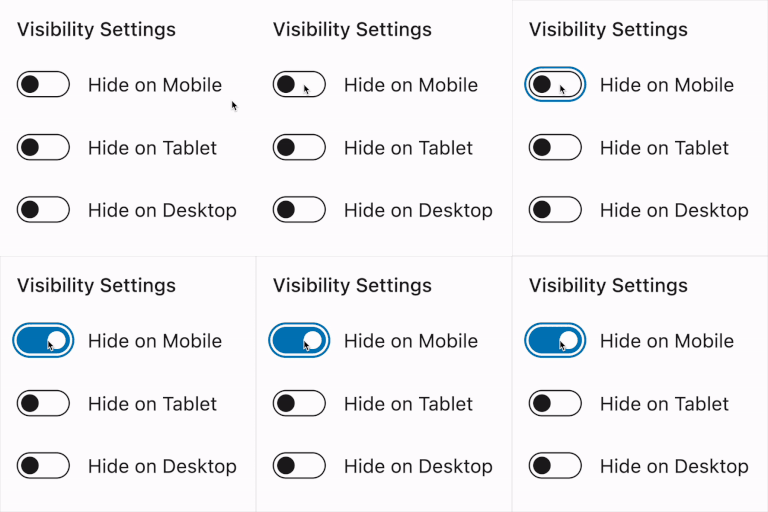
Hide Gutenberg blocks by device, custom breakpoints, and login status. Syncs with WordPress Hide block controls; Pro adds…
Block Responsive – Make Editor Blocks Responsive Easily
5.0 · 700+ installs
Transform any WordPress block into a fully responsive element with device-specific controls for mobile, tablet, and desktop…
Spin up a real WordPress site in seconds.
Test plugins, build a demo, hand a client a link — then squash it and start again. No local setup, no Docker.