sandywp / plugins / webp-express

WebP Express
Serve autogenerated WebP images instead of jpeg/png to browsers that supports WebP.
Ready in seconds.
v0.25.15 300,000+ installs WP 4.0+ PHP 5.6+
What you get inside
1 screen-
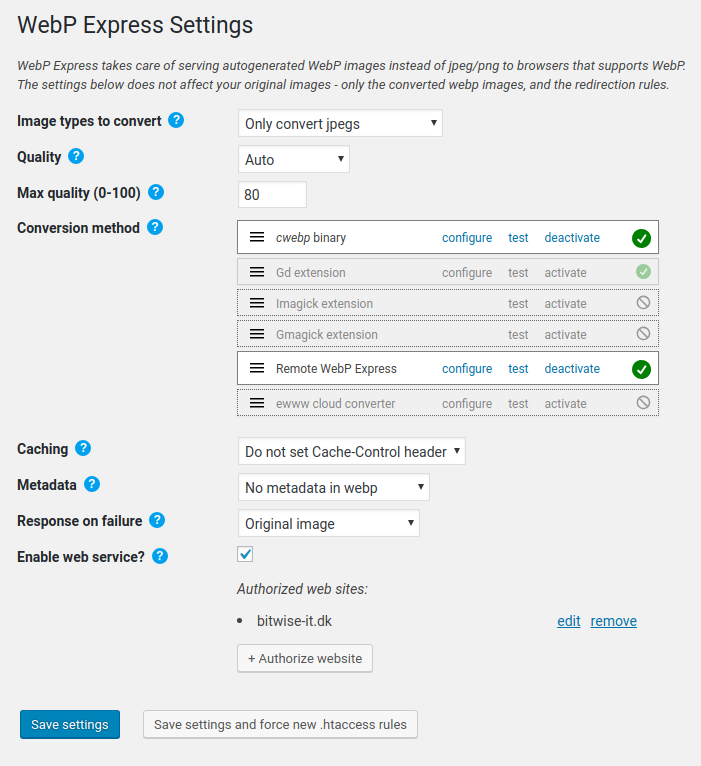
WebP Express settings
About this plugin
More than 9 out of 10 users are using a browser that is able to display webp images. Yet, on most websites, they are served jpeg images, which are typically double the size of webp images for a given quality. What a waste of bandwidth! This plugin was created to help remedy that situation. With little effort, WordPress admins can have their site serving autogenerated webp images to browsers that supports it, while still serving jpeg and png files to browsers that does not support webp.
The image converter
The plugin uses the WebP Convert library to convert images to webp. WebP Convert is able to convert images using multiple methods. There are the “local” conversion methods: imagick, cwebp, vips, gd. If none of these works on your host, there are the cloud alternatives: ewww (paid) or connecting to a WordPress site where you got WebP Express installed and you enabled the “web service” functionality.
The “Serving webp to browsers that supports it” part.
The plugin supports different ways of delivering webps to browsers that supports it:
- By routing jpeg/png images to the corresponding webp – or to the image converter if the image hasn’t been converted yet.
- By altering the HTML, replacing image tags with picture tags. Missing webps are auto generated upon visit.
- By altering the HTML, replacing image URLs so all points to webp. The replacements only being made for browsers that supports webp. Again, missing webps are auto generated upon visit.
- In combination with Cache Enabler, the same as above can be achieved, but with page caching.
- You can also deliver webp to all browsers and add the webpjs javascript, which provides webp support for browsers that doesn’t support webp natively. However, beware that the javascript doesn’t support srcset attributes, which is why I haven’t added that method to the plugin (yet).
The plugin implements the “WebP On Demand” solution described here and builds on a bunch of open source libraries (all maintained by me):
– WebP Convert: For converting images to webp
– WebP Convert Cloud Service: For the Web Service functionality
– DOM Util for WebP: For the Alter HTML functionality
– Image MimeType Guesser: For detecting mime types of images.
– HTAccess Capability Tester: For testing .htaccess capabilities in a given directory, using live tests
– WebP Convert File Manager: For browsing conversions and triggering conversions.
– Exec With Fallback: For emulating exec() on systems where it is disabled (using proc_open(), passthru() or similar alternatives).
Benefits
- Much faster load time for images in browsers that supports webp. The converted images are typically less than half the size (for jpeg), while maintaining the same quality. Bear in mind that for most web sites, images are responsible for the largest part of the waiting time.
- Better user experience (whether performance goes from terrible to bad, or from good to impressive, it is a benefit).
- Better ranking in Google searches (performance is taken into account by Google).
- Less bandwidth consumption – makes a huge difference in the parts of the world where the internet is slow and costly (you know, ~80% of the world population lives under these circumstances).
- Currently ~97% of all traffic are done with browsers supporting webp.
- It’s great for the environment too! Reducing network traffic reduces electricity consumption which reduces CO2 emissions.
Limitations
- The plugin should now work on Microsoft IIS server, but it has not been tested thoroughly.
Supporting WebP Express
Bread on the table don’t come for free, even though this plugin does, and always will. I enjoy developing this, and supporting you guys, but I kind of need the bread too. Please make it possible for me to continue wasting time on this plugin:
- Buy me a Coffee
- Buy me coffee on a regular basis and help ensuring my coffee supplies doesn’t run dry.
Supporters of WebP Express
Persons who recently contributed with ko-fi – Thanks!
- 5 Jan: Joel
- 24 Dec: Patrick Müller
- 16 Dec: Dragos
- 9 Aug: Tanzi
- 3 Jul: Jen
- 26 Jun: Per
- 16 May: Erick Danzer
- 8 May: Mike
- 31 May: parallactic
- 14 May: Gitte Rebsdorf
- 9 May: La Braud
Persons who recently contributed on github sponsors – Thanks!
* 16 Dec: kcrlost
* 16 Dec: Yakovos Frountas (Greece)
Persons who contributed with extra generously amounts of coffee / lifetime backing (>80$) – thanks!:
- Patrick Müller ($250)
- Max Kreminsky ($115)
- Justin – BigScoots ($105)
- Bill Vallance ($102)
- Joel ($100)
- Label Vier ($100)
- Sebastian ($99)
- Tammy Lee ($90)
Questions
- How do I verify that the plugin is working?
Verifying that the plugin works in “Varied image responses” mode
1. Make sure at least one of the conversion methods are working. It should have a green checkmark next to it.
2. If you haven’t saved yet, click “Save settings”. This will put redirection rules into .htaccess files in the relevant directories (typically in uploads, themes and wp-content/webp-express/webp-images, depending on the “Scope” setting)
3. I assume that you checked at least one of the checkboxes in the .htaccess rules section – otherwise you might as well change to “CDN friendly” mode. The first
4. Click the “Live test” buttons to see that the enabled rules actually are working. If they are not, it could be that the server needs a little time to recognize the changed rules.The live tests are quite thorough and I recommend them over a manual test. However, it doesn’t hurt to do a manual inspection too.
Doing a manual inspection
Note that when WebP Express is serving varied image responses, the image URLs still points to the jpg/png. If the URL is visited using a browser that supports webp, however, the response will be a webp image. So there is a mismatch between the file extension (the filename ends with “jpg” or “png”) and the file type. But luckily, the browser does not rely on the extension to determine the file type, it only looks at the Content-Type response header.
To verify that the plugin is working (without clicking the test button), do the following:
- Open the page in a browser that supports webp, ie Google Chrome
- Right-click the page and choose “Inspect”
- Click the “Network” tab
- Reload the page
- Find a jpeg or png image in the list. In the “type” column, it should say “webp”
You can also look at the headers. When WebP Express has redirected to an existing webp, there will be a “X-WebP-Express” header with the following value: “Redirected directly to existing webp”. If there isn’t (and you have checked “Enable redirection to converter”), you should see a “WebP-Convert-Log” header (WebP-Express uses the WebP Convert for conversions).
- No conversions methods are working out of the box
Don’t fret – you have options!
- If you a controlling another WordPress site (where the local conversion methods DO work), you can set up WebP Express there, and then connect to it by configuring the “Remote WebP Express” conversion method.
- You can also setup the ewww conversion method. To use it, you need to purchase an api key. They do not charge credits for webp conversions, so all you ever have to pay is the one dollar start-up fee 🙂 (unless they change their pricing – I have no control over that). You can buy an api key here: https://ewww.io/plans/
- I have written a template letter which you can send to your webhost
- You can try to get one of the local converters working. Check out this page on the webp-convert wiki. There is also this test/troubleshooting script which is handy when messing around with this.
- Finally, if you have access to another server and are comfortable with installing projects with composer, you can install webp-convert-cloud-service. It’s open source.
Of course, there is also the option of using another plugin altogether. I can recommend Optimole. If you want to try that out and want to support me in the process, follow this link. It is an affiliate link and will give me a reward in case you decide to sign up.
- It doesn’t work – Although test conversions work, it still serves jpeg images
Actually, you might be mistaking, so first, make sure that you didn’t make the very common mistake of thinking that something with the URL example.com/image.jpg must be a jpeg image. The plugin serves webp images on same URL as the original (unconverted) images, so do not let appearances fool you! Confused? See next FAQ item.
Assuming that you have inspected the content type header, and it doesn’t show “image/webp”, please make sure that:
1) You tested with a browser that supports webp (such as Chrome)
2) The image URL you are looking at are not pointing to another server (such as gravatar.com)Assuming that all above is in place, please look at the response headers to see if there is a X-WebP-Convert-Status header. If there isn’t, well, then it seems that the problem is that the image request isn’t handed over to WebP Express. Reasons for that can be:
- You are on NGINX (or an Apache/Nginx combination). NGINX requires special attention, please look at that FAQ item
- You are on WAMP. Please look at that FAQ item
I shall write more on this FAQ item… Stay tuned.
- How can a webp image be served on an URL ending with “jpg”?
Easy enough. Browsers looks at the content type header rather than the URL to determine what it is that it gets. So, although it can be confusing that the resource at example.com/image.jpg is a webp image, rest assured that the browsers are not confused. To determine if the plugin is working, you must therefore examine the content type response header rather than the URL. See the “How do I verify that the plugin is working?” Faq item.
I am btw considering making an option to have the plugin redirect to the webp instead of serving immediately. That would remove the apparent mismatch between file extension and content type header. However, the cost of doing that will be an extra request for each image, which means extra time and worse performance. I believe you’d be ill advised to use that option, so I guess I will not implement it. But perhaps you have good reasons to use it? If you do, please let me know!
- WP CLI, but how do I use it to bulk convert?
Well, first, if you don’t know WP CLI, here is a quick start
WebP Express currently supports commands for converting and flushing webp images throug the CLI. You can use the –help option to learn about the options:
wp webp-express –help. Displays the available commands
wp webp-express convert –help. Displays the available options for the “convert” command.A few examples:
wp webp-express convert: Creates webp images for all unconverted images
wp webp-express convert –reconvert: Also convert images that are already converted
wp webp-express convert themes: Only images in the themes folder
wp webp-express convert uploads/2021: Only images in the “2021” folder inside the uploads folder
wp webp-express convert –only-png: Only the PNG images
wp webp-express convert –quality=50: Use quality 50 (instead of what was entered in settings screen)
wp webp-express convert –quality=50 –near-lossless=50 –alpha-quality=50 –encoding=lossy: More conversion options. encoding can be “lossy”, “lossless” or “auto”
wp webp-express convert –converter=cwebp: Specifically use cwebp converter. Other options: “vips”, “imagemagick”, “ffmpeg”. PS: For “ewww” and “wpc” (remote webp express) does not work here.wp webp-express flushwebp: Remove all webp images
wp webp-express flushwebp –only-png: Remove all webp images that are conversions of PNG imagesSynopsises:
wp webp-express convert [<location>] [--reconvert] [--only-png] [--only-jpeg] [--quality=<number>] [--near-lossless=<number>] [--alpha-quality=<number>] [--encoding=<auto|lossy|lossless>] [--converter=<converter>]
wp webp-express flushwebp [--only-png]
I’m considering adding commands for viewing status, viewing conversion stats, generating the .htaccess files and modifying the settings. Please let me know if you need any of these or perhaps something else.
- Blank images in Safari?
WebP Express has three ways of distributing webp to webp-enabled browsers while still sending the originals to webp-disabled browsers. While method 1 can be combined with any of the other methods, you would usually just pick method 1 or one of the others if method 1 cannot be used for you.
Can some of these go wrong?
Yes. All!Method 1: Varied image responses
The “Varied image responses” method adds rules to the.htaccesswhich redirects jpegs and pngs to the corresponding webps (if they exist). The rules have a condition that makes sure they only trigger for browsers supports webp images (this is established by examining the “accept” header).I the method “varied image responses” because the response on a given image URL varies (the webp is served on the same URL as the jpeg/png).
In the cases where method 1 fails, it is due to systems that cache images by the URL alone. To prevent this from happening, the
.htaccessrules adds aVary:Acceptresponse header. However, most CDNs does not respect that header unless they are configured to do so. Fortunately proxy servers respects it nicely (however often by throwing out the cached image if the accept header doesn’t match)Method 1 can go wrong if:
- You are using a CDN and it hasn’t been set up to handle varied image responses. If this has happened, it is critical that you purge the CDN cache! For information regarding CDN setups, check out the CDN section in this FAQ
- Your server doesn’t support adding response headers in
.htaccess. On Apache, the “mod_headers” module needs to be enabled. Otherwise the all importantVary:Acceptresponse header will not be set on the response. - Your server doesn’t support SetEnv. However, that module is fortunately very common. I have posted a possible solution to make the rules work without SetEnv here.
- You are on Nginx and you haven’t created rules that adds the
Vary:Acceptheader.
I do not believe it can go wrong in other ways. To be certain, please check out this test page. When visiting the test-page with Safari, you should see two images with the “JPG” label over them. When visiting the test-page with a browser that supports webp, you should see two images with the “WEBP” label over them. If you do not see one of these things, please report! (no-one has yet experienced that)
Since WebP Express 0.15.0 you can use the “Live test” button to check that browsers not supporting webp gets the original files and that the Vary:Accept header is returned. Note however that it may not detect CDN caching problems if the CDN doesn’t cache a new image immediately – and across all its nodes.
Method 2: Altering HTML to use picture tags
IMG tags are replaced with PICTURE tags which has two sources. One of them points to the webp and has the “content-type” set to “image/webp”. The other points to the original. The browser will select the webp source if it supports webp and the other source if it doesn’t.Method 2 can go wrong on old browser that doesn’t support the picture tag syntax. However, simply enable the “Dynamically load picturefill.js on older browsers” option, and it will take care of that issue.
Method 3: Altering HTML to point directly to webps in webp enabled browsers
In this solution, the URLs in the HTML are modified for browsers that supports webp. Again, this is determined by examining the “accept” header. So, actually the complete page HTML varies with this method.Method 3 can go wrong if you are using a page caching plugin if that plugin does not create a separate webp cache for webp-enabled browsers. The Cache Enabler plugin handles this. I don’t believe there are other page caching plugins that does. There is a FAQ section in this FAQ describing how to set Cache Enabler up to work in tandem with WebP Express.
Note that Firefox 66+ unfortunately stopped including “image/webp” in the “accept” header it sends when requesting the page. While Firefox 66+ fortunately still includes “image/webp” in its accept header for images. That will however not get it webp images when using method 3.
- I am on NGINX or OpenResty
WebP Express works well on NGINX, however the UI is not streamlined NGINX yet. And of course, NGINX does not process the .htaccess files that WebP Express generates. WebP Express can be used without redirection, as it can alter HTML to use picture tags which links to the webp alternative. See “The simple way” below. Or, you can get your hands dirty and set up redirection in NGINX guided by the “The advanced way” section below.
The simple way (no redirecting rules)
The easy solution is simply to use the plugin in “CDN friendly” mode, do a bulk conversion (takes care of converting existing images), activate the “Convert on upload” option (takes care of converting new images in the media library) and enable Alter HTML (takes care of delivering webp to webp enabled browsers while still delivering the original jpeg/png to browsers not supporting webp).PRO: Very easy to set up.
CON: Images in external CSS and images being dynamically added with javascript will not be served as webp.
CON: New new theme images will not be converted until you run a new Bulk conversionThe advanced way (creating NGINX redirecting rules)
Creating NGINX rules requires manually inserting redirection rules in the NGINX configuration file (nginx.conf or the configuration file for the site, found in/etc/nginx/sites-available). If you do not have access to do that, you will have to settle with the “simple way” described above.There are two different approaches to achieve the redirections. The one that I recommend is based on a try_files directive. If that doesn’t work for you, you can try the alternative rules that are based on the rewrite directive. The rules are described in the next couple of sections.
For multisite on NGINX, read here
Recommended rules (using “try_files”)
Preparational step:
The rules looks for existing webp files by appending “.webp” to the URL. So for this to work, you must configure WebP Express to store the converted files like that by setting General > File extension to Append “.webp”Preparational step 2:
From 0.25.10 and up, the configuration file has been renamed so the filename contains a “hash” of random characters (a security meassure).
You will have to find the hash by inspecting the filename of the config file.
Look in the /wp-content/webp-express/config folder for a file called something like “config.c513fe386c6b8793f9bf9ad1071d2266.json”.
The string of random characters between “config.” and “.json” is what we here call the “hash”.
You will need to use that string of characters instead of “[your-hash-here]” in the rules suggested below.The rules:
Insert the following in theservercontext of your configuration file (usually found in/etc/nginx/sites-available). “Theservercontext” refers to the part of the configuration that starts with “server {” and ends with the matching “}”.# WebP Express rules # -------------------- location ~* ^/?wp-content/.*\.(png|jpe?g)$ { add_header Vary Accept; expires 365d; if ($http_accept !~* "webp"){ break; } try_files /wp-content/webp-express/webp-images/doc-root/$uri.webp $uri.webp /wp-content/plugins/webp-express/wod/webp-on-demand.php?xsource=x$request_filename&wp-content=wp-content&hash=[your-hash-here] ; } # Route requests for non-existing webps to the converter location ~* ^/?wp-content/.*\.(png|jpe?g)\.webp$ { try_files $uri /wp-content/plugins/webp-express/wod/webp-realizer.php?xdestination=x$request_filename&wp-content=wp-content&hash=[your-hash-here] ; } # ------------------- (WebP Express rules ends here)BEWARE:
– Beware that when copy/pasting you might get html-encoded characters. Verify that the ampersand before “wp-content” isn’t encoded (in the last line in the try_files block)-
Beware that the rules looks for existing webp files by appending “.webp” to the URL. So for this to work, you must configure WebP Express to store the converted files like that.
-
Beware that if you haven’t enabled png conversion, you should replace “(png|jpe?g)” with “jpe?g”.
-
Beware that if you have moved wp-content to a non-standard place, you must change accordingly. Note that you must then also change the “wp-content” parameter to the script. It expects a relative path to wp-content (from document root) and is needed so the script can find the configuration file.
-
Beware that there is a hack out there for permalinks which is based on “rewrite” (rather than the usual solution which is based on try_files). If you are using that hack to redirect missing files to index.php, you need to modify it as specified here
-
I have put in an expires statement for caching. You might want to modify or disable that.
-
The rules contains all redirections (as if you enabled all three redirection options in settings). If you do not wish to redirect to converter, remove the last line in the try_files block. If you do not wish to create webp files upon request, remove the last location block.
-
If you have configured WebP Express to store images in separate folder, you do not need the “$uri.webp” line in the first “try_files” block. But it doesn’t hurt to have it. And beware that the reverse is not true. If configured to store images in the same folder (“mingled”), you still need the line that looks for a webp in the separate folder. The reason for this is that the “mingled” only applies to the images in the upload folder – other images – such as theme images are always stored in a separate folder.
If you cannot get this to work then perhaps you need to add the following to your mime.types configuration file:
image/webp webp;If you still cannot get it to work, you can instead try the alternative rules below.
Credits: These rules are builds upon Eugene Lazutkins solution.
Alternative rules (using “rewrite”)
In case the recommended rules does not work for you, you can try these alternative rules.
The reason I recommend the try_files approach above over these alternative rules is that it is a bit simpler and it is supposed to perform marginally better. These alternative rules are in no way inferior to the other. Choose whatever works!
Preparational step:
The rules looks for existing webp files by appending “.webp” to the URL. So for this to work, you must configure WebP Express to store the converted files like that by setting General > File extension to Append “.webp”. Also make sure that WebP Express is configured with “Destination” set to “Mingled”.The rules:
Insert the following in theservercontext of your configuration file (usually found in/etc/nginx/sites-available). “Theservercontext” refers to the part of the configuration that starts with “server {” and ends with the matching “}”.# WebP Express rules # -------------------- location ~* ^/wp-content/.*\.(png|jpe?g)$ { add_header Vary Accept; expires 365d; } location ~* ^/wp-content/.*\.webp$ { expires 365d; if ($whattodo = AB) { add_header Vary Accept; } } if ($http_accept ~* "webp"){ set $whattodo A; } if (-f $request_filename.webp) { set $whattodo "${whattodo}B"; } if ($whattodo = AB) { rewrite ^(.*) $1.webp last; } if ($whattodo = A) { rewrite ^/wp-content/.*\.(jpe?g|png)$ /wp-content/plugins/webp-express/wod/webp-on-demand.php?xsource=x$request_filename&wp-content=wp-content&hash=[your-hash-here] break; } # ------------------- (WebP Express rules ends here)“
BEWARE:
-
Beware that when copy/pasting you might get html-encoded characters. Verify that the ampersand before “wp-content” isn’t encoded (in the last line in the try_files block)
-
Beware that the rules looks for existing webp files by appending “.webp” to the URL. So for this to work, you must configure WebP Express to store the converted files like that.
-
Beware that if you haven’t enabled png conversion, you should replace “(png|jpe?g)” with “jpe?g”.
-
Beware that if you have moved wp-content to a non-standard place, you must change accordingly. Note that you must then also change the “wp-content” parameter to the script. It expects a relative path to wp-content (from document root) and is needed so the script can find the configuration file.
-
Beware that there is a hack out there for permalinks which is based on “rewrite” (rather than the usual solution which is based on try_files). If you are using that hack to redirect missing files to index.php, you need to modify it as specified here
-
I have put in an expires statement for caching. You might want to modify or disable that.
-
I have not set any expire on the webp-on-demand.php request. This is not needed, as the script sets this according to what you set up in WebP Express settings. Also, trying to do it would require a new location block matching webp-on-demand.php, but that would override the location block handling php files, and thus break the functionality.
-
There is no longer any reason to add “&$args” to the line begining with “/wp-content”. It was there to enable debugging a single image by appending “?debug” to the url. I however removed that functionality from
webp-on-demand.php.
It is possible to put this stuff inside a
locationdirective. However, havingifdirectives insidelocationdirectives is considered evil. But it seems that in our case, it works. If you wish to do that, use the following rules instead:# WebP Express rules # -------------------- location ~* ^/wp-content/.*\.(png|jpe?g)$ { add_header Vary Accept; expires 365d; if ($http_accept ~* "webp"){ set $whattodo A; } if (-f $request_filename.webp) { set $whattodo "${whattodo}B"; } if ($whattodo = AB) { rewrite ^(.*) $1.webp last; } if ($whattodo = A) { rewrite ^/wp-content/.*\.(jpe?g|png)$ /wp-content/plugins/webp-express/wod/webp-on-demand.php?xsource=x$request_filename&wp-content=wp-content&hash=[your-hash-here] last; } } location ~* ^/wp-content/.*\.webp$ { expires 365d; if ($whattodo = AB) { add_header Vary Accept; } } # ------------------- (WebP Express rules ends here)PS: In case you only want to redirect images to the script (and not to existing), the rules becomes much simpler:
# WebP Express rules
# --------------------
if ($http_accept ~* "webp"){
  rewrite ^/(.*).(jpe?g|png)$ /wp-content/plugins/webp-express/wod/webp-on-demand.php?xsource=x$request_filename&wp-content=wp-content&hash=[your-hash-here] break;
}
# ------------------- (WebP Express rules ends here)
Discussion on this topic here
And here: https://github.com/rosell-dk/webp-express/issues/166Here are rules if you need to replace the file extension with “.webp” rather than appending “.webp” to it: https://www.keycdn.com/support/optimus/configuration-to-deliver-webp
-
- Important: WebP On Demand on NGINX now requires a hash parameter
Recent versions of WebP Express (0.25.10 and up) require an instance-specific hash parameter
when using WebP On Demand.`
sandywp / also on the shelf
Try another plugin

4.7 · 800K+ installs
Autoptimize speeds up your website by optimizing JS, CSS, images (incl. lazy-load), HTML and Google Fonts, asyncing JS, removing…

Responsive Lightbox & Gallery
4.9 · 100K+ installs
The most popular lightbox plugin and responsive gallery builder for WordPress.

3.5 · 100K+ installs
Converts images to more modern formats such as WebP or AVIF during upload.
Spin up a real WordPress site in seconds.
Test plugins, build a demo, hand a client a link — then squash it and start again. No local setup, no Docker.