sandywp / plugins / webp-converter-for-media

Converter for Media
Optimize images | Convert WebP & AVIF
Speed up your website by using our WebP & AVIF Converter. Optimize images and serve WebP and AVIF images instead of standard formats!
Ready in seconds.
v6.6.5 500,000+ installs WP 4.9+ PHP 7.4+
What you get inside
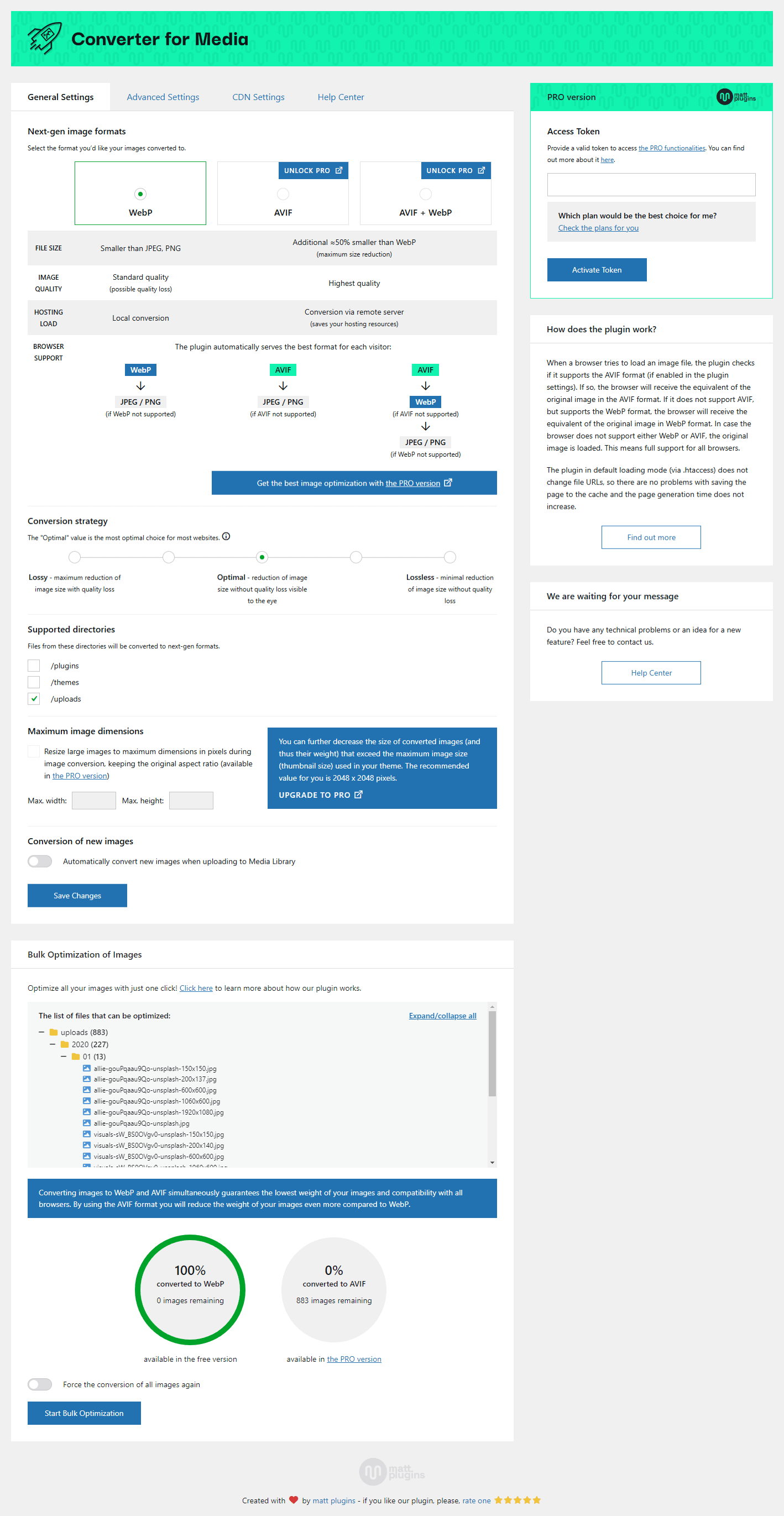
5 screens-
General tab of the plugin settings
-
Advanced tab of the plugin settings
-
Bulk optimization of images
-
Optimization statistics of Media Library
-
Ability to manually undo optimization of selected image
About this plugin
Speed up your website using our ease image optimizer by serving WebP and AVIF images. By replacing files in standard JPEG, PNG and GIF formats with WebP and AVIF formats, you can save over a half of the page weight without losing quality.
After installing the plugin, you can optimize your entire Media Library with a single click — no further action required. When image optimization finishes, every visitor will automatically receive new images with significantly reduced file sizes.
As of today, over 95% of users use browsers that support the WebP format. The loading time of your website depends to a large extent on its weight and the level of image optimization. Using our WebP Converter, now you can and speed up it in a few seconds without much effort!
This will be a profit both for your users who will not have to download so much data, but also for a server that will be less loaded. Remember that a better optimized website also affects your Google ranking. Image optimization is very important.
AVIF support
Now in the PRO version you can use AVIF as the output format for your images. The AVIF format is a new extension — is the successor to WebP. Images converted to the AVIF format weigh about 50% less than images converted only to the WebP format, while maintaining better image quality.
Enjoy peace of mind knowing that AVIF is supported by over 90% of browsers. And if any visitor has an older browser, our plugin will automatically fall back to WebP — so every user gets fast, high-quality images without a hitch.
Unlock the magic of AVIF in our PRO version — upgrade today for unparalleled image performance.
How does this work?
When a browser tries to load an image file, the plugin checks if it supports the AVIF format (if enabled in the plugin settings). If so, the browser will receive the equivalent of the original image in the AVIF format. If it does not support AVIF, but supports the WebP format, the browser will receive the equivalent of the original image in WebP format. In case the browser does not support either WebP or AVIF, the original image is loaded. This means full support for all browsers.
A guide on how to test whether the plugin is working properly can be found here.
Additional information
- If you have just installed the plugin, you can optimize images with one click. Image size will be smaller after generate AVIF and WebP!
- New images that will be added to the Media Library will be converted automatically.
- Our image optimizer does not modify your original images in any way. This means security for you and your files. Files converted to AVIF and WebP format are saved in a separate directory: /wp-content/uploads-webpc/.
- You lose nothing – if you had to remove the plugin, it will remove everything after itself. It does not leave any trace, so you can check it with ease.
Convert WebP and AVIF – it is the future of image optimization!
Optimize images and raise your website to a new level now! Install the plugin and enjoy the website that loads faster by image optimization. Surely you and your users will appreciate it.
Converting images to WebP and AVIF simultaneously guarantees the lowest weight of your images and compatibility with all browsers. By using the AVIF format you will reduce the weight of your images even more compared to WebP.
Support for additional directories
You can convert WebP and AVIF, and optimize images not only from /uploads directory but also from /plugins and /themes directories. This allows full integration with WebP and AVIF formats!
Development of the plugin
If you love our plugin, leave a ★★★★★ review on WordPress.org — it really makes our day and helps others discover it!
Please also read the FAQ below. Thank you for being with us!
Questions
- How can I report security bugs?
You can report security bugs through the Patchstack Vulnerability Disclosure Program. The Patchstack team help validate, triage and handle any security vulnerabilities.
- How to get technical support? (before you ask for help)
Before you add a new thread, read all other questions in this FAQ and other threads in the support forum first. Perhaps someone had a similar problem and it has been resolved.
When adding a thread, follow these steps and reply to each of them:
1. Do you have any errors on the plugin settings page? Please read this thread if you have any errors.
2. URL of your website.
3. Screenshot of the Help Center tab on the plugin settings screen – please take a screenshot of the ENTIRE page.
4. Please do the test, which is described in the FAQ in the question “How to check if the plugin works?”. Please send a screenshot of Devtools with the test results.
Please remember to include the answers to all questions by adding a thread. It is much easier and accelerates the solution of your problem.
- Configuration for Nginx
If you are using a Nginx server that does not support .htaccess rules, additional Nginx server configuration is required for the plugin to work properly.
Please read this tutorial for more information.
- Configuration for Nginx Proxy
If you are using a Nginx server that supports .htaccess rules, but you still have a server configuration error on the plugin settings page, additional Nginx server configuration is required for the plugin to work properly.
Please read this tutorial for more information.
- Error on plugin settings screen?
If you have an error on the plugin settings screen, first of all, please read it carefully. They are displayed when there is a problem with the configuration of your server or website.
The messages are designed to reduce the number of support requests that are repeated. It saves your and our time. Please read this thread for more information.
- Error while converting?
You can get several types of errors when converting. First of all, carefully read their content. For the most part, you can solve this problem yourself. Try to do this or contact the server administrator.
If you get an error:
File "%s" does not exist. Please check file path.means that the file_exists() function in PHP returnedfalseusing the file path given in the error message. Check this path and make sure it is correct.If you get an error:
File "%s" is unreadable. Please check file permissions.means that the is_readable() function in PHP returnedfalseusing the file path given in the error message. Check the permissions for the file and the directory in which the file is located.If you get an error:
"%s" is not a valid image file.means that the file is damaged in some way. Download the file to disk, save it again using any graphics program and add it again to the page. If the error applies to individual images then you can ignore it – just the original images will load, not WebP.If you get an error:
Image "%s" converted to .webp is larger than original and converted .webp file has been deleted.means the original image weighed less than WebP. This happens when images have been compressed before. Disable the “Automatic removal of files in output formats larger than original” option in plugin settings to force always using WebP.- What are requirements of plugin?
Practically every hosting meets these requirements. You must use PHP at least 7.0 and have the
GDorImagickextension installed. The extension must supportWebP format. If you have an error saying that the GD or Imagick library is not installed, but you have it installed then they are probably incorrectly configured and do not have WebP support.They are required native PHP extensions, used among others by WordPress to generate thumbnails. Your server must also have the modules
mod_mime,mod_rewriteandmod_expiresenabled.An example of the correct server configuration can be found here. The link to your current configuration can be found in the Help Center tab on plugin settings screen.
Note the items marked in red. If the values marked in red do not appear in your case, it means that your server does not meet the technical requirements. Pay attention to the WebP Support value for the GD library and WEBP in the list of supported extensions for the Imagick library.
In a situation where your server does not meet the technical requirements, please contact your server Administrator. We are not able to help you. Please do not contact us about this matter, because this is a server configuration problem, not a plugin.
Also, REST API must be enabled and work without additional restrictions. If you have a problem with it, please contact the Developer who created your website. He should easily find the issue with the REST API not working.
- How to check if the plugin works?
You can find more information on how the plugin works in our manual.
sandywp / also on the shelf
Try another plugin

Smush – Image Optimization, Compression, Lazy Load, WebP & CDN
4.8 · 1M+ installs
Compress and optimize images, enable lazy load, serve WebP & AVIF, and speed up your site with a global image CDN.

Imagify Image Optimization: Optimize Images | Compress & Convert to…
4.3 · 1M+ installs
Image optimization in 1‑click: compress, resize & convert to WebP/AVIF – free up to 20MB/month. Enjoy the easiest WordPress…

ShortPixel Image Optimizer – Optimize Images, Convert WebP & AVIF
4.5 · 300K+ installs
Optimize images & PDFs smartly. Create and compress next-gen WebP and AVIF formats. Smart crop and resize.
Spin up a real WordPress site in seconds.
Test plugins, build a demo, hand a client a link — then squash it and start again. No local setup, no Docker.