sandywp / plugins / stock-market-ticker

Stock Market Ticker
Easy to use and versatile stock market ticker, with support of over 65 world exchanges, indices, commodities and currencies.
Ready in seconds.
v1.9.29 2,000+ installs WP 3.1+
What you get inside
8 screens-
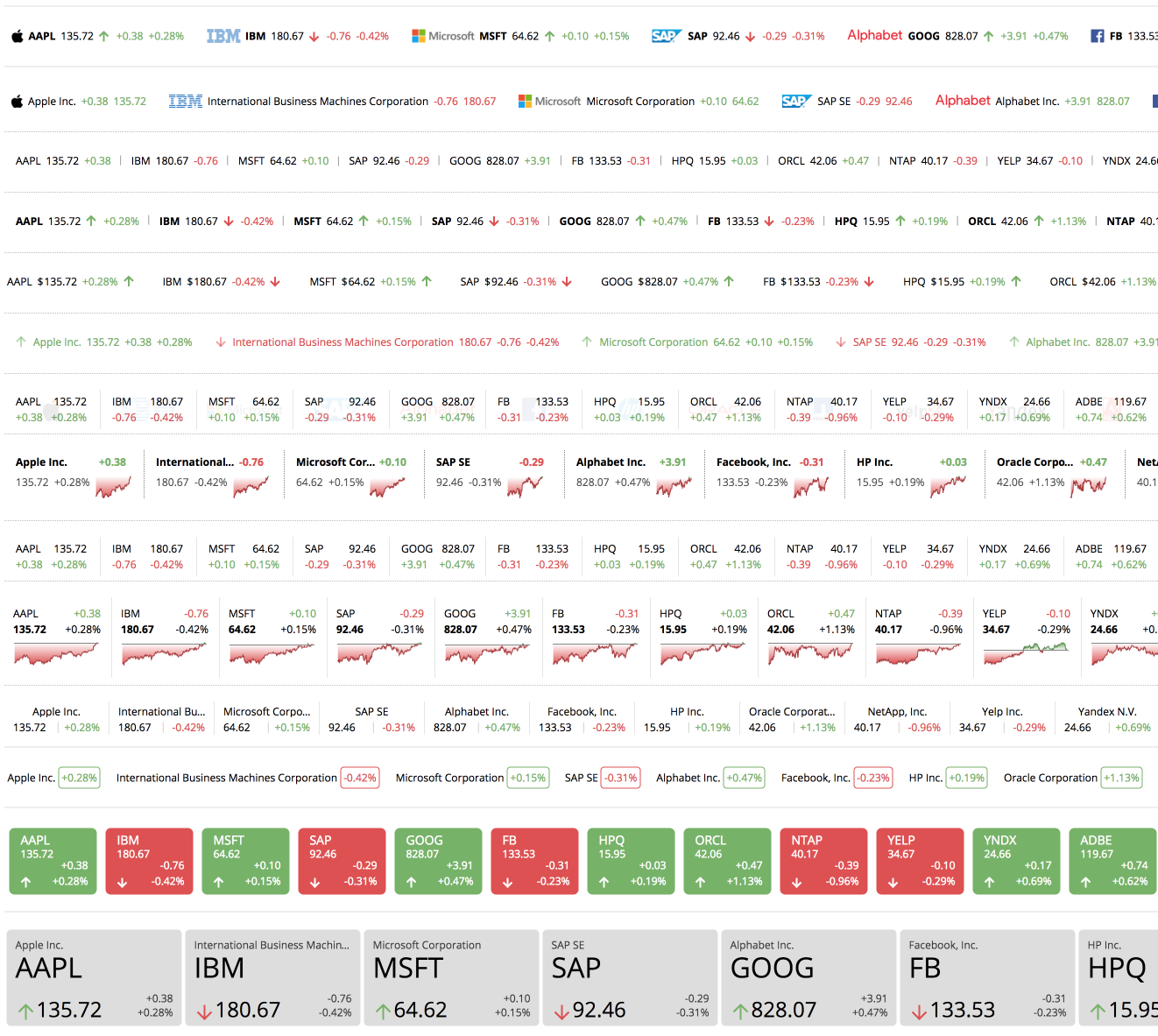
List of different Ticker Layouts currently available.
-
Example of ticker used to display a Equities with logos.
-
Example of ticker used to display a Commodities list.
-
Example of ticker used to display a World Markets Indices with a mini chart.
-
Example of ticker used to display a World Currencies List.
-
Stockdio Historical Chart is also available as a complement to the Stock Market Ticker.
-
Stockdio Stock Quotes List is also available as a complement to the Stockdio Market Ticker.
-
Stockdio Stock Market News is also available as a complement to the Stockdio Market Ticker.
About this plugin
Stockdio’s Stock Market Ticker contains a plugin and a widget that allow to display a ticker of stock market prices, market indices, currencies and commodities with their variations. Over 65 different stock exchanges and a large number of market indices, currencies and commodities are supported.
If you’re using the standard Gutenberg editor, the easiest way to include this plugin on your page is using the Stock Market Ticker block, which is included in the Stockdio Financial Visualizations category.
If you’re using a different editor o prefer to use the shortcode, below is a sample to help you start. Please be aware that most of the parameters listed below are optional, and are also available through the plugin’s settings page. Any parameter you include in the shortcode will overwrite the parameter used in the settings page.
[stock-market-ticker symbols="AAPL;MSFT;GOOG;HPQ;^SPX;^DJI;LSE:BAG" stockExchange="USA" width="100%" palette="financial-light"]
This plugin is part of the Stockdio Financial Widgets, which also includes the following plugins:
The following parameters are supported in the shortcode and also available through the plugin’s settings page:
stockExchange: The exchange market the symbols belong to (optional). If not specified, USA Equities will be used by default. For a list of available exchanges please visit www.stockdio.com/exchanges.
symbols: A list of companies stock symbols, market index tickers, currency pairs or commodities ticker, separated by semi-colon (;) (e.g. AAPL;MSFT;GOOG;HPQ;^SPX;^DJI;LSE:BAG). Please review the FAQ section for additional details on how to includes indices, currencies and commodities, as well as how to specify custom names, combine data from different exchanges, etc.
scroll: Allows to set the ticker’s scrolling behavior (optional).
- Auto: ticker automatically scrolls (default).
- No: static ticker.
speed: Allows to change the ticker’s scrolling speed. Supported values are: slowest, slower, slow, normal, fast and faster. (optional).
layoutType: A number specifying the layout type used to display the ticker. Please visit www.stockdio.com/ticker_layouts to review the many ticker layout options available (optional).
width: Width of the list in either px or % (optional, default: 100%).
height: Height of ticker in px(optional, default: none). Normally, the ticker height is set automatically by the plugin, so in most cases this will not be necessary. However, certain plugins cause conflict and do not allow to set the height automatically; in those cases, you should set the ticker height manually.
culture: Allows to specify a combination of language and country settings, used to display texts and to format numbers and dates, e.g. Spanish-Spain (optional). For a list of available culture combinations please visit http://www.stockdio.com/cultures.
motif: Design used to display the visualization with specific aesthetics, including borders and styles, among other elements (optional). For a list of available motifs please visit www.stockdio.com/motifs.
palette: Includes a set of consistent colors used for the visualization (optional). For a list of available palettes please visit www.stockdio.com/palettes.
font: Allows to specify the font that will be used to render the chart. Multiple fonts may be specified separated by comma, e.g. Lato,Helvetica,Arial (optional).
transparentBackground: Allows to display the ticker with a transparent background, which is particularly useful when using image or gradient backgrounds on your page. By default, the ticker’s background color is inherited from the palette. Setting this to true overrides any background color. (optional)
backgroundColor: Allows to specify a color for the ticker’s background. Color must be specified in RGB Hex format, without the # sign, e.g. use 000000 for black. By default, the ticker’s background color is inherited from the palette. (optional)
labelsColor: Allows to specify a color for the ticker’s labels, such as the symbol and company name. Color must be specified in RGB Hex format, without the # sign, e.g. use 0000FF for blue. By default, the labels color is inherited from the palette. Prices and percent of change are usually displayed using positive and negative colors, rather than the labels color. (optional)
positiveColor: Allows to specify a color to be used as “Positive” color, i.e. when close price is greater than previous close price. Color must be specified in Hex format, without the # sign, e.g. use 00FF00 for green. By default, the positive color is inherited from the palette. (optional)
negativeColor: Allows to specify a color to be used as “Negative” color, i.e. when close price is smaller than previous close price. Color must be specified in Hex format, without the # sign, e.g. use FF0000 for red. By default, the negative color is inherited from the palette. (optional)
loadDataWhenVisible: Allows to fetch the data and display the visualization only when it becomes visible on the page, in order to avoid using calls (requests) when they are not needed. This is particularly useful when the visualization is not visible on the page by default, but it becomes visible as result of a user interaction (e.g. clicking on an element, etc.). It is also useful when using the same visualization multiple times on a page for different devices (e.g. using one instance of the plugin for mobile and another one for desktop). We recommend not using this by default but only on scenarios as those described above, as it may provide the end user with a small delay to display the visualization (optional).
Questions
- How do I integrate the Stockdio Stock Market Ticker in my page?
There are three options to integrate it: a. Using the Stock Market Ticker block, b. Using the short code, or c. Through the use of the widget in your sidebars.
- How do I know if the Stock Exchange I need is supported by Stockdio?
Stockdio supports over 65 different world exchanges. For a list of all exchanges currently supported, please visit www.stockdio.com/exchanges. If the stock exchange you’re looking for is not in the list, please contact us to [email protected]. Once you have found in the list the stock exchange you need, you must pass the corresponding Exchange Symbol using the stockExchange parameter.
- How do I specify the symbols to display?
You can specify as many symbols as you want, from the selected exchange, separated by semi-colon (;). If any of the symbols you want to display does not show up, you can go to http://finance.stockdio.com to verify if the symbol is currently available in Stockdio. If the symbol you require is missing, please contact us at [email protected].
- Can I combine more than one stock exchange on the same ticker?
Yes. The exchange you define in the stockExchange parameter will be the default stock exchange to be used. However, if you want to include symbols from a different exchange, you must prefix the symbol with the exchange code and a colon (:). For example, if you want to include two symbols from USA Equities but additionally include one symbol from London Stock Exchange, you would specify stockExchange=”USA”, and symbols=”AAPL;MSFT;LSE:BAG”. This will also allow you to combine stocks with commodities and currencies in the same ticker.
- Can I include one or more market indices in the ticker?
Yes, you can include indices in the symbols parameter, using the ^ prefix. For example, use ^SPX for S&P 500 or ^DJI for the Dow Jones. For a complete list of indices currently supported, please visit www.stockdio.com/indices
- Can I create a Commodities ticker?
Yes. You must use COMMODITIES as the stockExchange and then specify one or more commodities in the symbols parameter. For example, use GC;SI;CL for Gold, Silver and Crude Oil. For a complete list of commodities currently supported by Stockdio, please visit www.stockdio.com/commodities
- Can I create a Currencies ticker?
Yes. You must use FOREX as the stockExchange and then specify one or more currency pairs in the symbols parameter. For example, use EUR/USD, USD/JPY, GBP/USD for Euro vs. USD, USD vs. Japanese Yen and British Pound vs. USD. For a complete list of currencies currently supported by Stockdio, please visit www.stockdio.com/currencies
- I would like to specify a custom name for a given symbol. Can I do that?
Yes, we understand there are several scenarios in which you may want to display your own name, such as if you would like to display a commodities ticker in your own language. This can be easily done by specifying your custom name between parenthesis, right after you have specified the symbol. For example, you can create a commodities ticker in Spanish specifying the following in the symbols parameter: GC(Oro);SI(Plata);CL(Petróleo Crudo). This works for any symbol, index, commodity or currency pair.
sandywp / also on the shelf
Try another plugin

wpDataTables – WordPress Data Table, Dynamic Tables & Table Charts Plugin
4.5 · 60K+ installs
The best WordPress table plugin. Create responsive, and searchable tables and charts from Excel (.xlsx, .xls or .ods), CSV, XML,…

Chartify – WordPress Chart Plugin
4.9 · 3K+ installs
Chartify is a powerful WordPress Chart Builder Plugin that will help you to create WordPress Graphs & Charts easily and…

4.5 · 2K+ installs
This plugin provides the function to create a set of questions to answer with "yes / no (/or other)". Yes/Noチャートを作れるプラグインです。
Spin up a real WordPress site in seconds.
Test plugins, build a demo, hand a client a link — then squash it and start again. No local setup, no Docker.