sandywp / plugins / simply-gallery-block

SimpLy Gallery
Create photo and video galleries with albums, sliders and a lightbox. Includes free Media Library folders to organize your files.
Ready in seconds.
v3.5.0 40,000+ installs WP 6.8+ PHP 7.4+
What you get inside
8 screens-
Adding a new gallery
-
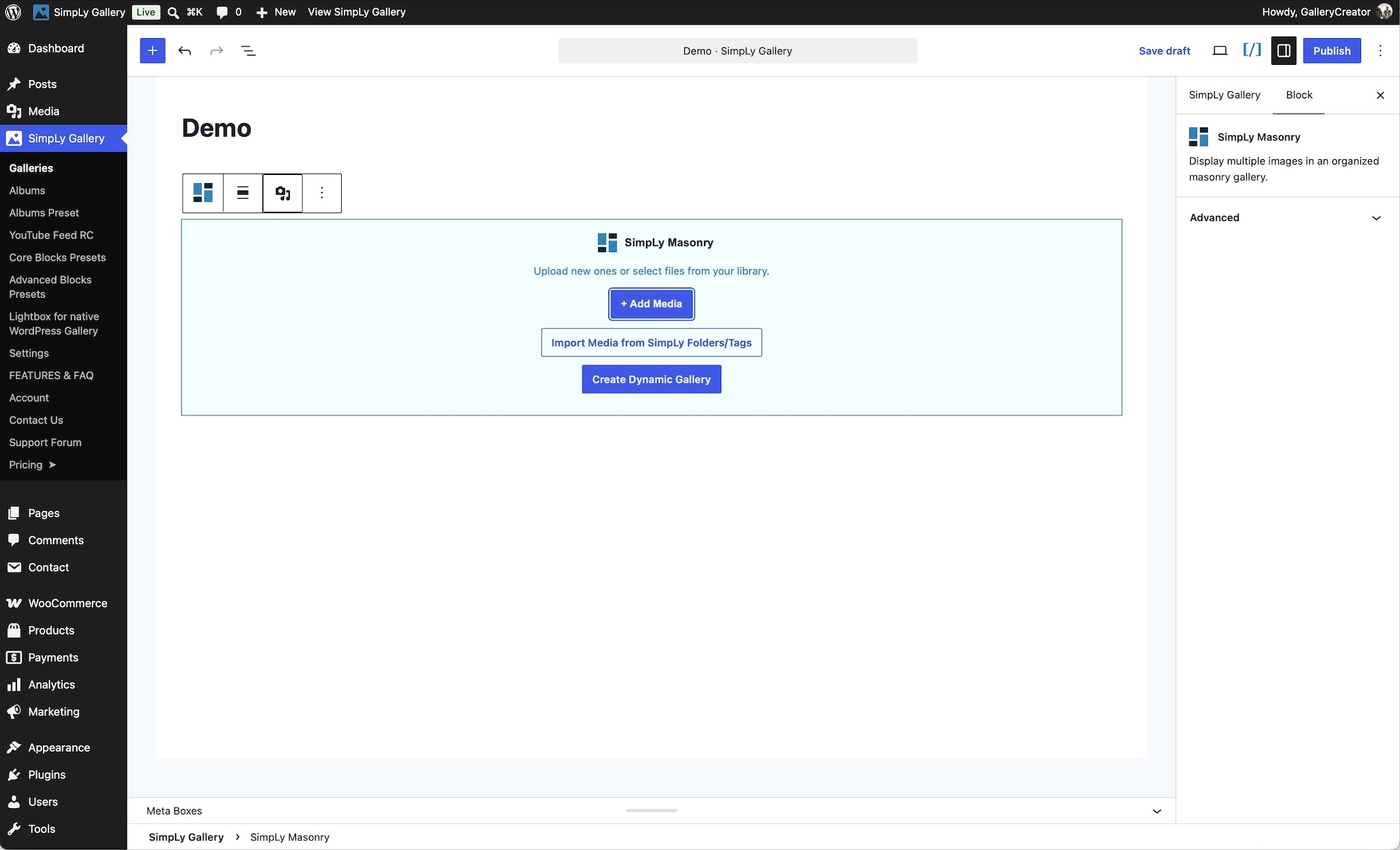
"Masonry" block in edit mode
-
Activating and configuring the SimpLy lightbox in the post editor
-
SimpLy Media Picker – adding images to the gallery
-
Media Library folders — one file in multiple folders, no duplicate uploads
-
Assign files to folders and tags in one click
-
Download a media folder's originals as a ZIP (free)
-
Plugin global settings page
About this plugin
SimpLy Gallery helps you create responsive photo and video galleries, albums, and sliders in the WordPress block editor, with a built-in lightbox for exploring your content.
Start by organizing your media into folders and tags with SimpLy Media Assistant. Turn a selection into a gallery, publish it on its own page, or reuse it across your site with blocks and shortcodes. When you need a local copy of a collection, download its original files as a ZIP from the WordPress admin.
Bring photos, video, and audio together in the same gallery, whether you are presenting a portfolio, documenting an event, or sharing a collection of tutorials. Group related galleries into albums so visitors can explore them from one starting point.
Ready out of the box
- Mixed media in one gallery: images, HTML5 video, audio, YouTube, Vimeo, and VideoPress.
- Block editor-first editing with 8 included gallery blocks and visual controls.
- Responsive layouts with controls for desktop and smaller screens.
- Lightweight YouTube and Vimeo galleries with one active video embed at a time.
- Static gallery content by default, similar to native WordPress gallery blocks.
- Albums and Album Navigator for grouping saved galleries under one visitor-friendly entry point.
- Page-level lightbox manager for Image blocks, Gallery blocks, linked images, and SimpLy galleries.
- Saved galleries and shortcodes for reuse across pages, posts, and theme areas.
- WordPress Media Library folders and tags with SimpLy Media Assistant for organizing, finding, uploading, and reusing media.
- Download a SimpLy folder’s original files as one ZIP from the Assistant or the Media Library folder sidebar.
- Quick static gallery creation from SimpLy folders and tags with Import Media from SimpLy Folders/Tags.
- SEO-friendly media visibility with static fallback HTML output.
- Uses standard WordPress media sizes without creating extra image copies.
- Tags Filter for visitors, with bulk tag management in the Items Manager.
- Video poster generation from a frame of your self-hosted video.
- Admin-controlled random gallery order without adding extra controls for visitors.
- Optional Media Library and media picker integration, so site owners can choose how deeply SimpLy Assistant appears in their admin workflow.
For more specialized projects, optional PLUS and PRO plans extend these tools: PLUS adds layouts and visual customization, while PRO also adds dynamic galleries built from supported media and content sources.
SimpLy Media Assistant – WordPress Media Library folders
Use SimpLy Media Assistant to keep photo shoots, events, products, or project materials in virtual folders within your WordPress Media Library. A file can belong to several collections without uploading another copy.
Open Media > SimpLy Assistant to browse, upload, and organize your files. You can also enable the folder sidebar in the native WordPress Media Library to work in its familiar grid or list view.
- Add the same media file to multiple virtual folders without copying originals or changing their URLs.
- Let authors organize their own files and folders, with built-in permissions to protect other users’ collections.
- Find and reuse media by filtering with SimpLy folders and tags.
- Upload files into the active folder and organize existing media into collections.
- Edit folder names, descriptions with basic HTML formatting, and colors in one dialog.
- Duplicate a folder’s collection without copying its files, then adjust its membership independently.
- View folder details, including creation information for new folders and the number and total size of readable originals.
- Sort folder lists by date added or name, ascending or descending, across the Assistant and gallery source pickers.
- Turn an organized folder or tag into a static gallery with Import Media from SimpLy Folders/Tags.
- Download a folder’s original files together as a ZIP archive.
Attachment Organization shows a file’s assigned folders and available folders, so you can add or remove memberships with a click. When removing files from multiple folders through Unassigned, choose which folder memberships to remove. Files shared by multiple folders remain the same media items: editing a file or deleting it from the Media Library affects every collection that uses it.
Download media folders as ZIP
Need a local copy of a photo shoot or a project’s media? Right-click a SimpLy folder in the Assistant or the Media Library sidebar, choose Download, then Create ZIP. Once preparation finishes, choose Download ZIP to save the originals together, without selecting and downloading each file separately.
The archive uses the folder’s name and remains available to its creator for repeat downloads for one hour. You can delete it sooner to free disk space; deleting a prepared ZIP does not delete the original media.
ZIP Downloads in the plugin settings checks whether your hosting can prepare archives and lets administrators adjust the maximum total file size and number of files per archive. Start with the defaults and increase them to suit your hosting resources.
ZIP Sharing (PRO) lets you share a prepared collection with anyone who has its link or one selected WordPress user, with a configurable expiration date. Share the publication link or place a download card beside your gallery using a shortcode, and review download statistics from the publication panel.
Choose where the Assistant appears
Enable SimpLy folders in the Media Library, add the Assistant to native WordPress media pickers, or use the SimpLy Media Picker for SimpLy gallery blocks. You can also use the dedicated Assistant screen without enabling these integrations.
PRO users can additionally build dynamic galleries from SimpLy folders, so published collections can reflect folder changes instead of remaining a one-time static import.
WordPress media sizes, no extra image copies
SimpLy Gallery Blocks does not create additional image copies in the WordPress Media Library. For normal gallery display, the plugin uses standard WordPress image sizes, mainly Medium size for thumbnails and Large size for lightbox viewing.
If the Medium size image is too small for a specific frontend layout, SimpLy Gallery can use the Large size image for the thumbnail area when needed. This happens on the frontend with JavaScript and does not create new files in the Media Library.
If you want higher quality thumbnails or larger lightbox images, adjust your WordPress media settings in Settings > Media before uploading images. Existing uploads may need thumbnail regeneration after changing these settings.
PLUS / PRO options can also display the original image size when maximum image quality is needed.
Albums
Albums let you combine multiple saved galleries into one collection with a dedicated splash page. This is useful for events, portfolios, projects, travel collections, courses, product collections, or any site where related galleries should be presented together.
Each saved gallery can keep its own design and can also be published separately as a public gallery page, inserted with a shortcode, embedded with the Saved SimpLy Gallery block, or displayed with the Elementor widget.
Album content can load saved gallery content on demand via AJAX and open it in a modal view, helping large gallery collections stay lighter on the initial page load.
Albums and Album Navigator are available in the free plugin. PLUS adds more visual customization options, and PRO allows Album Navigator to use dynamic galleries from supported sources.
Tags Filter
Tags are managed directly inside the gallery block. In the Items Manager, each gallery item has a Tag menu where you can type tags separated by commas or choose from previously used SimpLy Tags.
Items Manager also includes a multi-select mode, so you can select a group of gallery items and add or remove tags for all selected items at once.
When Tags Filter is enabled for the block, those tags appear above the gallery so visitors can filter gallery items on the frontend.
The basic Tags Filter is available for gallery blocks in the free plugin. PLUS / PRO plans add more control over which tags appear in a specific gallery or block, along with advanced options such as deep linking.
Page-level lightbox for WordPress content
SimpLy Lightbox is more than a lightbox for SimpLy galleries. It can also work with regular WordPress content, including Image blocks, Gallery blocks, linked images, and Classic Editor gallery content.
When WordPress Image or Gallery blocks use the “Link images to media files” option, SimpLy Lightbox can open those images in a lightbox and group images from the same post or page into a browsable lightbox set.
This means visitors can open one image and use next / previous navigation to browse other images from the page. Separate Image blocks and native Gallery blocks can also be grouped together, so a post can behave like one photo story instead of many isolated images.
Global lightbox defaults are managed from SimpLy Gallery > Lightbox for native WordPress Gallery. Each post or page can also have its own lightbox settings through the SimpLy Lightbox editor sidebar, opened from the lightbox icon in the editor toolbar.
Lightbox features include touch gestures, keyboard navigation, mouse wheel controls, zoom, thumbnails, fullscreen mode, slideshow, captions, and social sharing.
YouTube Feed and dynamic galleries
The YouTube Feed module turns YouTube playlists into a curated gallery workflow inside WordPress. You can build internal playlists, publish them with Quick Gallery Link, or use Dynamic Gallery Builder in the PRO plan for full design control.
PRO dynamic gallery sources include:
- SimpLy folders
- YouTube playlists
- Vimeo showcases, albums, user uploads, channels, and categories
- WooCommerce products, categories, and tags
- FileBird media folders
- Media Library Assistant attachment categories and tags
- SimpLy tags
Main demos
- Gallery blocks demo
- Albums Block demo
- Album Navigator Block demo
- SimpLy Lightbox and WordPress Native Gallery demo
- YouTube and Vimeo Gallery demo
More layout demos
- Viewer Gallery Block
- Slider / Carousel Gallery
- Tags Filter
- Advanced Tags Filter
- Showcase Gallery Block – PLUS layout
- Diamond Gallery Block – PLUS layout
- Horizon Gallery Block – PLUS layout
- Split Carousel Block – PLUS layout
- TagsBox Gallery Block – PLUS layout
- Portfolio Gallery Block – PLUS layout
Short demo
This video shows how to create a photo gallery with a SimpLy Gallery block:
You can transform the same gallery content between Masonry, Justified, Grid, and WordPress image gallery layouts without rebuilding the gallery from scratch.
Questions
- Is SimpLy Gallery Blocks free?
Yes. The core gallery blocks, mixed media gallery workflow, albums, and lightbox features are available in the free plugin.
- Can I organize the WordPress Media Library into folders?
Yes. The free SimpLy Media Assistant includes virtual folders and tags for organizing media. Enable its folder sidebar in the native Media Library or use Media > SimpLy Assistant. Organizing files into folders does not move the originals on your server or change their URLs.
- Can I download a media folder as a ZIP file?
Yes. In the free plugin, right-click a SimpLy folder in the Assistant or the Media Library sidebar and choose Download. Create the archive, then use Download ZIP to save its original files. This is an authenticated admin workflow. ZIP availability and supported archive sizes depend on your hosting; checks and adjustable limits are available under ZIP Downloads in the plugin settings.
- What media types can I use?
You can create galleries with images, self-hosted MP4 video, MP3 audio, YouTube, Vimeo, and VideoPress content.
- Can I create poster images for self-hosted videos?
Yes. For self-hosted video items, open the item menu in the Items Manager and choose Add Poster. You can select an image from the WordPress Media Library or capture a frame from the video. When a frame is used, SimpLy Gallery creates a new WordPress media attachment and uses it as the video poster.
- Why is a video poster important?
A poster image gives native HTML5 video a reliable preview before playback. It improves the visitor experience, avoids forcing the browser to load the first video frame as a preview, and can help with compatibility on mobile devices and older browsers.
- Does SimpLy Gallery load all YouTube or Vimeo players at once?
No. Video galleries are thumbnail-first. SimpLy Gallery creates the actual YouTube or Vimeo embed only for the active video, then stops and replaces it when another video is selected. This works for manually added YouTube and Vimeo videos in the free plugin, including lightbox playback.
- How many gallery blocks are included in the free plugin?
The free plugin includes 8 WordPress gallery blocks: Masonry, Justified, Grid, Slider / Carousel, Viewer, Albums, Album Navigator, and Saved SimpLy Gallery.
sandywp / also on the shelf
Try another plugin

4.9 · 800K+ installs
Responsive slider plugin to create sliders in visual editor easily. Build beautiful image slider, layer slider, video slider,…

Slider, Gallery, and Carousel by MetaSlider – Image Slider, Video Slider
4.6 · 500K+ installs
Slider, gallery, carousel plugin for WordPress. Build your image slider, video slider, post slider, YouTube slider, or…

Photo Gallery, Sliders, Proofing and Themes – NextGEN Gallery
4.3 · 300K+ installs
The most popular gallery plugin that lets you create galleries and albums in seconds.
Spin up a real WordPress site in seconds.
Test plugins, build a demo, hand a client a link — then squash it and start again. No local setup, no Docker.