sandywp / plugins / robo-gallery

Robo Gallery
Photo & Image Slider, Proofing
Robo Gallery is a powerful image gallery and photo gallery plugin with advanced features to create responsive galleries with a beautiful lightbox
Ready in seconds.
v6.0.0 40,000+ installs WP 3.3+
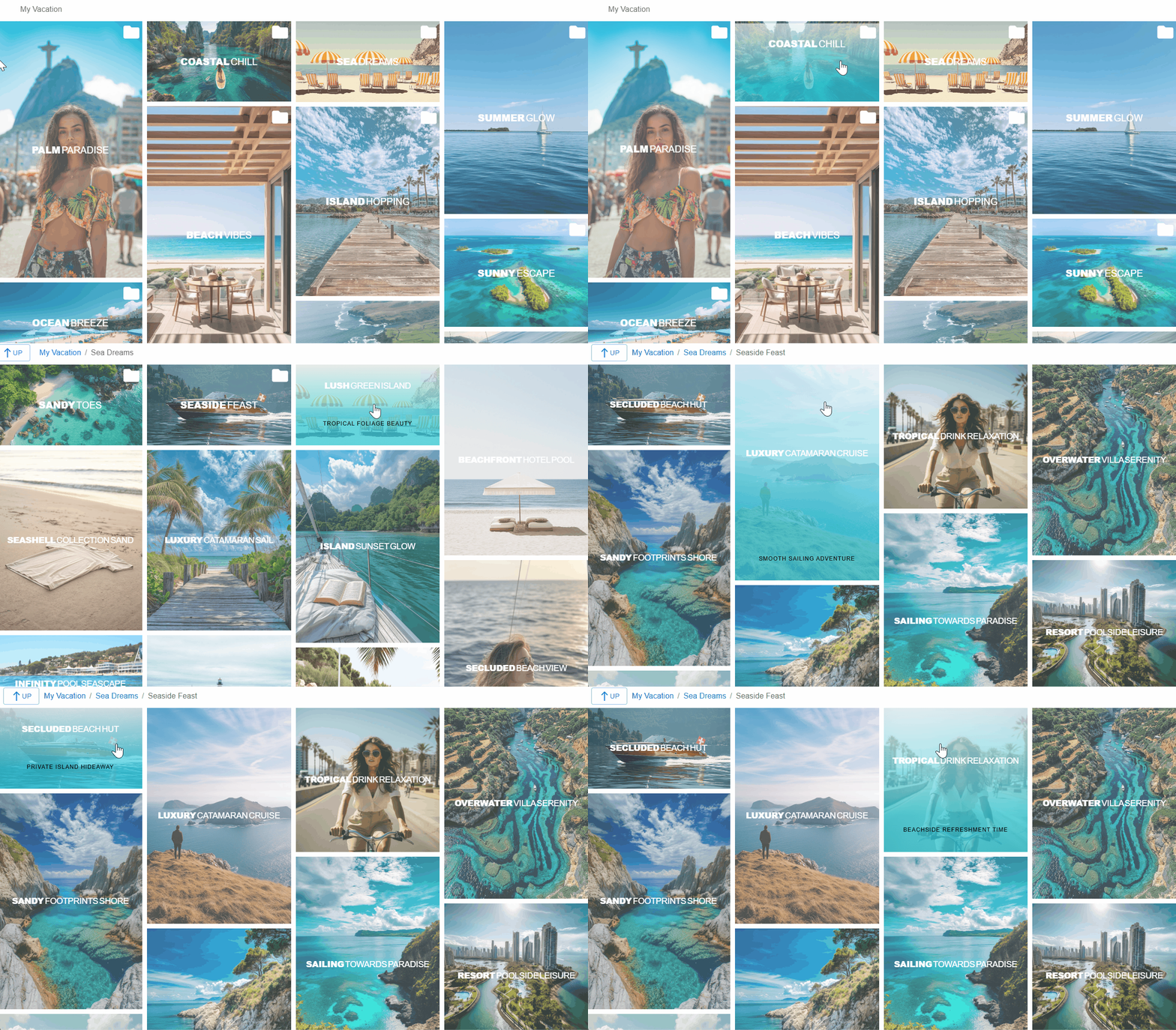
What you get inside
8 screens-
Interface 1
-
Interface 2
-
Interface 3
-
Interface 4
-
Interface 5
-
Interface 6
-
Interface 7
-
Interface 8
About this plugin
A gallery on your website is more than just a visual element – it plays an important role in how images are presented and how users interact with your content. If you are looking for a fast, lightweight, and easy-to-use image gallery plugin with a clean, modern, and customizable design, this plugin provides a practical solution. It allows you to create image galleries that adapt to different layouts, integrate smoothly with your website’s style, and maintain stable performance across devices.
🖼️ Explore New Demos | View Classic Demos | Upgrade to Pro 💎
🚀 What’s New in Robo Gallery 6
- New gallery dialog & Post Grid 🧩 – pick a source (media library, YouTube, or posts, pages and products) and a layout: grid, masonry, horizontal masonry, justified or slider. Classic galleries keep working on the Legacy tab.
- New image slider 🎠 – Slide, Coverflow, Fade, Cube, Flip, Cards and Creative effects.
- New media manager 🗂️ – drag-and-drop upload, import from links, videos and YouTube playlists, server folders with Lightroom data, bulk edit, undo and duplicate finder.
- Styles, Google Fonts & interface colors ✒️ with a live preview.
- Themes 🎨 – built-in or your own, reusable across galleries.
- Album manager 🗃️ – drag galleries into nested albums.
- Likes & comments ❤️ on photos, moderated in WordPress.
- Client proofing ✅ – personal links where clients pick images and leave notes.
- Access & protection 🔒 – password, private and secret-link galleries, watermarks and right-click protection.
- Full-screen editing & autosave 🖥️
- SEO & feeds 📈 – sitemaps for WordPress, Yoast SEO and Rank Math; galleries in RSS, AMP and embeds.
Customizable Views
With a wide range of gallery configuration options, this photo gallery plugin allows you to control how images, photos, and albums are displayed. You can choose from multiple gallery types, including grid, masonry, justify, mosaic, polaroid, and slider, to present your photo gallery or image gallery in different layouts. Available features include the fusion grid, horizontal masonry, vertical masonry, advanced polaroid styles, configurable hover effects, and a lightbox with fullscreen, slideshow, and download options, giving you flexible ways to customize your galleries.
Gallery Lightbox
Enhance your gallery with a built-in image lightbox designed to display images, photos, and videos in a responsive interface. The photo lightbox supports external sources such as YouTube, Facebook, Twitch, Vimeo, Wistia, and SoundCloud, as well as MP4 video files, allowing you to include different media types within your image gallery. You can configure titles and descriptions, enable slideshow mode with play and stop controls, and use zoom, fullscreen, and image download options. Social sharing features allow visitors to share images directly from the lightbox, and visitors can like and comment on photos right in the lightbox.
Interactive Hover Effects
Enhance your photo gallery with a set of hover animations that add interactive behavior to images. Hover effects support transitions, layout customization, and options to display titles, descriptions, zoom controls, and link buttons. Some hover modes include social sharing functionality, helping users share images from the gallery. The hover template mode allows you to extend hover layouts using custom HTML and CSS, providing additional control over how galleries are presented. In the Fusion Grid, the colors of every hover element, Google Fonts for titles and descriptions, and an inverted mode can be set with a live preview of the effect.
Polaroid Gallery
Showcase images using a portfolio-style gallery with several layout options, including regular grid, masonry, mosaic, and justified views. The classic polaroid gallery displays image descriptions below thumbnails, providing a distinctive presentation for photo galleries. The enhanced polaroid mode extends customization options by allowing content panels to be placed on any side of the thumbnail top, left, right, or bottom. These panels can include titles, descriptions, lightbox controls, social sharing icons, zoom options, and custom links, giving you flexible ways to structure an image gallery.
Mobile-Friendly & Responsive Galleries
The gallery layouts are designed to adapt to different screen sizes, including smartphones, tablets, and desktop devices. Photo gallery views such as grids, masonry, and mosaic layouts adjust automatically for responsive display. Support for high-resolution images on Retina and Ultra HD displays allows images to remain clear on modern screens. Hover animations are adjusted for mobile interaction, and the lightbox, navigation, and user interface are structured to support browsing on both mobile and desktop devices.
Gallery Albums
Organize photo galleries using albums with multiple nesting levels to structure images, albums, and videos. You can build cover galleries that contain only albums or combine albums with photos, linked images, and embedded videos. This makes it possible to create multi-level image galleries with clear navigation and structured access to content. Layout options can be adjusted to fit different use cases, from compact album structures to larger album collections, supporting a wide range of gallery organization needs. The new album manager shows the whole hierarchy in one window, where galleries can be dragged into albums and reordered.
Navigation & Gallery Interface
The Fusion Grid includes an updated photo gallery navigation interface with configurable menu options. You can choose between Wide and Compact display modes depending on your layout preferences. The menu system supports dropdown navigation with multiple nesting levels, allowing structured organization of gallery hierarchies. An optional Sidebar Menu can be enabled on its own or combined with the top menu. Menu appearance can be adjusted using predefined themes or custom color settings, and menu labels can be customized. Breadcrumb navigation helps users move through gallery albums, while multi-page pagination, Load More and infinite lazy loading support efficient browsing across different screen sizes. Linked images, lightbox images and videos can be combined in one gallery, and each image can have its own link to a page of your site or an external resource. Visitors can search the gallery and filter it by tags or by content type (photos, videos, links), shown as buttons or a dropdown, and the interface color, a light or dark scheme and corner radius keep the menus, filters and dialogs in line with your site.
Social Media Sharing
Social media sharing options allow images, photos, and galleries to be shared from thumbnails, hover effects, and the lightbox. Sharing buttons are available in enhanced Polaroid layouts, lightbox views, and hover animations. More than 20 platforms are supported, including Facebook, Telegram, Twitter, Reddit, WhatsApp, LinkedIn, Pinterest and Tumblr, making it easier to distribute image gallery content across multiple channels.
Image Slider
The image slider allows you to display images and photos in a responsive slideshow format. Slider options include captions, navigation controls, autoplay settings, transition effects, and adjustable slideshow speed. The slider can be used alongside gallery layouts to present photos, images, and albums in a structured way, supporting different presentation and content display scenarios. The rebuilt slider of the Fusion Grid adds Slide, Coverflow, Fade, Cube, Flip, Cards and Creative effects, several cards per view with fewer cards on narrow screens, loop, shadows, image fit options and pagination as bullets, a counter or a progress bar; albums in the slider open in a popup window.
Video Gallery
Create video galleries with support for multiple platforms. Videos can be embedded from YouTube playlists and channels, as well as other sources such as Facebook, Twitch, Vimeo, SoundCloud, and Wistia. In the media manager, videos from YouTube, Vimeo, TikTok and Spotify, or a whole YouTube playlist, are added by pasting their links, and a YouTube gallery can show the videos of channels and playlists with its own title, image and order for each video. The video gallery is responsive and supports configurable layouts, allowing video content to be displayed alongside images and photos within the same gallery structure.
Bulk Images Uploader & Server Import
Upload and organize large numbers of images using the bulk uploader and server import tools. Photos can be imported directly from server folders, and multiple galleries can be created in a single process. Gallery metadata such as titles, captions, descriptions, tags, links, and video URLs can be defined using a configuration file, allowing metadata to be applied automatically during import. This workflow is suitable for managing large photo galleries and reducing manual setup when working with extensive image collections.
The new media manager brings these tools right into the gallery editor. Browse server folders and subfolders and add their images in one step; titles, descriptions and tags saved by Adobe Lightroom are read automatically, and a file_list.txt (JSON) next to the files sets the title, caption, alt text, link and tags of each image. Images can also be imported from links – direct image links or pages on Flickr, Pinterest, Unsplash, YouTube and similar sites – and saved to your media library. Select several images to edit their tags and alt texts together, sort them by drag and drop, undo and redo changes, remove duplicates and follow recommendations for missing alt texts or videos the gallery cannot play.
Display Anywhere
Each gallery is stored as a custom post type, making it easy to manage and reuse. Galleries can be added to posts, pages, sidebars, and other areas of your website using the Gallery Widget, Gutenberg block, Elementor gallery widget, or classic shortcodes. The Gutenberg block shows the gallery right in the editor, and a gallery can also open in a popup window from a button or a link in your text.
Post Grid
Show the posts, pages or WooCommerce products of your site as a gallery. Pick them with a query – post type, categories or tags, order – or choose them by hand. Each post is shown with its image (one chosen in the gallery, the featured image, or the first image of the post), its title and excerpt, and can use the same layouts, hover effects and polaroid panel as an image gallery.
Likes & Comments
Visitors can like photos and leave comments on them in the lightbox and on the polaroid panel. You decide who can like – logged-in users or everyone – and who can comment. Comments follow the discussion settings of your site, including moderation and disallowed words, and are managed on the WordPress Comments screen.
Client Proofing
Share a gallery with clients for their choice. Each client opens the gallery by a personal link, marks the images they like, adds notes to them and sends the choice. You receive an e-mail and see the chosen images of every client, with their file names, in the gallery settings. Links can be renewed or e-mailed to the client right from the gallery.
Themes
Themes save the look of a gallery – layout, hover, colors, navigation and other options – and apply it to any other gallery in one click. Start with a built-in theme or save your own, and every gallery keeps its own changes on top of its theme.
Access, Protection & Watermarks
A gallery can be public, password protected or private, or available only by a direct link or a secret share link. Galleries opened by link only are kept out of search results, listings, widgets, feeds and sitemaps and get a noindex tag. Protect your photos with watermarks using the Robo Watermark plugin and with right-click protection, installed in one click from the plugin settings. Custom CSS and text before and after the gallery give additional control over its look.
SEO & Feeds
Galleries are listed in the sitemaps of WordPress, Yoast SEO and Rank Math, and their images are added as plain HTML, with their alt texts, for search engines and visitors without JavaScript. RSS feeds, AMP pages, embeds and the REST API show the gallery as a grid of linked images, with the number of images set in the plugin settings.
Performance & Cache
Caching and optimization are built in and turned on by default to help improve the loading behavior of image galleries, photo albums, and lightbox features. By reducing repeated server requests and reusing stored data, galleries and photos can load more efficiently during user navigation. It works automatically, with no extra settings, and does not conflict with other caching and optimization plugins, because it handles only the gallery’s own resources. Clean code keeps resource usage low, and regular updates maintain compatibility with WordPress themes and plugins.
💎 Pro Key Features
-
Customizable Gallery Interface – Adjust layouts, colors, styles, and visual effects to fit different design requirements.
-
Unlimited Albums & Nested Structure – Create albums with multiple nesting levels and combine photos, linked images, videos, and albums within the same gallery.
-
Enhanced Polaroid Mode – Use content panels on thumbnails to display titles, descriptions, zoom controls, links, and social sharing buttons.
-
YouTube Gallery Support – Display YouTube playlists and channels directly inside a gallery layout.
-
Multiple Gallery Layouts – Choose from grid, masonry, mosaic, polaroid, justify, slider, and other layouts designed to work on both mobile and desktop devices.
-
Predefined Gallery Themes – Apply ready-made theme styles to galleries to control colors and visual appearance.
-
Configurable Hover Effects – Use hover animations with buttons, overlays, and interactive elements to enhance image presentation.
-
Editable Hover Template – Create custom hover layouts using HTML and CSS to extend default hover behavior.
-
Gallery Search – Allow visitors to search images by titles, descriptions, and tags within galleries.
-
Search Filters – Let visitors filter a gallery by tags or by content type, shown as buttons or a dropdown.
-
Client Proofing – Give every client a personal link to pick images, add notes and send the choice.
-
Videos & Playlists in the Media Manager – Add videos from YouTube, Vimeo, TikTok and Spotify, or a whole YouTube playlist, by pasting their links.
-
Custom Links – Assign links to images, albums, or external pages to support navigation and content flow.
What’s Next 🔥
Version 6 builds on the foundation of Version 5, and development continues in 2026.
Planned areas of development include:
- Selling Photos: Tools to sell images and prints right from your galleries.
- WooCommerce Integration: Gallery images connected with WooCommerce products, cart and checkout.
- Instagram Integration: Galleries made from Instagram posts.
- Additional Animation Effects: New animation options for gallery elements and hover interactions.
- Additional Gallery Sources: Planned support for external sources such as Pinterest, Flickr, Unsplash, Pexels, Pixabay, Google Drive, OneDrive, and Dropbox.
🖼️ All Demos
Grid Layout Demo with Fade hover effect
Multi Categories Polaroid style Movie Demo with classic layout
Design Sketch Demo with grid layout
Multi Categories Demo with custom interface colors and classic layout
Minimum requirements for WordPress Robo Gallery
WordPress 3.3
PHP 5.x
MySQL 5.x
Compatibility
Plugin implemented in native WordPress style. All code is implemented based on WordPress API and …
Questions
- How to Upload Images to the Gallery?
When you create a new gallery or edit an existing one, open the Content tab of the gallery settings. The media manager there adds images from the media library, uploads new files by drag and drop, imports images from links, adds videos and YouTube playlists, or takes images from a folder on the server. Click an image to edit its title, description, link and tags, or turn on Select to edit several images at once.
- Can I Import Images from a Folder on My Server?
Yes. Upload a folder by FTP, then click Server Folder in the media manager, open the folder and pick the images or the whole folder. The title, description and tags saved by Adobe Lightroom are read from the images, and a file_list.txt file (JSON) in the folder can set the title, caption, alt text, link and tags of each image.
- Will My Existing Galleries Keep Working After the Update?
Yes. Existing galleries keep their settings and look the same on your site. The classic gallery types are available on the Legacy tab of the new gallery dialog, and the old image window can be turned on with the Legacy button of the media manager.
- How Does Client Proofing Work?
Turn on Client Proofing on the Proofing tab of a gallery and add your clients. Each client gets a personal link, opens the gallery, marks the chosen images, adds notes and sends the choice. You receive an e-mail and see the chosen images of each client on the same tab.
- Can I Reuse the Settings of One Gallery in Another?
Yes. Save the settings of a gallery as a theme with the button next to the theme list, then choose that theme in any other gallery. Built-in themes are available too.
- How to Change the Quality of the Thumbnails?
You can adjust the thumbnail quality in the Size Options, Thumbnails Options, Source settings.
- Where Can I Define Vertical and Horizontal Paddings?
You can set horizontal and vertical paddings between thumbnails in the gallery settings.
- Are There Any Limits on Image Size?
No, there are no restrictions on image size.
sandywp / also on the shelf
Try another plugin

4.9 · 800K+ installs
Responsive slider plugin to create sliders in visual editor easily. Build beautiful image slider, layer slider, video slider,…

Slider, Gallery, and Carousel by MetaSlider – Image Slider, Video Slider
4.6 · 500K+ installs
Slider, gallery, carousel plugin for WordPress. Build your image slider, video slider, post slider, YouTube slider, or…

Photo Gallery, Sliders, Proofing and Themes – NextGEN Gallery
4.3 · 300K+ installs
The most popular gallery plugin that lets you create galleries and albums in seconds.
Spin up a real WordPress site in seconds.
Test plugins, build a demo, hand a client a link — then squash it and start again. No local setup, no Docker.