sandywp / plugins / remove-dashboard-access-for-non-admins
Remove Dashboard Access
Disable Dashboard access for users of a specific role or capability. Disallowed users are redirected to a chosen URL. Get set up in seconds.
Ready in seconds.
v1.3.1 30,000+ installs WP 3.1.0+ PHP 5.3+
What you get inside
3 screens-
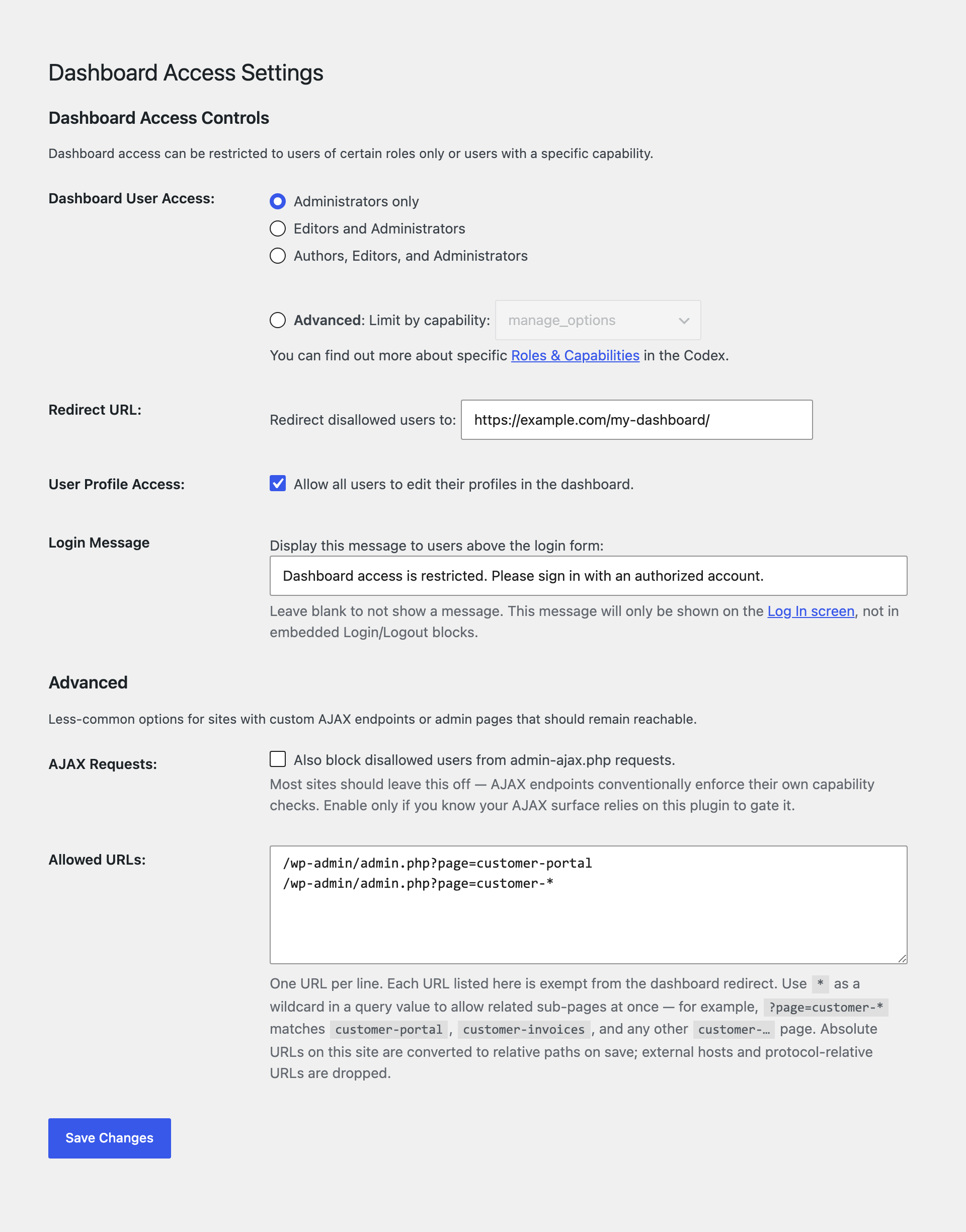
The Dashboard Access Controls settings in the Settings > Dashboard Access screen.
-
Allow users to access their profile settings (only).
-
Optional login message.
About this plugin
The easiest and safest way to restrict access to your WordPress site’s Dashboard and administrative menus. Remove Dashboard Access is a lightweight plugin that automatically redirects users who shouldn’t have access to the Dashboard to a custom URL of your choosing. Redirects can also be configured on a per-role/per-capability basis, allowing you to keep certain users out of the Dashboard, while retaining access for others.
- Limit Dashboard access to user roles:
- Admins only
- Admins + editors
- Admins, editors, and authors
- or restrict by specific user capability
- Choose your own redirect URL
- Optionally allow users to edit their profiles
- Display a message on the login screen so users know why they’re being redirected
- Allow specific admin pages through the redirect — paste a list of URLs your customers should still be able to reach (with wildcard support for grouping related pages)
- Optionally extend the block to
admin-ajax.phprequests for stricter lockdown
Blocking access to the Dashboard is a great way to prevent clients from breaking their sites, prevent users from seeing things they shouldn’t, and to keep your site’s backend more secure.
Allow only users with roles or capabilities:
You can restrict Dashboard access to Admins only, Editors or above, Authors or above, or by selecting a specific user capability.
Grant access to user profiles:
Optionally allow all users the ability to edit their profiles in the Dashboard. Users lacking the chosen capability won’t be able to access any other sections of the Dashboard.
Show a custom login message:
- Supply a message to display on the login screen. Leaving this blank disables the message.
Allow specific admin pages through the redirect:
Sometimes you want to lock down the Dashboard but still let your customers reach one or two specific admin pages — a payment confirmation, a TrustedLogin secret-share screen, a custom report. Paste those URLs into the Allowed URLs box (one per line, relative or absolute), and matching requests will skip the redirect.
Use * as a wildcard inside a query value to match a whole group of pages at once. For example, ?page=tl-* allows tl-secrets, tl-config, and any other page whose slug starts with tl-.
Optionally block AJAX requests too:
By default this plugin doesn’t touch requests to admin-ajax.php — most WordPress sites rely on those for legitimate frontend AJAX. If you’d rather the dashboard restriction apply there as well, turn on the “Also block AJAX” checkbox in the Advanced section of the settings page.
Questions
- What happens to disallowed users who try to access to the Dashboard?
Users lacking the chosen capability or role(s) will be redirected to the URL set in Settings > Dashboard Access.
- Why haven’t you added an option to disable the WordPress Toolbar?
The Toolbar contains certain important links (even for disallowed users) such as for accessing to the profile editor and/or logging out. Plus, there are many plugins out there for disabling the Toolbar if you really want to.
- Can I disable the redirection/profile-editing controls without disabling the plugin?
No. Disable the plugin if you don’t wish to leverage the functionality.
- How do I hide other plugins/themes’ Toolbar menus?
- Remove Dashboard Access removes some built-in WordPress Toolbar menus by default, but can be extended to hide menus from other plugins or themes via two filters:
rda_toolbar_nodes(viewing from the admin), andrda_frontend_toolbar_nodes(viewing from the front-end).
- Remove Dashboard Access removes some built-in WordPress Toolbar menus by default, but can be extended to hide menus from other plugins or themes via two filters:
- How do I find the menu (node) id?
- In the HTML page source, look for the
<li>container for the menu node you’re targeting. It should take the form of<li id="wp-admin-bar-SOMETHING"> - In
<li id="wp-admin-bar-SOMETHING">, you want the “SOMETHING” part.
- In the HTML page source, look for the
- How can I allow access to specific pages of the Dashboard?
The function returns an associative array with
$pagenowas the key and a nested array of key => value pairs where the key is the$_GETparameter and the value is the allowed value.Example: If you want to allow a URL of
admin.php?page=EXAMPLE, there are three parts to know:- The
$pagenowglobal value (tools.phpin this case) - The
$_GETkey (pagein this case) - The
$_GET value (EXAMPLE in this case)
Here is how we would add that URL to the allowlist:
/**
 * Allow users to access a page with a URL of tools.php?page=EXAMPLE
 *
 * @param array $pages Allowed Dashboard pages.
 * @return array Filtered allowed Dashboard pages.
 */
function wpdocs_allow_example_dashboard_page( $pages ) {

    // If the $pages array doesn't contain the 'admin.php' key, add it.
    if ( ! isset( $pages['tools.php'] ) ) {
        $pages['tools.php'] = array();
    }

    // Now add ?page=EXAMPLE` combination to the allowed parameter set for that page.
$pages['tools.php'][] = array(
    'page' => 'EXAMPLE'
);

return $pages;
}
add_filter( ‘rda_allowlist’, ‘wpdocs_allow_example_dashboard_page’ );
`- The
- How can I filter the disallowed Toolbar nodes on the front-end?
`
/**
* Filter hidden Toolbar menus on the front-end.
*
* @param array $ids Toolbar menu IDs.
* @return array Filtered front-end Toolbar menu IDs.
*/
function wpdocs_hide_some_toolbar_menu( $ids ) {
$ids[] = ‘SOMETHING’;
return $ids;
}
add_filter( ‘rda_frontend_toolbar_nodes’, ‘wpdocs_hide_some_toolbar_menu’ );Common plugin Toolbar menus and their ids:
- Jetpack by WordPress.com (notifications) – ‘notes’
- WordPress SEO by Yoast – ‘wpseo-menu’
- W3 Total Cache – ‘w3tc’
- How do I enable Debug Mode?
To view debugging information on the Settings > Reading screen, visit:
example.com/options-general.php?page=dashboard-access&rda_debug=1
sandywp / also on the shelf
Try another plugin

4.8 · 1M+ installs
Loginizer is a WordPress security plugin which helps you fight against bruteforce attacks.

4.5 · 700K+ installs
User Role Editor WordPress plugin makes user roles and capabilities changing easy. Edit/add/delete WordPress user roles and…
Members – Membership & User Role Editor Plugin
4.9 · 300K+ installs
The best WordPress membership and user role editor plugin. User Roles & Capabilities editor helps you restrict content in…
Spin up a real WordPress site in seconds.
Test plugins, build a demo, hand a client a link — then squash it and start again. No local setup, no Docker.