sandywp / plugins / one-user-avatar

One User Avatar | User Profile Picture
Use any image from your WordPress Media Library as a custom user avatar or user profile picture. Add your own Default Avatar.
Ready in seconds.
v2.5.6 100,000+ installs WP 4.0+
What you get inside
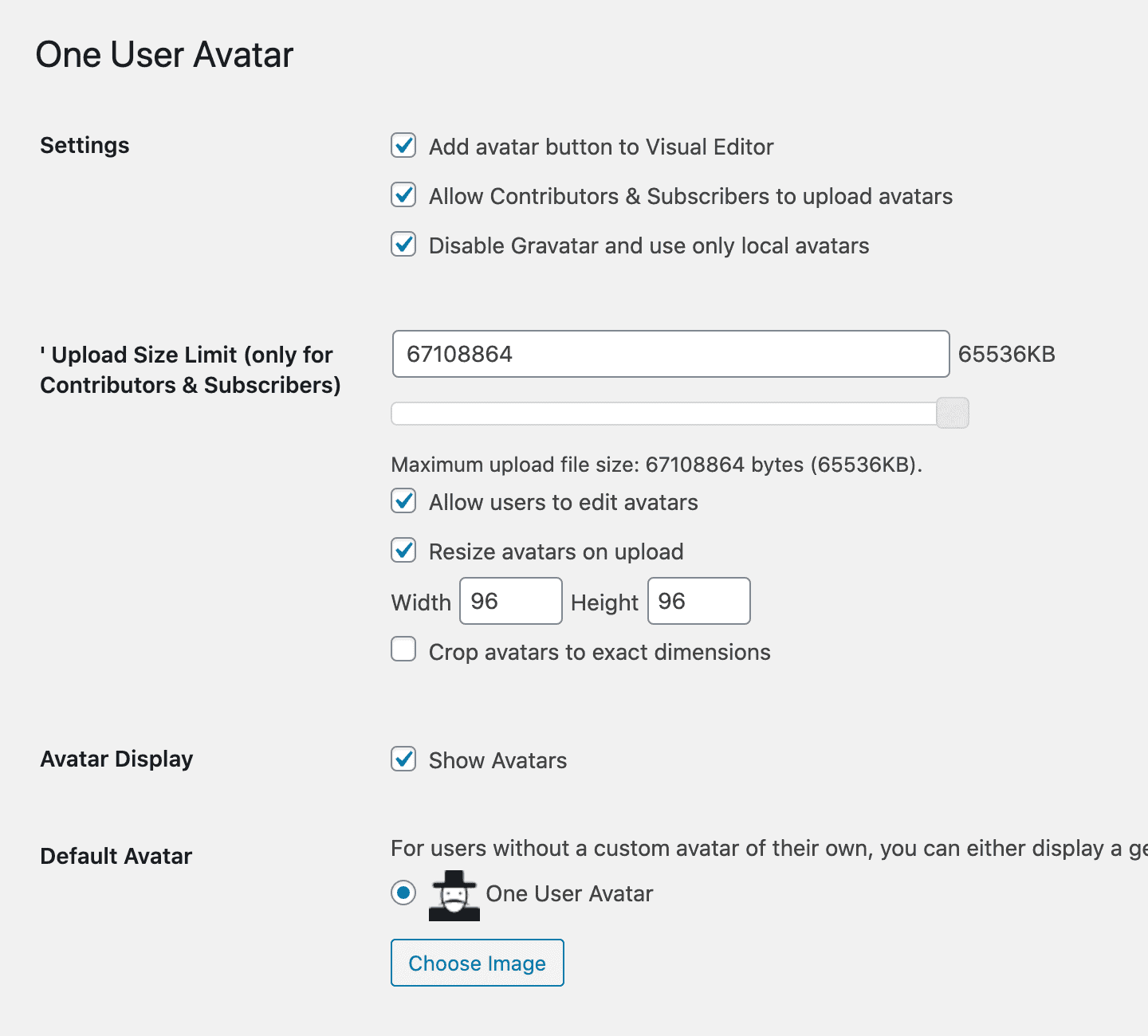
2 screens-
One User Avatar admin settings.
-
One User Avatar lets you upload your own Default Avatar.
About this plugin
WordPress currently only allows you to use custom avatars that are uploaded through Gravatar. One User Avatar enables you to use any photo uploaded into your Media Library as an avatar. This means you use the same uploader and library as your posts. No extra folders or image editing functions are necessary. This plugin is a fork of WP User Avatar v2.2.16.
One User Avatar also lets you:
- Upload your own Default Avatar in your One User Avatar settings.
- Show the user’s Gravatar avatar or Default Avatar if the user doesn’t have a One User Avatar image.
- Disable Gravatar avatars and use only local avatars.
- Use the
[avatar_upload]shortcode to add a standalone uploader to a front page or widget. This uploader is only visible to logged-in users. - Use the
[avatar]shortcode in your posts. These shortcodes will work with any theme, whether it has avatar support or not. - Allow Contributors and Subscribers to upload their own avatars.
- Limit upload file size and image dimensions for Contributors and Subscribers.
Copyright
One User Avatar
Copyright (c) 2023 One Designs https://onedesigns.com/
License: GPLv2
Source: https://github.com/onedesigns/one-user-avatar
One User Avatar is based on WP User Avatar v2.2.16
Copyright (c) 2020-2021 ProfilePress https://profilepress.net/
Copyright (c) 2014-2020 Flippercode https://www.flippercode.com/
Copyright (c) 2013-2014 Bangbay Siboliban http://bangbay.com/
License: GPLv2
Source: https://github.com/profilepress/wp-user-avatar
One User Avatar is distributed under the terms of the GNU GPL
This program is free software: you can redistribute it and/or modify
it under the terms of the GNU General Public License as published by
the Free Software Foundation, either version 2 of the License, or
(at your option) any later version.
This program is distributed in the hope that it will be useful,
but WITHOUT ANY WARRANTY; without even the implied warranty of
MERCHANTABILITY or FITNESS FOR A PARTICULAR PURPOSE. See the
GNU General Public License for more details.
Advanced Settings
Add One User Avatar to your own profile edit page
You can use the [avatar_upload] shortcode to add a standalone uploader to any page. It’s best to use this uploader by itself and without other profile fields.
If you’re building your own profile edit page with other fields, One User Avatar is automatically added to the show_user_profile and edit_user_profile hooks. If you’d rather have One User Avatar in its own section, you could add another hook:
do_action( 'edit_user_avatar', $current_user );
Then, to add One User Avatar to that hook and remove it from the other hooks outside of the administration panel, you would add this code to the functions.php file of your theme:
function my_avatar_filter() {
    // Remove from show_user_profile hook
    remove_action( 'show_user_profile', array( 'wp_user_avatar', 'wpua_action_show_user_profile' ) );
    remove_action( 'show_user_profile', array( 'wp_user_avatar', 'wpua_media_upload_scripts' ) );

    // Remove from edit_user_profile hook
    remove_action( 'edit_user_profile', array( 'wp_user_avatar', 'wpua_action_show_user_profile' ) );
    remove_action( 'edit_user_profile', array( 'wp_user_avatar', 'wpua_media_upload_scripts' ) );

    // Add to edit_user_avatar hook
    add_action( 'edit_user_avatar', array( 'wp_user_avatar', 'wpua_action_show_user_profile' ) );
    add_action( 'edit_user_avatar', array( 'wp_user_avatar', 'wpua_media_upload_scripts' ) );
}

// Loads only outside of administration panel
if ( ! is_admin() ) {
    add_action( 'init','my_avatar_filter' );
}
HTML Wrapper
You can change the HTML wrapper of the One User Avatar section by using the functions wpua_before_avatar and wpua_after_avatar. By default, the avatar code is structured like this:
<div class="wpua-edit-container">
    <h3>Avatar</h3>
    <input type="hidden" name="wp-user-avatar" id="wp-user-avatar" value="{attachmentID}" />
    <p id="wpua-add-button">
        <button type="button" class="button" id="wpua-add" name="wpua-add">Edit Image</button>
    </p>
    <p id="wpua-preview">
        <img src="{imageURL}" alt="" />
        Original Size
    </p>
    <p id="wpua-thumbnail">
        <img src="{imageURL}" alt="" />
        Thumbnail
    </p>
    <p id="wpua-remove-button">
        <button type="button" class="button" id="wpua-remove" name="wpua-remove">Default Avatar</button>
    </p>
    <p id="wpua-undo-button">
        <button type="button" class="button" id="wpua-undo" name="wpua-undo">Undo</button>
    </p>
</div>
To strip out the div container and h3 heading, you would add the following filters to the functions.php file in your theme:
remove_action( 'wpua_before_avatar', 'wpua_do_before_avatar' );
remove_action( 'wpua_after_avatar', 'wpua_do_after_avatar' );
To add your own wrapper, you could create something like this:
function my_before_avatar() {
    echo '<div id="my-avatar">';
}
add_action( 'wpua_before_avatar', 'my_before_avatar' );

function my_after_avatar() {
    echo '</div>';
}
add_action( 'wpua_after_avatar', 'my_after_avatar' );
This would output:
<div id="my-avatar">
    <input type="hidden" name="wp-user-avatar" id="wp-user-avatar" value="{attachmentID}" />
    <p id="wpua-add-button">
        <button type="button" class="button" id="wpua-add" name="wpua-add">Edit Image</button>
    </p>
    <p id="wpua-preview">
        <img src="{imageURL}" alt="" />
        <span class="description">Original Size</span>
    </p>
    <p id="wpua-thumbnail">
        <img src="{imageURL}" alt="" />
        <span class="description">Thumbnail</span>
    </p>
    <p id="wpua-remove-button">
        <button type="button" class="button" id="wpua-remove" name="wpua-remove">Default Avatar</button>
    </p>
    <p id="wpua-undo-button">
        <button type="button" class="button" id="wpua-undo" name="wpua-undo">Undo</button>
    </p>
</div>
Questions
- How do I use One User Avatar?
First, choose a theme that has avatar support. In your theme, you have a choice of manually replacing
get_avatarwithget_wp_user_avatar, or leavingget_avataras-is. Here are the differences:- get_wp_user_avatar
- Allows you to use the values “original”, “large”, “medium”, or “thumbnail” for your avatar size.
- Doesn’t add a fixed width and height to the image if you use the aforementioned values. This will give you more flexibility to resize the image with CSS.
- Allows you to use custom image sizes registered with
add_image_size(fixed width and height are added to the image). - Optionally adds CSS classes “alignleft”, “alignright”, or “aligncenter” to position your avatar.
- Shows nothing if the user has no One User Avatar image.
- Shows the user’s Gravatar avatar or Default Avatar only if “Show Avatars” is enabled in your One User Avatar settings.
- get_avatar
- Requires you to enable “Show Avatars” in your One User Avatar settings to show any avatars.
- Accepts only numeric values for your avatar size.
- Always adds a fixed width and height to your image. This may cause problems if you use responsive CSS in your theme.
- Shows the user’s Gravatar avatar or Default Avatar if the user doesn’t have a One User Avatar image. (Choosing “Blank” as your Default Avatar still generates a transparent image file.)
- Requires no changes to your theme files if you are currently using
get_avatar.
Read more about get_avatar in the WordPress Function Reference.
- Can I create a custom Default Avatar?
In your One User Avatar settings, you can upload your own Default Avatar.
- Can I disable all Gravatar avatars?
In your One User Avatar settings, you can select “Disable Gravatar — Use only local avatars” to disable all Gravatar avatars on your site and replace them with your Default Avatar. This will affect your registered users and non-registered comment authors.
- Can Contributors or Subscribers choose their own One User Avatar image?
Yes, if you enable “Allow Contributors & Subscribers to upload avatars” in the One User Avatar settings. These users will see a slightly different interface because they are allowed only one image upload.
- Will One User Avatar work with comment author avatars?
Yes, for registered users. Non-registered comment authors will show their Gravatar avatars or Default Avatar.
- Will One User Avatar work with bbPress?
Yes!
sandywp / also on the shelf
Try another plugin

Gravatar Enhanced – Avatars, Profiles, and Privacy
5.0 · 100K+ installs
The official Gravatar plugin, featuring privacy-focused settings, easy profile updates, and customizable Gravatar Profile blocks.

4.6 · 100K+ installs
Adds an avatar upload field to user profiles. Generates requested sizes on demand just like Gravatar!

4.6 · 40K+ installs
Set a custom profile image (avatar) for a user using the standard WordPress media upload tool.
Spin up a real WordPress site in seconds.
Test plugins, build a demo, hand a client a link — then squash it and start again. No local setup, no Docker.