sandywp / plugins / one-click-demo-import

One Click Demo Import
Import your demo content, widgets and theme settings with one click. Theme authors! Enable simple theme demo import for your users.
Ready in seconds.
v3.4.1 1,000,000+ installs WP 5.5+ PHP 7.4+
What you get inside
4 screens-
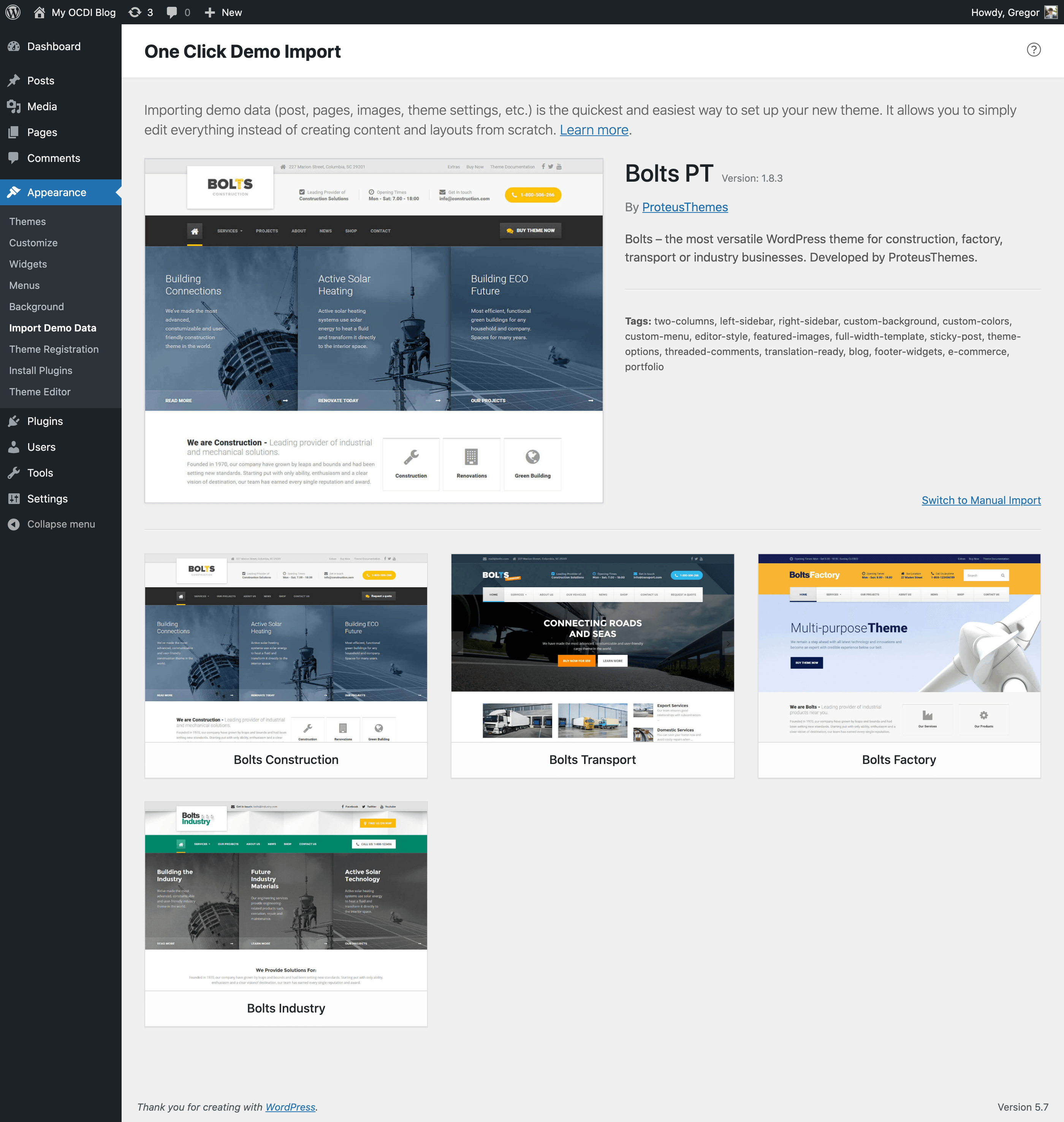
Example of multiple predefined demo imports, that a user can choose from.
-
How the import page looks like, when only one demo import is predefined.
-
Example of how the import page looks like, when no demo imports are predefined a.k.a manual import.
-
How the Recommended & Required theme plugins step looks like, just before the import step.
About this plugin
The best feature of this plugin is, that theme authors can define import files in their themes and so all you (the user of the theme) have to do is click on the “Import Demo Data” button.
Are you a theme author?
Setup One Click Demo Imports for your theme and your users will thank you for it!
Follow this easy guide on how to setup this plugin for your themes!
Are you a theme user?
Contact the author of your theme and let them know about this plugin. Theme authors can make any theme compatible with this plugin in 15 minutes and make it much more user-friendly.
Please take a look at our plugin documentation for more information on how to import your demo content.
This plugin is using the modified version of the improved WP import 2.0 that is still in development and can be found here: https://github.com/humanmade/WordPress-Importer.
NOTE: There is no setting to “connect” authors from the demo import file to the existing users in your WP site (like there is in the original WP Importer plugin). All demo content will be imported under the current user.
Do you want to contribute?
Please refer to our official GitHub repository.
Questions
- I have activated the plugin. Where is the “Import Demo Data” page?
You will find the import page in wp-admin -> Appearance -> Import Demo Data.
- Where are the demo import files and the log files saved?
The files used in the demo import will be saved to the default WordPress uploads directory. An example of that directory would be:
../wp-content/uploads/2023/03/.The log file will also be registered in the wp-admin -> Media section, so you can access it easily.
- How to predefine demo imports?
This question is for theme authors. To predefine demo imports, you just have to add the following code structure, with your own values to your theme (using the
ocdi/import_filesfilter):function ocdi_import_files() { return array( array( 'import_file_name' => 'Demo Import 1', 'categories' => array( 'Category 1', 'Category 2' ), 'import_file_url' => 'http://www.your_domain.com/ocdi/demo-content.xml', 'import_widget_file_url' => 'http://www.your_domain.com/ocdi/widgets.json', 'import_customizer_file_url' => 'http://www.your_domain.com/ocdi/customizer.dat', 'import_redux' => array( array( 'file_url' => 'http://www.your_domain.com/ocdi/redux.json', 'option_name' => 'redux_option_name', ), ), 'import_preview_image_url' => 'http://www.your_domain.com/ocdi/preview_import_image1.jpg', 'import_notice' => __( 'After you import this demo, you will have to setup the slider separately.', 'your-textdomain' ), 'preview_url' => 'http://www.your_domain.com/my-demo-1', ), array( 'import_file_name' => 'Demo Import 2', 'categories' => array( 'New category', 'Old category' ), 'import_file_url' => 'http://www.your_domain.com/ocdi/demo-content2.xml', 'import_widget_file_url' => 'http://www.your_domain.com/ocdi/widgets2.json', 'import_customizer_file_url' => 'http://www.your_domain.com/ocdi/customizer2.dat', 'import_redux' => array( array( 'file_url' => 'http://www.your_domain.com/ocdi/redux.json', 'option_name' => 'redux_option_name', ), array( 'file_url' => 'http://www.your_domain.com/ocdi/redux2.json', 'option_name' => 'redux_option_name_2', ), ), 'import_preview_image_url' => 'http://www.your_domain.com/ocdi/preview_import_image2.jpg', 'import_notice' => __( 'A special note for this import.', 'your-textdomain' ), 'preview_url' => 'http://www.your_domain.com/my-demo-2', ), ); } add_filter( 'ocdi/import_files', 'ocdi_import_files' );You can set content import, widgets, customizer and Redux framework import files. You can also define a preview image, which will be used only when multiple demo imports are defined, so that the user will see the difference between imports. Categories can be assigned to each demo import, so that they can be filtered easily. The preview URL will display the “Preview” button in the predefined demo item, which will open this URL in a new tab and user can view how the demo site looks like.
- How to automatically assign “Front page”, “Posts page” and menu locations after the importer is done?
You can do that, with the
ocdi/after_importaction hook. The code would look something like this:function ocdi_after_import_setup() { // Assign menus to their locations. $main_menu = get_term_by( 'name', 'Main Menu', 'nav_menu' ); set_theme_mod( 'nav_menu_locations', array( 'main-menu' => $main_menu->term_id, // replace 'main-menu' here with the menu location identifier from register_nav_menu() function ) ); // Assign front page and posts page (blog page). $front_page_id = get_page_by_title( 'Home' ); $blog_page_id = get_page_by_title( 'Blog' ); update_option( 'show_on_front', 'page' ); update_option( 'page_on_front', $front_page_id->ID ); update_option( 'page_for_posts', $blog_page_id->ID ); } add_action( 'ocdi/after_import', 'ocdi_after_import_setup' );- What about using local import files (from theme folder)?
You have to use the same filter as in above example, but with a slightly different array keys:
local_*. The values have to be absolute paths (not URLs) to your import files. To use local import files, that reside in your theme folder, please use the below code. Note: make sure your import files are readable!function ocdi_import_files() { return array( array( 'import_file_name' => 'Demo Import 1', 'categories' => array( 'Category 1', 'Category 2' ), 'local_import_file' => trailingslashit( get_template_directory() ) . 'ocdi/demo-content.xml', 'local_import_widget_file' => trailingslashit( get_template_directory() ) . 'ocdi/widgets.json', 'local_import_customizer_file' => trailingslashit( get_template_directory() ) . 'ocdi/customizer.dat', 'local_import_redux' => array( array( 'file_path' => trailingslashit( get_template_directory() ) . 'ocdi/redux.json', 'option_name' => 'redux_option_name', ), ), 'import_preview_image_url' => 'http://www.your_domain.com/ocdi/preview_import_image1.jpg', 'import_notice' => __( 'After you import this demo, you will have to setup the slider separately.', 'your-textdomain' ), 'preview_url' => 'http://www.your_domain.com/my-demo-1', ), array( 'import_file_name' => 'Demo Import 2', 'categories' => array( 'New category', 'Old category' ), 'local_import_file' => trailingslashit( get_template_directory() ) . 'ocdi/demo-content2.xml', 'local_import_widget_file' => trailingslashit( get_template_directory() ) . 'ocdi/widgets2.json', 'local_import_customizer_file' => trailingslashit( get_template_directory() ) . 'ocdi/customizer2.dat', 'local_import_redux' => array( array( 'file_path' => trailingslashit( get_template_directory() ) . 'ocdi/redux.json', 'option_name' => 'redux_option_name', ), array( 'file_path' => trailingslashit( get_template_directory() ) . 'ocdi/redux2.json', 'option_name' => 'redux_option_name_2', ), ), 'import_preview_image_url' => 'http://www.your_domain.com/ocdi/preview_import_image2.jpg', 'import_notice' => __( 'A special note for this import.', 'your-textdomain' ), 'preview_url' => 'http://www.your_domain.com/my-demo-2', ), ); } add_filter( 'ocdi/import_files', 'ocdi_import_files' );- How to handle different “after import setups” depending on which predefined import was selected?
This question might be asked by a theme author wanting to implement different after import setups for multiple predefined demo imports. Lets say we have predefined two demo imports with the following names: ‘Demo Import 1’ and ‘Demo Import 2’, the code for after import setup would be (using the
ocdi/after_importfilter):function ocdi_after_import( $selected_import ) { echo "This will be displayed on all after imports!"; if ( 'Demo Import 1' === $selected_import['import_file_name'] ) { echo "This will be displayed only on after import if user selects Demo Import 1"; // Set logo in customizer set_theme_mod( 'logo_img', get_template_directory_uri() . '/assets/images/logo1.png' ); } elseif ( 'Demo Import 2' === $selected_import['import_file_name'] ) { echo "This will be displayed only on after import if user selects Demo Import 2"; // Set logo in customizer set_theme_mod( 'logo_img', get_template_directory_uri() . '/assets/images/logo2.png' ); } } add_action( 'ocdi/after_import', 'ocdi_after_import' );- Can I add some code before the widgets get imported?
Of course you can, use the
ocdi/before_widgets_importaction. You can also target different predefined demo imports like in the example above. Here is a simple example code of theocdi/before_widgets_importaction:function ocdi_before_widgets_import( $selected_import ) { echo "Add your code here that will be executed before the widgets get imported!"; } add_action( 'ocdi/before_widgets_import', 'ocdi_before_widgets_import' );- How can I import via the WP-CLI?
In the 2.4.0 version of this plugin we added two WP-CLI commands:
wp ocdi list– Which will list any predefined demo imports currently active theme might have,-
wp ocdi import– which has a few options that you can use to import the things you want (content/widgets/customizer/predefined demos). Let’s look at these options below.wp ocdi import options:
wp ocdi import [–content=] [–widgets=] [–customizer=] [–predefined=]
-
--content=<file>– will run the content import with the WP import file specified in the<file>parameter, --widgets=<file>– will run the widgets import with the widgets import file specified in the<file>parameter,--customizer=<file>– will run the customizer settings import with the customizer import file specified in the<file>parameter,--predefined=<index>– will run the theme predefined import with the index of the predefined import in the<index>parameter (you can use thewp ocdi listcommand to check which index is used for each predefined demo import)
The content, widgets and customizer options can be mixed and used at the same time. If the
predefinedoption is set, then it will ignore all other options and import the predefined demo data.
sandywp / also on the shelf
Try another plugin

4.3 · 80K+ installs
Control the appearance of WordPress post excerpts

2.7 · 20K+ installs
Make your website look like the live demo of the theme with a click!

Soro – SEO Autopilot & AI Content Writer
5.0 · 10K+ installs
Connect your WordPress site to Soro for automatic AI-powered article publishing and SEO content automation.
Spin up a real WordPress site in seconds.
Test plugins, build a demo, hand a client a link — then squash it and start again. No local setup, no Docker.