sandywp / plugins / one-click-close-comments
One Click Close Comments
Conveniently close or open comments for a post or page with one click from the admin listing of posts.
Ready in seconds.
v3.0 5,000+ installs WP 4.7+

What you get inside
1 screen-
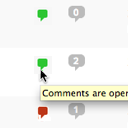
A screenshot of the 'Posts' admin page with the plugin activated. The tooltip (from hovering over a green indicator) reads: "Comments are open. Click to…
About this plugin
From the admin listing of posts (‘Edit Posts’) and pages (‘Edit Pages’), a user can close or open comments to any posts to which they have sufficient privileges to make such changes (essentially admins and post authors for their own posts). This is done via an AJAX-powered color-coded indicator. The color-coding gives instant feedback on the current status of the post for comments: green means the post/page is open to comments, red means the post/page is closed to comments. Being AJAX-powered means that the change is submitted in the background after being clicked without requiring a page reload.
This plugin will only function for administrative users in the admin who have JavaScript enabled.
Links: Plugin Homepage | Plugin Directory Page | GitHub | Author Homepage
Developer Documentation
Developer documentation can be found in DEVELOPER-DOCS.md. That documentation covers the hooks provided by the plugin.
As an overview, these are the hooks provided by the plugin:
c2c_one_click_close_comments_click_char: Filter to customize the character, string, or markup used as the indicator used to toggle a post’s comment status.
Questions
- I can see the colored comment bubble indicating current commenting status, but why aren’t they clickable?
The commenting status link/button is only clickable if you have JavaScript enabled.
- What do the colors of the comment bubble mean?
Green means the post is currently open for comments; red means the post is not currently open for comments.
- How can I customize the colors used for the comment bubble?
You can customize the colors via CSS. The class
.comment-state-1applies to comments that are open. The class.comment-state-0applies to comments that are closed. I recommend my Add Admin CSS plugin to easily add this CSS.- How can I customize the character used to represent commenting status?
By default, commenting status is represented using the comment bubble dashicon,
dashicons-admin-comments. You can change this by filteringc2c_one_click_close_comments_click_char. Here’s an example — added to a theme’s functions.php file — to change it to the original bullet (solid circle) character:add_filter( 'c2c_one_click_close_comments_click_char', function ( $a ) { return "•"; } );- How can I open or close comments when editing a specific post?
WordPress already includes the interface for you to edit the comment status for a specific post. When editing a post, you’ll find the setting in the “Discussion” section; the checkbox is labeled “Allow Comments”.
- Why does the comment status indicator indicate that comments are open, when in reality comments are disabled (or vice vera)?
The comment status indicator only reflects the value of the “Allow Comments” setting for the post. In most cases, the indicator will accurately reflect the ability for the user to see the comment form and/or submit a comment.
However, other plugins, the theme, or custom code may affect the visitor’s ability to see the comment form when viewing a post and/or may permit or disable commenting at the time the post is shown to them despite the value of the setting. For instance, you could have another plugin installed which disables comments for a post after one year. After a year, that plugin would disable comments in its own way, but the comment status indicator for the post could reflect that comments are open since technically the post’s “Allow Comments” setting would still be enabled.
- Why can’t I see the comment status indicator for certain custom post types?
The comment status indicator only appears for post types that support having comments.
- Does this plugin have unit tests?
Yes. The tests are not packaged in the release .zip file or included in plugins.svn.wordpress.org, but can be found in the plugin’s GitHub repository.
sandywp / also on the shelf
Try another plugin

4.8 · 1M+ installs
Loginizer is a WordPress security plugin which helps you fight against bruteforce attacks.

4.4 · 900K+ installs
Redux is a simple, truly extensible, and fully responsive options framework for WordPress themes and plugins. It ships with an…

4.6 · 300K+ installs
Lets you edit the WordPress admin menu. You can re-order, hide or rename menus, add custom menus and more.
Spin up a real WordPress site in seconds.
Test plugins, build a demo, hand a client a link — then squash it and start again. No local setup, no Docker.