sandywp / plugins / menu-icons

Menu Icons by Themeisle
Add Icons to Navigation Menus
Add icons to WordPress navigation menus easily — pick from Font Awesome, Dashicons, image icons & more. Style menu items with custom colors & sizes.
Ready in seconds.
v0.13.24 100,000+ installs WP 4.7+
What you get inside
8 screens-
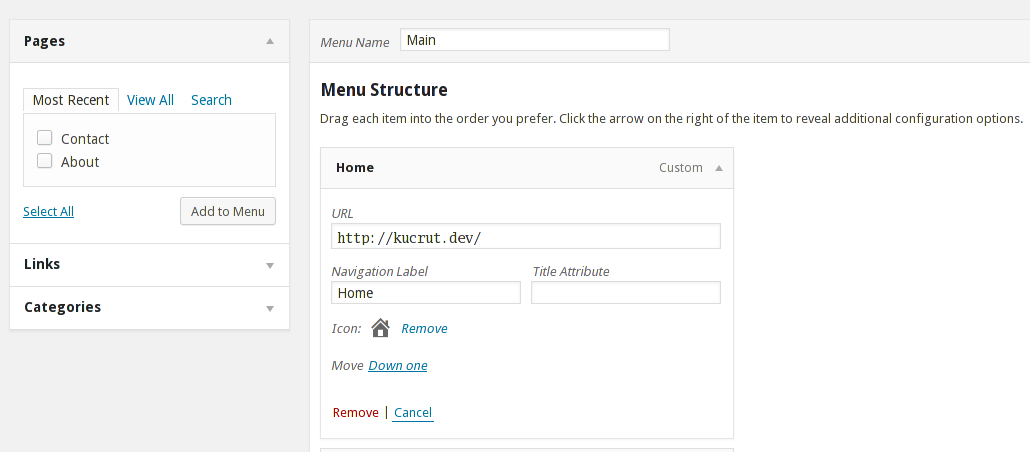
Menu Editor
-
Icon selection
-
Twenty Fourteen with Dashicons
-
Twenty Fourteen with Genericons
-
Twenty Thirteen with Dashicons
-
Twenty Thirteen with Genericons
-
Settings Meta Box (Global)
-
Settings Meta Box (Menu)
About this plugin
This plugin gives you the ability to add icons to your menu items, similar to the look of the latest dashboard menu.
Usage
- After the plugin is activated, go to Appearance > Menus to edit your menus
- Enable/Disable icon types in “Menu Icons Settings” meta box
- Set default settings for current nav menu; these settings will be inherited by the newly added menu items
- Select icon by clicking on the “Select icon” link
- Save the menu
Supported icon types
- Dashicons (WordPress core icons)
- Elusive Icons by Aristeides Stathopoulos
- Font Awesome by Dave Gandy
- Foundation Icons by Zurb
- Genericons by Automattic
- Fontello icon packs
- TI Icons icon pack by ThemeIsle
- Image (attachments)
- SVG (attachments)
Planned supported icon types
- Image (URL)
Compatible themes
Menu icons works with most of the themes out there, especially with popular ones like Twenty Seventeen or Hestia.
Development of this plugin is done on GitHub. Pull requests welcome. Please see issues reported there before going to the plugin forum.
If you like this plugin, then consider checking out our other projects:
CodeinWP Blog – Designer’s Guide To WordPress
Revive.Social – Social Media Tools
JustFreeThemes – Free WordPress Themes directory
Questions
- The icons are not showing!
Make sure that your active theme is using the default walker for displaying the nav menu. If it’s using its own custom walker, make sure that the menu item titles are filterable (please consult your theme author about this).
- The icon positions don’t look right
If you’re comfortable with editing your theme stylesheet, then you can override the styles from there.
If you have Jetpack installed, you can also use its Custom CSS module.
Otherwise, I recommend you to use the Advanced CSS plugin.- Some font icons are not rendering correctly
This is a bug with the font icon itself. When the font is updated, this plugin will update its font too.
- How do I use css file from CDN?
You can use the
icon_picker_icon_type_stylesheet_urifilter, eg:/** * Load Font Awesome's CSS from CDN * * @param string $stylesheet_uri Icon type's stylesheet URI. * @param string $icon_type_id Icon type's ID. * @param Icon_Picker_Type_Font $icon_type Icon type's instance. * * @return string */ function myprefix_font_awesome_css_from_cdn( $stylesheet_uri, $icon_type_id, $icon_type ) { if ( 'fa' === $icon_type_id ) { $stylesheet_uri = sprintf( 'https://maxcdn.bootstrapcdn.com/font-awesome/%s/css/font-awesome.min.css', $icon_type->version ); } return $stylesheet_uri; } add_filter( 'icon_picker_icon_type_stylesheet_uri', 'myprefix_font_awesome_css_from_cdn', 10, 3 );- Is this plugin extendable?
Certainly! Here’s how you can remove an icon type from your plugin/theme:
/**
 * Remove one or more icon types
 *
 * Uncomment one or more line to remove icon types
 *
 * @param  array $types Registered icon types.
 * @return array
 */
function my_remove_menu_icons_type( $types ) {
    // Dashicons
    //unset( $types['dashicons'] );

    // Elusive
    //unset( $types['elusive'] );

    // Font Awesome
    //unset( $types['fa'] );

    // Foundation
    //unset( $types['foundation-icons'] );

    // Genericons
    //unset( $types['genericon'] );

    // Image
    //unset( $types['image'] );

    return $types;
}
add_filter( 'menu_icons_types', 'my_remove_menu_icons_type' );
To add a new icon type, take a look at the files inside the
includes/library/icon-picker/includes/typesdirectory of this plugin.- I don’t want the settings meta box. How do I remove/disable it?
Add this block of code to your mu-plugin file:
add_filter( 'menu_icons_disable_settings', '__return_true' );- How can I change the CSS class for hiding the menu item labels?
Add this block of code to your mu-plugin file:
/** * Override hidden label class * * @param string $class Hidden label class. * @return string */ function my_menu_icons_hidden_label_class( $class ) { $class = 'hidden'; return $class; } add_filter( 'menu_icons_hidden_label_class', 'my_menu_icons_hidden_label_class' );- How can I modify the markup the menu items?
Add this block of code to your mu-plugin file:
/**
 * Override menu item markup
 *
 * @param string  $markup  Menu item title markup.
 * @param integer $id      Menu item ID.
 * @param array   $meta    Menu item meta values.
 * @param string  $title   Menu item title.
 *
 * @return string
 */
function my_menu_icons_override_markup( $markup, $id, $meta, $title ) {
    // Do your thing.

    return $markup;
}
add_filter( 'menu_icons_item_title', 'my_menu_icons_override_markup', 10, 4 );
sandywp / also on the shelf
Try another plugin

5.0 · 600+ installs
Load the Dashicons icon font on the front-end of your site.

5.0 · 300+ installs
This plugin adds support for 18 free icon fonts (over 6000 icons).

5.0 · 70+ installs
it supports dashicons, genericons, font-awesome.
Spin up a real WordPress site in seconds.
Test plugins, build a demo, hand a client a link — then squash it and start again. No local setup, no Docker.