sandywp / plugins / link-library

Link Library
The purpose of this plugin is to add the ability to output a list of link categories and a complete list of links with notes and descriptions.
Ready in seconds.
v7.9.6 10,000+ installs WP 4.4+
What you get inside
3 screens-
The Settings Panel used to configure the output of Link Library
-
A sample output page, displaying a list of categories and the links for all categories in a table form.
-
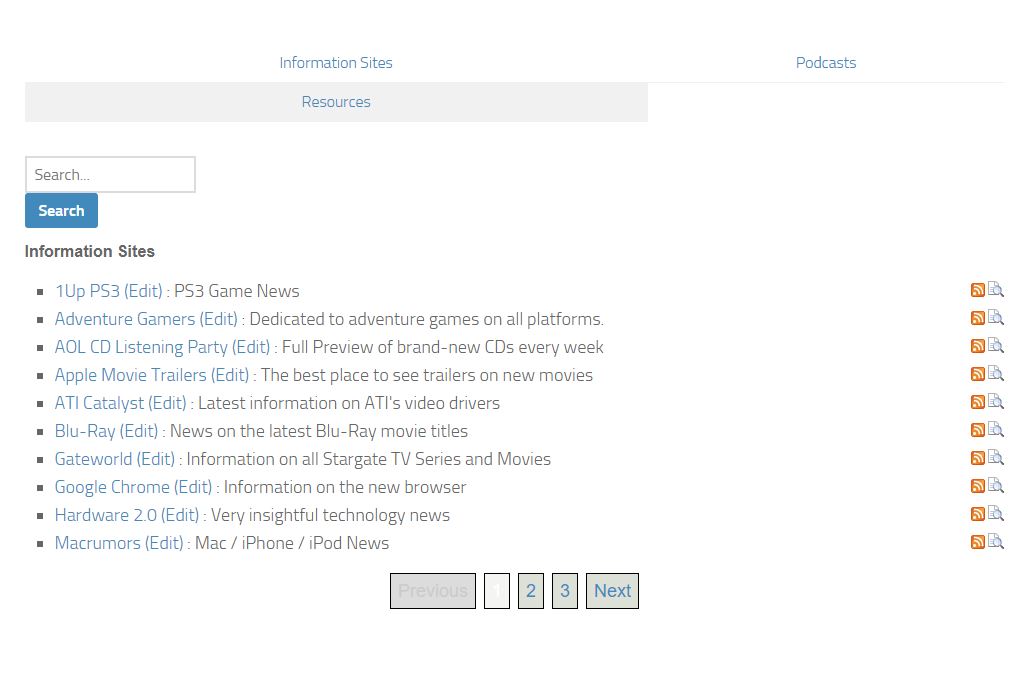
A second sample output showing a list of links with RSS feed icons and RSS preview link.
About this plugin
This plugin is used to be able to create a page on your web site that will contain a list of all of the link categories that you have defined inside of the Links section of the WordPress administration, along with all links defined in these categories. The user can select a sub-set of categories to be displayed or not displayed. Link Library also offers a mode where only one category is shown at a time, using AJAX or HTML Get queries to load other categories based on user input. It can display a search box and find results based on queries. It can also display a form to accept user submissions and allow the site administrator to moderate them before listing the new entries. Finally, it can generate an RSS feed for your link collection so that people can be aware of additions to your link library.
You can try it out in a temporary copy of WordPress here.
For links that carry RSS feed information, Link Library can display a preview of the latest feed items inline with the all links or in a separate preview window.
This plugin uses the filter method to add contents to the pages. It also contains a configuration page under the admin tools to be able to configure all outputs. This page allows for an unlimited number of different configurations to be created to display links on different pages of a WordPress site.
For screenshots showing how to achieve these results, check out my site
All pages are generated using different configurations all managed by Link Library. Link Library is compatible with the Simple Custom Post Order plugin to define category and link ordering.
Questions
- Where can I find documentation for Link Library?
Visit the official documentation for Link Library
- Who are the translators behind Link Library?
- French Translation courtesy of Luc Capronnier
- Danish Translation courtesy of GeorgWP
- Italian Translation courtesy of Gianni Diurno
- Serbian Translation courtesy of Ogi Djuraskovic, firstsiteguide.com
- Where do I find my category IDs to place in the “Categories to be Displayed” and “Categories to be Excluded” fields?
The category IDs are numeric IDs. You can find them by going to the page to see and edit link categories, then placing your mouse over a category and seeing its numeric ID in the link that is associated with that name.
- How can I display different categories on different pages?
If you want all of your link pages to have the same layout, create a single setting set, then specify the category to be displayed when you add the short code to each page. For example: [link-library categorylistoverride=”28″]
If the different pages have different styles for different categories, then you should create distinct setting sets for each page and set the categories to be displayed in the “Categories to be Displayed” field in the admin panel.- After assigning a Link Acknowledgement URL, why do links no longer get added to my database?
When using this option, the short code [link-library-addlinkcustommsg] should be placed on the destination page.
- How can I override some of the options when using shortcodes in my pages
To override the settings specified inside of the plugin settings page, the two commands can be called with options. Here is the syntax to call these options:
[link-library-cats categorylistoverride=”28″]
Overrides the list of categories to be displayed in the category list
[link-library-cats excludecategoryoverride=”28″]
Overrides the list of categories to be excluded in the category list
[link-library categorylistoverride=”28″]
Overrides the list of categories to be displayed in the link list
[link-library excludecategoryoverride=”28″]
Overrides the list of categories to be excluded in the link list
[link-library notesoverride=0]
Set to 0 or 1 to display or not display link notes
[link-library descoverride=0]
Set to 0 or 1 to display or not display link descriptions
[link-library rssoverride=0]
Set to 0 or 1 to display or not display rss information
[link-library tableoverride=0]
Set to 0 or 1 to display links in an unordered list or a table.
- Can Link Library be used as before by calling PHP functions?
For legacy users of Link Library (pre-1.0), it is still possible to call the back-end functions of the plugin from PHP code to display the contents of your library directly from a page template.
The main differences are that the function names have been changed to reflect the plugin name. However, the parameters are compatible with the previous function, with a few additions having been made. Also, it is important to note that the function does not output the Link Library content by themselves as they did. You now need to print the return value of these functions, which can be simply done with the echo command. Finally, it is possible to call these PHP functions with a single argument (‘AdminSettings1’, ‘AdminSettings2’, ‘AdminSettings3’, ‘AdminSettings4’ or ‘AdminSettings5’) so that the settings defined in the Admin section are used.
Here would be the installation procedure:
- Download the plugin
- Upload link-library.php to the /wp-content/plugins/ directory
- Activate the plugin in the WordPress Admin
-
Use the following functions in a new template and select this template for your page that should display your Link Library.
<?php echo $my_link_library_plugin->LinkLibraryCategories(‘name’, 1, 100, 3, 1, 0, ”, ”, ”, false, ”, ”); ?>
<br />
<?php echo $my_link_library_plugin->LinkLibrary(‘name’, 1, 1, 1, 1, 0, 0, ”, 0, 0, 1, 1, ‘<td>’, ‘</td>’, 1, ”, ‘<tr>’, ‘</tr>’, ‘<td>’, ‘</td>’, 1, ‘<td>’, ‘</td>’, 1, “Application”, “Description”, “Similar to”, 1, ”, ”, ”, false, ‘linklistcatname’, false, 0, null, null, null, false, false, false, false, ”, ”); ?>
sandywp / also on the shelf
Try another plugin

Directorist: AI-Powered Business Directory, Listings & Classified Ads
4.6 · 20K+ installs
Build any type of directory website such as a business directory, job directory, classifieds directory, and more with this…

GeoDirectory – WP Business Directory Plugin and Classified Listings Directory
4.8 · 10K+ installs
A superb WordPress Business Directory plugin to create a local business directory, classified ads directory, or job listings…

HivePress – Business Directory, Listings & Classified Ads Plugin
4.9 · 10K+ installs
A simple yet powerful plugin to create a business directory, job board, real estate, classifieds, or basically any type of…
Spin up a real WordPress site in seconds.
Test plugins, build a demo, hand a client a link — then squash it and start again. No local setup, no Docker.