sandywp / plugins / lightbox-photoswipe
Lightbox with PhotoSwipe
Integration of PhotoSwipe (http://photoswipe.com) for WordPress.
Ready in seconds.
v5.13.0 20,000+ installs WP 6.5+

What you get inside
5 screens-
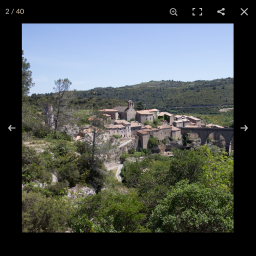
Example for the use in the frontend
-
General options in the backend
-
Theme options in the backend
-
Options for captions in the backend
-
Desktop options in the backend
About this plugin
This plugin integrates PhotoSwipe to WordPress. All linked images in a post or page will be displayed using PhotoSwipe, regardless if they are part of a gallery or single images.
More about the original version of PhotoSwipe see here: http://photoswipe.com
You can also display EXIF data from supported image types.
As of version 4.0.0 this plugin requires at least WordPress 5.3 and PHP 7.0. Older PHP version will cause problems. In this case you have to upgrade your PHP version or ask your hoster to do so. Please note that WordPress itself also recommends at least PHP 7.4 – see https://wordpress.org/about/requirements/.
Please keep in mind: not the visible thumbnail is relevant, but only the image link. Images should always be linked to the file and not to the attachment page. Since version 5.6.1 there is an option to fix attachment links which can be enabled if needed – however this may slow down your website since then all links on a page will be checked if they are attachment links.
Questions
- Issues with “optimizing” plugins
The plugin uses JavaScript modules for PhotoSwipe 5. This will not work, if you use any kind of “JavaScript optimizing” with a WordPress plugin which combines all frontend scripts into one single file. Make sure that Lightbox with PhotoSwipe is excluded from any kind of “optimization”, otherwise the plugin may not work.
- Using the plugin
All linked images in a post or page will be displayed using PhotoSwipe, regardless if they are part of a gallery or single images.
Make sure that you link the image or gallery directly to the media and not the attachment page (in galleries the option
link=fileshould be set).If you want to display an image in it’s own lightbox which does not display other images from the same post or page, you can add the attribute
data-lbwps-gidto the link element with a unique value for this image. This value must not be a number since numbers are already used internally. For example you could the file name of the image like this:<a href="myimage.jpg" data-lbwps-gid="myimage.jpg"><img src="myimage-300x300.jpg" alt="My Image" /></a>You can also add the same
data-lbwps-gidattribute to multiple single images to combine them in the same lightbox.Note: the parameter was renamed from
data-gallery-idtodata-lbwps-gidin version 2.97 to avoid conflicts with existing themes or plugins!Starting with release 3.1.14 this is also supported for Elementor image widgets and Elementor image carousel widgets.
- How to disable the plugin in certain pages/posts
Please note: the order of the parameters have changed in version 1.90.
Some other plugins use PhotoSwipe as well and it may be neccessary to disable Lightbox with PhotoSwipe on some pages or posts – for example on the product pages of WooCommerce.
You can either configure the pages/posts manually in the settings or you can use the filter
lbwps_enabled. This filter gets the ID of the current page/post and if the lightbox is currently enabled (trueorfalse). If the filter returnstrue, the lightbox will be used, if it returnsfalsethe lightbox will be disabled – which means, no scripts and stylesheets will be included at all on the current page/post.Example:
// Disable Lightbox with PhotoSwipe on WooCommerce product pages function my_lbwps_enabled($enabled, $id) { if (function_exists('is_product')) { if (is_product()) return false; } return $enabled; } add_filter('lbwps_enabled', 'my_lbwps_enabled', 10, 2);- How to modify the caption
The individual parts of the caption can be modified using the following filters. Each filter gets the ID of the current page/post and the original text to be used. You can either return the text as it is or modify it if needed.
lbwps_caption_caption
lbwps_caption_title
lbwps_caption_description
lbwps_caption_filename
lbwps_caption_exif
Example:
// Add copyright notice to caption title function my_lbwps_caption_title($title, $id) { return sprintf('%s<br>Copyright (c) %s Foobar', $title, date('Y')); } add_filter('lbwps_caption_title', 'my_lbwps_caption_title', 10, 2);- Changes with PhotoSwipe 5
PhotoSwipe 5 improves the overall performance and compatibility with newer mobile devices like the iPhone 13. However, some features are no longer supported by that version:
1) Customizing the display of image counter and zoom button (this may be added in future updates).
2) All mobile specific options (some options may return in future updates).
3) Sharing options (some options may return in future updates).
- How to style the caption
Which styles are available depends on which PhotoSwipe version you use and what kind of caption.
Please use the web developer tools of your browser to examine the caption elements and to learn which CSS classes are used.
- Why is there no “zoom animation” when opening the lightbox?
PhotoSwipe has the option to create a zoom animation from the thumbnail to the final image when opening the lightbox. However, this does not work well with square thumbnails since the thumbnail is just enlarged to the final image size without keeping its aspect ratio. This would result in a quite weird image display where a square thumbnail gets stretched to a portrait or landscape image before the final image is loaded. Just having a fade-in animation is the better solution.
- Conflict with PublishPress Blocks (Advanced Gutenberg Blocks)
Lightbox with PhotoSwipe works fine with Gutenberg gallery blocks as well. However when you use the “PublishPress Blocks” plugin it brings its own lightbox script which can cause conflicts. To avoid any problems, you should disable the Advanced Gutenberg lightbox in the settings. Disable the option “Open galleries in lightbox” in the backend configuration of PublishPress Blocks.
sandywp / also on the shelf
Try another plugin

Export media with selected content (by DKZR)
4.5 · 40K+ installs
Include all relevant attachments in your export.

4.0 · 40K+ installs
Easily allow WordPress to accept and upload any file type extension or MIME type, including custom file types.

4.9 · 10K+ installs
Add unique custom header images to individual pages, posts, categories, or tags.
Spin up a real WordPress site in seconds.
Test plugins, build a demo, hand a client a link — then squash it and start again. No local setup, no Docker.