sandywp / plugins / import-users-from-csv-with-meta

Import and export users and customers
Bulk import and export WordPress users and WooCommerce customers from CSV, including roles, passwords and any custom meta.
Ready in seconds.
v2.4.17 70,000+ installs WP 5.5+
What you get inside
5 screens-
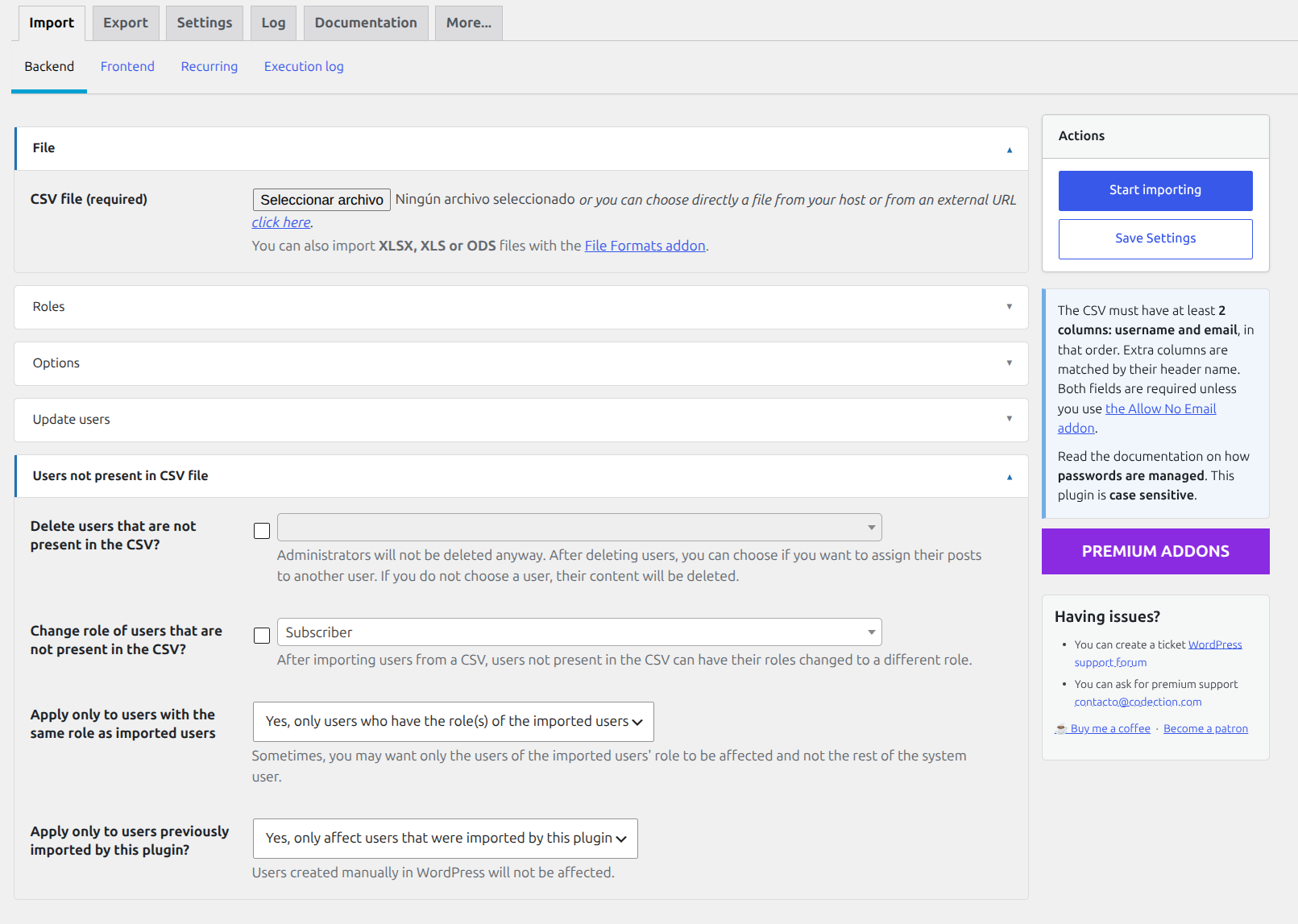
Import dialog
-
Recurring import dialog
-
Export dialog
-
File sample
-
Extra profile information (user meta)
About this plugin
Try it out on your free dummy site: Click here => https://demo.tastewp.com/import-users-from-csv-with-meta
Import, export and migrate WordPress users and WooCommerce customers from a CSV file. Bulk-create or update thousands of users in seconds, schedule automatic recurring imports from a local file or URL, and carry over roles, passwords and any custom meta field. Works with WooCommerce, BuddyPress, Advanced Custom Fields, Paid Membership Pro, WooCommerce Memberships, WooCommerce Subscriptions and many more.
- Import CSV file with users directly to your WordPress or customers into WooCommerce
- Import thousands of users or customers in only some seconds
- Export users or customers to a CSV file, filtering by role or registered date
- You can also import meta-data like data from WooCommerce customers
- You can assign roles while importing.
- Send a mail to every new user, this mails can be saved as templates and are fully customizable, before sending you can test it
- You can also update users if the user is already in your WordPress
- Create a cron task to import users periodically
- Edit the metadata (you will be able to edit the metadata imported using metakeys directly in the profile of each user)
- Extend the plugin using the hooks we provide
- Compatible with WPML read the documentation to see how you can translate the front-end import and export users page and send translated email notifications to users
Moreover this plugin is compatible with many other plugins to be able to import and include them data, subscriptions, memberships, etc. Take a look:
- WooCommerce: to import the customer data
- WooCommerce Memberships: to import memberships
- WooCommerce Subscriptions: to create subscriptions associated with users while they are being imported
- BuddyPress: to import custom BuddyPress avatars, fields, groups and roles
- Advanced Custom Fields: to import data to the fields you define there
- Paid Membership Pro: to import memberships, included compatibility with PMPro version 3
- Indeed Ultimate Membership Pro: to import memberships
- Paid Member Subscriptions: to import memberships
- Allow Multiple Accounts: plugin will allow the same rules importing than this plugin
- Groups: to assign users to groups while importing
- New User Approve: you can import users and approbe/wait for approve them
- Users Group: to assign users to groups while importing
- WP LMS Course: to enroll users in the courses while importing
- WP Members: to import memberships
- WP Users Group: to assign users to groups while importing
- WooCommerce Membership by RightPress: to create memberships while users are being imported
- WP Private Content Plus: To import and export the groups to which users are assigned
If you have some problem or doubt:
- Read our documentation
- Ask anything in support forum, we try to give the best support
Common use cases
- Migrate users from one WordPress site to another
- Bulk create or update WooCommerce customers from a spreadsheet
- Sync users automatically from an external CRM or ERP via CSV
- Onboard members to a membership site (Paid Membership Pro, WooCommerce Memberships)
- Periodically import subscribers or students from an external list
- Import users from the frontend using a shortcode
Usage
Once the plugin is installed you can use it. Go to Tools menu and there, there will be a section called Insert users from CSV. Just choose your CSV file and go!
CSV generation
You can generate CSV file with all users inside it, using a standar spreadsheet software like: Microsoft Excel, LibreOffice Calc, OpenOffice Calc or Gnumeric.
You have to create the file filled with information (or take it from another database) and you will only have to choose CSV file when you “Save as…” the file. As example, a CSV file is included with the plugin.
Some considerations
Plugin will automatically detect:
- Charset and set it to UTF-8 to prevent problems with non-ASCII characters.
- It also will auto detect line-ending to prevent problems with different OS.
- Finally, it will detect the delimiter being used in CSV file
Other plugins by Codection
- RedSys Gateway for WooCommerce Pro (premium)
- Ceca Gateway for WooCommerce Pro (premium)
- RedSys Gateway for Contact Form 7 (premium)
- Ceca Gateway for Contact Form 7 (premium)
- RedSys & Bizum Gateway for Gravity Forms (premium)
- RedSys & Bizum Gateway for WPForms (premium)
- RedSys & Bizum for GiveWP (premium)
- RedSys Link Generator (premium)
- RedSys & Bizum Gateway for EDD Pro (premium)
- RedSys Gateway for WP Booking Calendar Pro (premium)
- Clean Login (free)
- Products Restricted Users for WooCommerce (free)
- First payment date for WooCommerce Subscriptions (free)
- Payment Schedule for WooCommerce Subscriptions (premium)
Questions
- I get a “too many redirects” error on my site, how can I solve it?
This is caused by the option that forces the users to reset their password. When it is used, each of those users is redirected to their password page on every page load until they change it, and if that destination cannot be reached (for example, because wp-admin is blocked for customers or subscribers by WooCommerce, by a membership plugin or by a security plugin) the browser ends up in a redirection loop.
Since version 2.4.12 the plugin detects this situation and gives up after 3 consecutive redirects, so the site stays usable, but you can also clear the flag for the users that are already affected: go to the plugin documentation tab and use the button that removes the force reset password metadata from all the users.
If you want to change how many redirects are allowed before the plugin gives up, use the
acui_force_reset_password_max_redirectsfilter (return 0 to disable the limit):add_filter( 'acui_force_reset_password_max_redirects', function( $max ){ return 5; } );- Which page are the users sent to when I force them to reset their password?
By default they are sent to their WordPress profile page. If WooCommerce or WP User Manager are active, they are sent to the password section of the account page of those plugins instead. You can point them anywhere else using the
acui_force_reset_password_edit_profile_urlfilter, and you can add your own exceptions (pages where the redirection must not happen) usingacui_force_reset_password_redirect_condition.= Can I import users from an Excel or LibreOffice file? =The plugin natively supports CSV files. If you need to import directly from Excel (XLSX, XLS) or LibreOffice (ODS) files without converting them first, the File Formats Addon adds support for those formats.
- What format should my CSV file be?
You should fill the first two columns with the next values: Username, Email.
The next columns are totally customizable and you can use whatever you want. All rows must contains same columns. User profile will be adapted to the kind of data you have selected. If you want to disable the extra profile information, please deactivate this plugin after make the import.
- Can I import users by their WordPress ID?
You can use a column called id in order to make inserts or updates of an user using the ID used by WordPress in the wp_users table. We have two different cases:
- If id doesn’t exist in your users table: WordPress core does not allow us insert it, so it will throw an error of kind: invalid_user_id
- If id exists: plugin check if username is the same, if yes, it will update the data, if not, it ignores the cell to avoid problems
- Passwords
We can use a column called “Password” to manage a string that contains user passwords. We have different options for this case:
- If you don’t create a column for passwords: passwords will be generated automatically
- If you create a column for passwords: if cell is empty, password won’t be updated; if cell has a value, it will be used
- Serialized data
Plugin can import serialized data. You have to use the serialized string directly in the CSV cell in order the plugin will be able to understand it as an serialized data instead as any other string.
- Lists
Plugin can import lists as an array. Use this separator: :: two colons, inside the cell in order to split the string in a list of items.
- WordPress default profile data
You can use those labels if you want to set data adapted to the WordPress default user columns (the ones who use the function wp_update_user)
- user_nicename: A string that contains a URL-friendly name for the user. The default is the user’s username.
- user_url: A string containing the user’s URL for the user’s web site.
- display_name: A string that will be shown on the site. Defaults to user’s username. It is likely that you will want to change this, for both appearance and security through * obscurity (that is if you don’t use and delete the default admin user).
- nickname: The user’s nickname, defaults to the user’s username.
- first_name: The user’s first name.
- last_name: The user’s last name.
- description: A string containing content about the user.
- jabber: User’s Jabber account.
- aim: User’s AOL IM account.
- yim: User’s Yahoo IM account.
- user_registered: Using the WordPress format for this kind of data Y-m-d H:i:s.
sandywp / also on the shelf
Try another plugin

5.0 · 900+ installs
Import and export WordPress taxonomy terms and users via CSV. Register custom taxonomies, create terms, and preview exports — all…

2.5 · 40+ installs
Automatically detect and import external images to your WordPress media library. Bulk process existing posts and prevent broken…

EasySecure Bulk Product Importer for WooCommerce
10+ installs
A simple and powerful plugin to import products into your WooCommerce-compatible store using Excel or CSV files.
Spin up a real WordPress site in seconds.
Test plugins, build a demo, hand a client a link — then squash it and start again. No local setup, no Docker.