sandywp / plugins / icon-block

The Icon Block
Easily add SVG icons and graphics to the WordPress block editor.
Ready in seconds.
v2.0.0 40,000+ installs WP 6.5+ PHP 7.4+
What you get inside
6 screens-
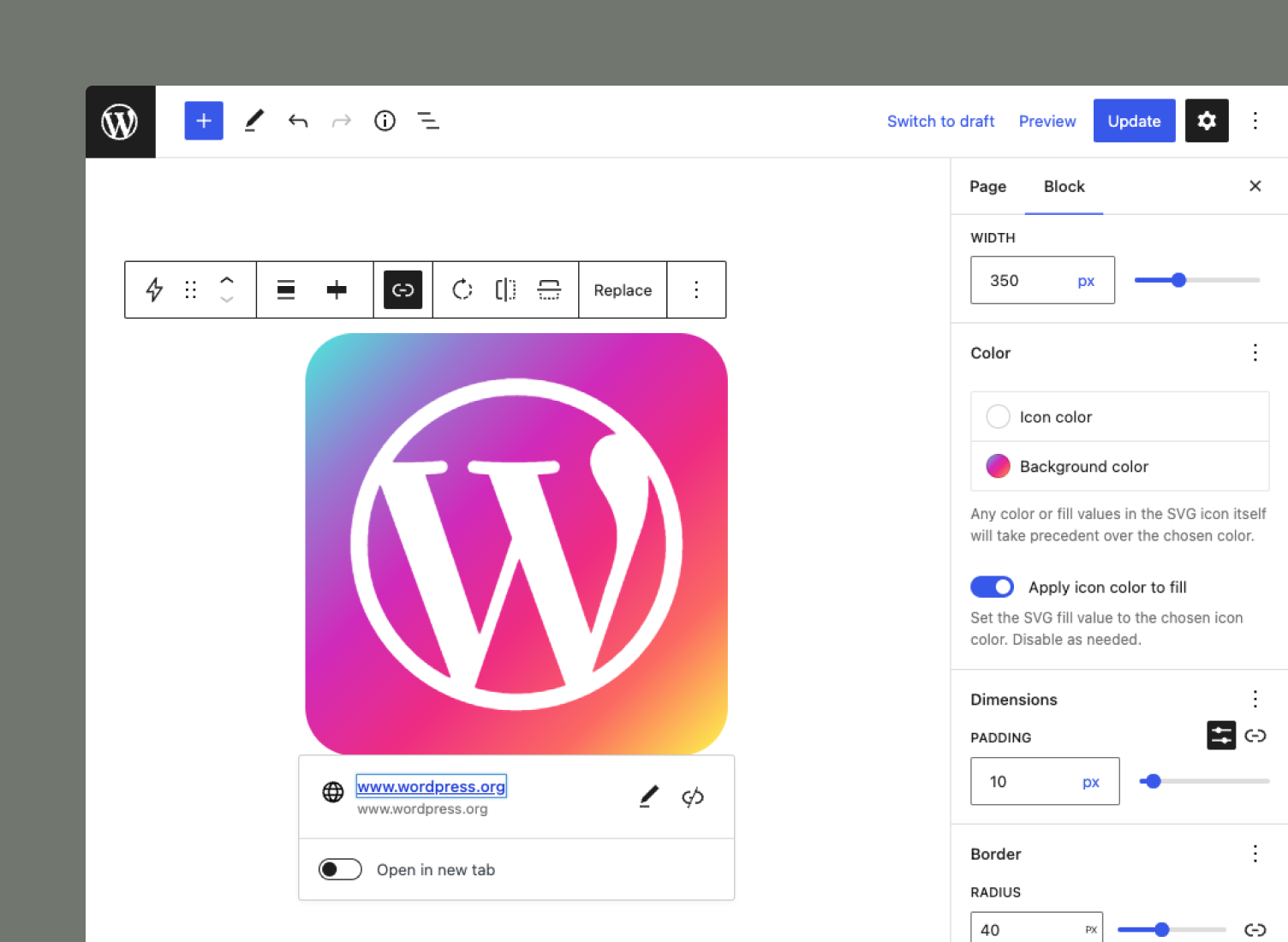
The Icon Block includes icon controls such as color, rotation, alignment, padding, and border-radius.
-
The Icon Block adapts to your layout, whether you need a big or small icon.
-
Use the "quick inserter" to pick the WordPress icon you need.
-
The Icon Block includes the WordPress icon library, allowing you to insert 270+ graphics.
-
Create your own custom icons by simply copying/pasting the SVG code. Then, modify the icon to suit your needs.
-
You are not limited to traditional icons. Any SVG-based graphic will work as well. The block will respect any hard-coded color/fill values in the provided SVG.
About this plugin
The Icon Block plugin registers a single, easy-to-use block that allows you to add custom SVG icons and graphics to the WordPress block editor (Gutenberg).
The plugin also includes the complete WordPress icon library with 290+ SVG icons.
Key features
- 290+ native WordPress icons, including social logos
- Use any custom SVG icon or graphic
- Insert icons from your Media Library if SVG uploads are supported
- Includes handy icon controls (link, rotate, alignment, colors, border, padding, margin, etc.)
- Fully compatible with the Site Editor
- No block library required 🎉
- Built almost entirely with native WordPress components
- Will get additional functionality as it’s added to WordPress core
- Register your own custom icon library. Learn more
Stay connected
Questions
- Where can I get more icons?
Currently, the Icon Block only includes the WordPress icon library. That said, the plugin allows you to render any SVG-based icon by simply copying/pasting the code into the icon text area when using the “Add custom icon” option! See the screenshots for reference. This gives you complete flexibility and allows you to use practically any icon you want. A great source for free SVG icons is Google’s Material Icons project, Font Awesome, and Iconic, to name a few.
The Icon Block also allows you to register your own custom block library. This needs to be done externally in your theme or via a plugin but provides complete flexibility over the icons available in the plugin. Learn more.
- Why is my icon not changing color?
The Icon Block includes controls for the icon’s color and background. However, if your SVG icon has hard-coded color/fill values, the plugin will respect those instead of any applied custom colors.
- Why can’t I add SVG icons from my Media Library?
By default, WordPress does not allow you to add SVG files to your Media Library, but you can enable this functionality using plugins like Safe SVG. If SVG uploads are enabled, you will see the option to insert icons from Media Library in the Icon Block.
- Why is the block not working for certain users?
WordPress only allows Administrators and Editors to save “Unfiltered HTML” content, which includes SVGs. The Icon Block will not work properly for users who are at the Author level or lower.
Note that WordPress multisite installations have additional restrictions. “Unfiltered HTML” is restricted to Super Admins on multisite. To enable “Unfiltered HTML” content for site Administrators and Editors, you will need to use a code snippet, the Unfiltered MU plugin, or something similar. Regrettably, this is a WordPress restriction and needs to be handled outside of the Icon Block.
sandywp / also on the shelf
Try another plugin

Spectra Legacy – Gutenberg Blocks
4.7 · 1M+ installs
Gutenberg blocks for existing Spectra websites. Maintained, stable, and fully supported — no action needed on your part.

4.6 · 800K+ installs
Adds breadcrumb navigation showing the visitor's path to their current location.

PDF Embedder – PDF Viewer & Embed PDF Files for WordPress
4.7 · 300K+ installs
Embed PDF files in WordPress posts and pages with a responsive PDF viewer block, live Block Editor preview, and no third-party…
Spin up a real WordPress site in seconds.
Test plugins, build a demo, hand a client a link — then squash it and start again. No local setup, no Docker.