sandywp / plugins / drag-and-drop-multiple-file-upload-for-woocommerce

Drag and Drop Multiple File Upload for WooCommerce
Drag and Drop Multiple File Uploader is a simple, straightforward WordPress plugin extension for WooCommerce.
Ready in seconds.
v1.1.8 5,000+ installs WP 3.0.1+ PHP 5.2.4+
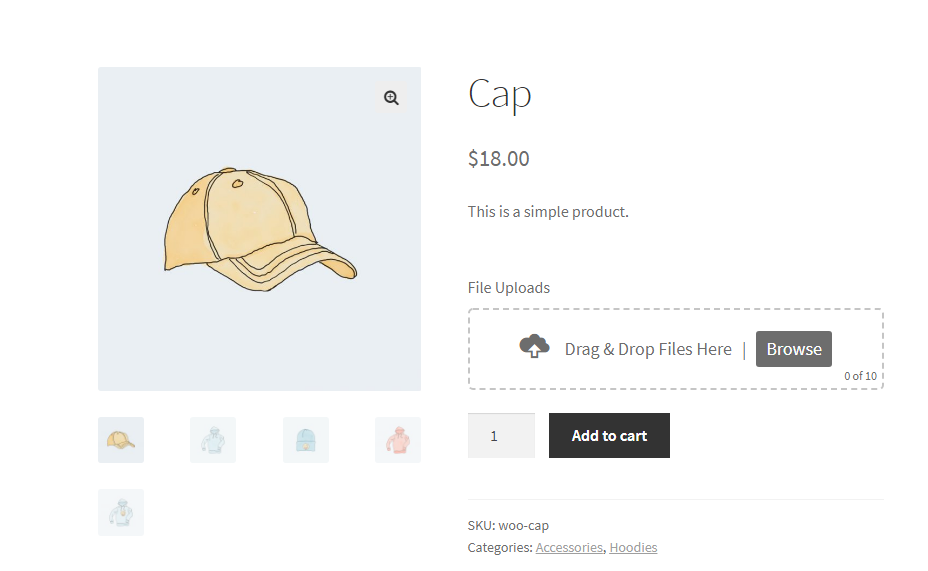
What you get inside
8 screens-
Product Single Page - Front-end
-
Upload in Progress - Front-end
-
Shopping Cart - Front-end
-
Order Details - Front-end
-
Order Details - Admin
-
File Upload (Product Settings) - Admin
-
Uploader Settings - Admin
-
Upload Display - Front-end
About this plugin
Drag and Drop Multiple File Uploader is a simple, straightforward WordPress plugin extension for WooCommerce that transforms your standard upload interface into a visually appealing file uploader. it allows users to upload multiple files using either the drag-and-drop feature or the common file browsing option on your product page.
Plugin requires at least v3.5.0 of WooCommerce.
Here’s a little DEMO.
Features
- File Type Validation
- File Size Validation
- Ajax Uploader
- Limit number of files Upload.
- Limit files size for each field
- Can specify custom file types or extension
- Manage Text and Error message in admin settings
- Drag & Drop or Browse File – Multiple Upload
- Display Uploader in WooCommerce – Single Product Page
- Option to display in “Add to Cart Form”, “Variations Form”, “Add To Cart Button”, “Single Variation”.
- Able to delete uploaded file before adding to cart
- Support multiple languages
- Mobile Responsive
- Compatible with any browser
⭐ Premium Features
🚀 Upgrade to Pro for larger file uploads, image previews, custom folders, uploader visibility controls, zip downloads, cloud storage, and advanced features designed to enhance your upload experience.
- Upload Large File – Supports uploading large files.
- Image Preview – Displays thumbnails for images.
- Text & Style – Color options, borders, uploader icon, and more.
- Parallel Upload – Limit simultaneous uploads to optimize server performance.
- Custom Filename – Define custom filename patterns: (Filename, Username, User ID, IP Address, Random, etc)
- Change Upload Directory – Customize the default WordPress upload directory.
- Upload Folder – 📂 Choose a custom folder to store files:
✅ Order No – Customer Order Number
✅ Random – Auto-generated Numbers
✅ Date – Date formmat (e.g., 04-31-2020)
✅ Time – Timestamp
✅ Name – Users customer Firstname
✅ Customer ID – Users customer ID - Custom Fees – Basic conditional fees.
✅ Charge the user based on the no. of files (e.g., 20 files ≥ 2 → add $20).
✅ Charge the user based on PDF pages (e.g., 20 pages ≥ 10 → multiply $2). - Remove/Reject Files – Able to remove or delete files in admin orders.
- Chunked Uploads – Upload large files in smaller chunks to avoid timeouts.
- Uploader Visibility – Show based on (Categories, Products, Tags, Attributes).
- Uploader Position – Show before or after Add to Cart, Form, or Variations.
- Uploader Display – Show on either the “Checkout” or “Product” page.
- ZIP Files – Compress uploaded files into a ZIP archive
- Seamless Remote Storage Integration (New)
🔥 Supports: Google Drive, Amazon S3, Dropbox, FTP. - Attach Files to Email (New) – Include uploaded files in order confirmation emails.
📝 Note: Works only with standard storage (not compatible with remote storage). - Ajax Upload – Upload files without page reload for a seamless experience.
- Unlimited Uploads – Users can upload as many files as needed.
- Security – Ensure security with regular updates, vulnerability scans, and threat protection.
- Optimized Code & Performance – Improve speed and efficiency.
- 1 Month Premium Support – Get priority assistance for one month.
- Multilingual Support – Compatible with WPML and Polylang for translations.
Pro version DEMO.
You can get PRO Version here!
PRO VERSION – PLUGIN OVERVIEW
Other Plugin You May Like
-
Order Files for WooCommerce
An extension that attach files to existing WooCommerce orders, allowing both customers and admins to upload and manage files easily. -
Easy File Upload & Approval
A simple file management plugin that lets users effortlessly upload and submit files for review through a clean and simple drag-and-drop interface. -
Drag & Drop Multiple File Upload – Contact Form 7
Drag & Drop File Upload extension for Contact Form 7 -
Drag & Drop Multiple File Upload – WPForms
Drag & Drop File Upload extension for WPForms
Questions
- How can I send feedback or get help with a bug?
For any bug reports go to Support page.
- How can I change File Upload Name?
Go to “WooCommerce > Settings > File Uploads” in “Upload Restriction – Options” section there’s a field “Name” where you can add/change of the uploader name.
- How can I change “File Upload” Label
Go to “WooCommerce > Settings > File Uploads” in “Uploader Info” there’s a field “File Upload Label” where you can change/add a custom label.
- How can I limit Max File Size?
To limit file size, go to “WooCommerce > Settings > File Uploads” scroll down and find “Upload Restriction” section.
On that section there’s a Text field name “Max File Size (Bytes)” that you specify File Size limit of each file. (if this field empty, default: 10MB)
Please also take note it should be
Bytesyou may use any converter just Google (MB to Bytes converter).- How can I set “Max” Number of Files in my Upload?
To limit the Num of files go to “WooCommerce > Settings > File Uploads” find the “Upload Restriction” section and then add number in “Max File Upload” field. (default : 10)
- How can I set a “Minimum” File Upload?
To set Minimum Num of files go to “WooCommerce > Settings > File Uploads” find the “Upload Restriction” section and then add number in “Min File Upload” field.
- How can I Add or Limit File Types?
To add file types restriction, in “WooCommerce > Settings > File Uploads” scroll down and find the “Upload Restriction” section.
In ‘Supported File Types’ field, add File types/extensions you want to accept, this should be separated by (,) comma.
Example: jpg, png, jpeg, gif
- How can I change text in my Uploader?
You can change text
Drag & Drop Files Here or Browse Filestext in WordPress Admin, it’s under “WooCommerce > Settings > File Uploads”.
sandywp / also on the shelf
Try another plugin

Drag and Drop Multiple File Upload for Contact Form 7
4.8 · 60K+ installs
This simple plugin create Drag & Drop or choose Multiple File upload in your Confact Form 7 Forms.
Spin up a real WordPress site in seconds.
Test plugins, build a demo, hand a client a link — then squash it and start again. No local setup, no Docker.