sandywp / plugins / disable-admin-notices
Disable Admin Notices
Hide Dashboard Notifications
Disable admin notices and hide dashboard notifications from plugins, themes and core. Hide all notices, selected ones, or show them in a single line.
Ready in seconds.
v1.4.7 100,000+ installs WP 5.6+ PHP 7.4+
What you get inside
5 screens-
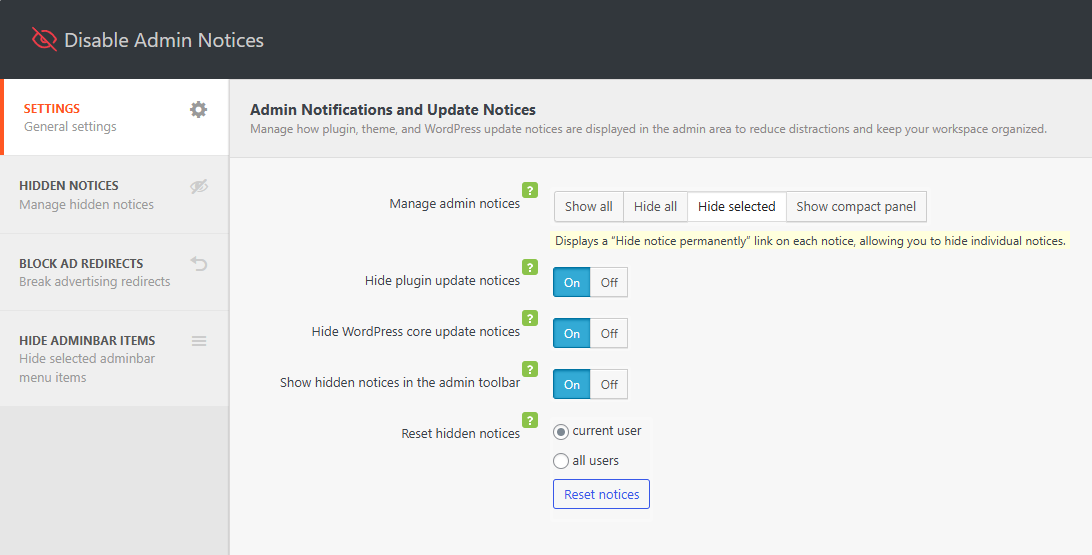
Plugin settings
-
Access hidden admin notices
-
Group all admin notification in a compact panel
-
Display notification in the admin bar
-
Disable admin bar items
About this plugin
WordPress admin notices and dashboard notifications can quickly become overwhelming. Plugin alerts, theme warnings, update messages, and promotional notices often take up valuable space and disrupt your workflow. Disable Admin Notices gives you full control by letting you hide, remove, or disable admin notices across the entire dashboard.
You can hide all notifications, disable selected notices only, or move everything into a clean compact bar so messages no longer clutter your admin screen. The plugin also lets you disable plugin and theme update notifications, disable WordPress core update alerts, manage which items appear in the admin bar, and even block redirect URLs used by some plugins to show ads or promotional pages.
Whether you want a cleaner dashboard, fewer interruptions, or complete control over WordPress admin notifications, this plugin helps you keep your workspace organized and distraction-free.
Key Features
Disable Admin Notices
– Disable admin notices globally or hide selected notifications only
– Hide dashboard notices and show them in a single compact line
– Option to display all admin notifications in the WordPress admin bar
– Disable plugin update notifications
– Disable WordPress core update notifications
– Access all hidden notices anytime from the plugin dashboard
– Reset or restore hidden notices at any time
Disable Admin Bar Items
– Choose which items appear in the WordPress admin bar
– Hide or remove unnecessary plugin, theme, or tool menu items to reduce clutter
Block Ad Redirects
– Block specific redirect URLs to prevent plugins from sending you to ads or promotional screens
– Avoid unexpected admin redirects when activating or updating plugins
Support
We’re here to help. Feel free to open a new thread on the Support Forum.
Useful Resources
- If you like this plugin, you’re sure to love our other plugins as well.
- Our blog is a great place to learn more about WordPress.
- Get the most out of your website with our helpful WordPress YouTube Tutorials.
Questions
- Will hiding admin notifications affect how plugins or themes work?
No. Hiding or disabling admin notices does not affect how plugins or themes function. It only removes or moves the visual notifications they display in the dashboard.
- A notice I hid is gone, but I need it back. How do I restore hidden notices?
You can restore any hidden notice at any time. Go to Settings → Hide admin notices → Hidden Notices, where you’ll find a list of all notices you have hidden. From there, you can restore individual notices.
- Will disabling admin notices hide important error messages?
No. The plugin only affects standard admin notices and update notifications. Actual error messages and critical WordPress warnings are still shown as normal.
sandywp / also on the shelf
Try another plugin

4.9 · 10K+ installs
Better manage admin notices & never miss important developer messages!

4.1 · 1K+ installs
Adds a notification center to WordPress, no more pages that are cluttered with notifications.

Notice Vault – Hide, Manage & Organize Admin Notices
5.0 · 200+ installs
Hide admin notices in one clean popup. Notice Vault collects dashboard notifications so you can read, organize and dismiss…
Spin up a real WordPress site in seconds.
Test plugins, build a demo, hand a client a link — then squash it and start again. No local setup, no Docker.