sandywp / plugins / coupon-creator

Coupon Creator
Designed, printable promo coupons — build one in WordPress or upload an image, set an expiration, print. Displays offers; not a store-discount engine.
Ready in seconds.
v3.6.2 1,000+ installs WP 6.5+ PHP 8.2+
What you get inside
6 screens-
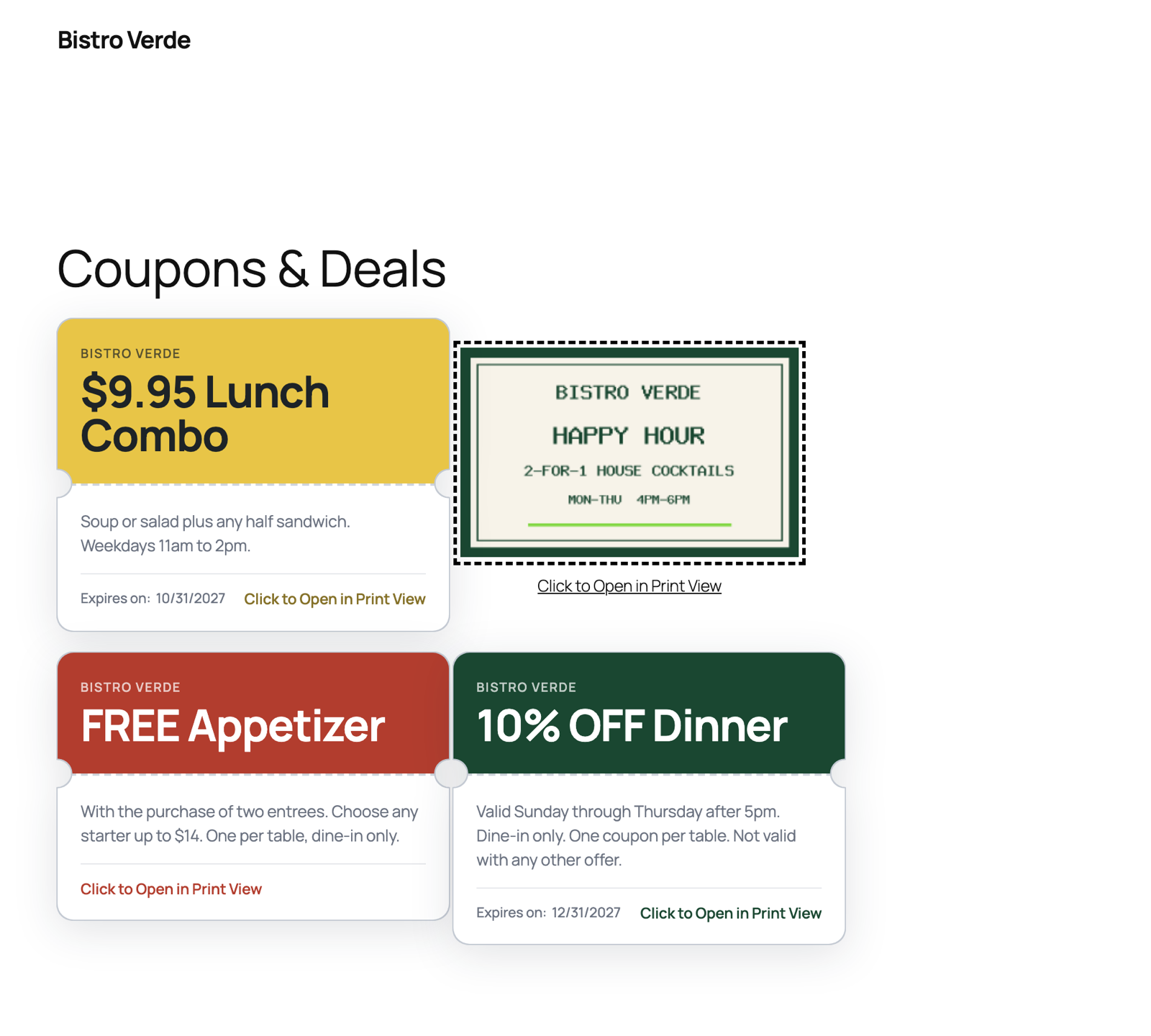
Coupons displayed on a page
-
The Coupon Creator block in the editor
-
Coupon editor - content and design
-
Coupon editor - expiration
-
Coupon list with shortcodes
-
Coupon Creator options
About this plugin
Coupon Creator makes designed, printable coupons you can drop on any page with a block or a shortcode. Build one in WordPress or upload your own image. Maintained on WordPress since 2012.
Maintained and shipping on WordPress since 2012.
Support on WordPress.org is for troubleshooting bugs and related issues. The forums are monitored and replied to within one week’s time.
If you are looking for direct support please check out Coupon Creator Pro
Put a real coupon on your site.
Create a designed coupon in WordPress or upload your own image, then display it with the Coupon Creator block or shortcode.
What Coupon Creator does: it makes designed, printable promotional coupons. Build one in WordPress with your own text, colors, and borders — or upload an image of a coupon you already have, like a newspaper ad, and give it an expiration date. Drop it on any page with the Coupon Block or a shortcode, let visitors print it, and with the Add-ons let them click to reveal or copy a code.
What it does not do: Coupon Creator does not create or apply discount codes in your store’s checkout by itself. If you need a code that changes prices in a WooCommerce cart, that code lives in WooCommerce — and Coupon Creator Add-ons connects the two: create the matching WooCommerce coupon from the same editor, keep both expiration dates in sync, and show your visitors a designed coupon whose code actually works at checkout.
Check out a demo gallery of Coupon Creator Features!
Watch this quick video to see the Coupon Creator in Action:
Coupon Creator Add-ons 3.5 Features Include: (included with Pro Business and higher license levels)
- Email Delivery — send coupons directly to visitors via email with templates for all 7 coupon types
- Email Gate — require an email address to view a coupon, building your list while distributing deals
- Email logging with GDPR-compliant anonymization, configurable retention, and deliverability health checks (SPF, blacklist, SMTP)
- Multiprint to select multiple coupons to print all at once
- Block Editor Support for couponloop with Vendor and Location Taxonomies
- Reveal Code & Dynamic Code Feature
- Vendor and Location Taxonomies
- Modern, Highlight, Lower Third, and Two-Column Advanced Templates
- Create and Display WooCommerce Coupons from the Coupon Creator Editor
Coupon Creator Pro 3.5 Features Include:
- Block Editor support for couponloop shortcode and all of its attributes
- [couponloop] shortcode, filter bar, and template system, to give you control over customizations without losing changes on updates
- Order the filter bar filters and hide any filter per shortcode
- Quick and Bulk edits for the expiration and counter fields
- Border themes, Dotted Border, Stitched Border, Saw Tooth Border (modern browsers and IE 10+), and None Option
- Recurring Expiration; set an expiration for the end of the month and have it automatically change to the end of the next month
- X Days expiration to set a period to redeem a coupon from the day of printing it
- Range expiration to display a start and end date for the coupon to be valid such as valid 11/11/17 thru 12/11/17
- Ability to insert columns and rows into the content editor. Options include, two column combinations, three column combinations, four columns, and rows
- Pro Inserter has the ability to search coupons and categories in the dropdown
- Visual editor to easily style the term’s content on your site
- Display the Print View in a Popup for any coupons and print directly from the Popup
- Use the View Shortcodes to display content in the Shortcode View or the Print View only
- Set a Counter per coupon to expire the coupon after a limit has been reached or use as an unlimited counter
- Change “Expires on:”, “Click to Open in Print View”, and “Print the Coupon” for all coupons
- Set coupon size for the Shortcode View and the Print View for all coupons including the Image Coupon
- Override “Click to Open in Print View” text and link per coupon
- Override “Print the Coupon” text and link per coupon
- Disable the Print View per coupon
- Add your Google Analytics Code to the Print Template from the Coupon Options
- Print Only Text and Images, they show only once a single coupon is printed.
How to Create a Coupon
Create a coupon by going to the coupon custom post type and filling in all the settings in the custom meta box.
Insert the coupon into a post or page using the shortcode inserter above the content editor.
Coupon displays until the expiration date that is chosen by you or you can check the Ignore Expiration Checkbox and the coupon will display on the site past the expiration date or with no date at all.
Coupon Creator Shortcode
The Coupon Shortcode:
[coupon couponid=”xx” category=”Category Name(optional)” coupon_align=”cctor_aligncenter” name=”Coupon Name”]
Manually replace fields in shortcode:
couponid – replace xx with ID of Coupon custom post
couponalign – align coupon options: cctor_aligncenter, cctor_alignnone, cctor_alignleft, and cctor_alignright
name -optional and for your reference only
Coupon Loop
Set couponid to “loop” to display all coupons. (couponid=”loop”)
All the coupons in the loop will use the same couponalign.
Coupon Categories
Assign categories to a coupon using the loop option only to display coupons from a specific category.
category – add the category name to display coupons only from it
For example, if you have a category called “Coupon Home Page”, call it by:
category=”Coupon Home Page”
Coupon Shortcode Inserter
Above the post editor, click the “Add Coupon” button to open the inserter.
Select an individual coupon or coupon loop.
If you select the coupon loop, an option will appear to select a coupon category for the loop or you can leave it blank for all coupons (default).
The third option to select is the couponalign.
Once you have all the options selected, press “Insert Coupon” to insert the shortcode into the editor.
Examples
Find examples of coupons on the Coupon Creator Home Page
Coupons in Text Widgets
Coupons will work in Sidebar Text Widgets, but you must add
add_filter(‘widget_text’, ‘do_shortcode’);
To your theme’s function.php
Coupon Options
On the options page set default colors for new coupons.
Another option for nofollow on the links and templates along with an option to hide the click to print link.
You can add custom css in the options and it will modify both the shortcode coupon and the print template.
Questions
- Does Coupon Creator create discount codes for my WooCommerce store?
Not by itself — Coupon Creator makes the designed coupon your visitors see, not the checkout discount. Coupon Creator Add-ons bridges the two: it creates a linked WooCommerce coupon from the coupon editor and keeps the code and expiration in sync. If you only need cart discount rules (BOGO, bulk codes, auto-apply), a WooCommerce coupon manager is the right tool instead.
- Can I use an existing coupon image, like a newspaper ad?
Yes, and it’s free: choose the Image template, upload your JPG or PNG, and set an expiration date. The image displays as the coupon and stops showing when it expires.
- What if I have support questions?
Please ask on the Coupon Creator Support Forum on WordPress. For Pro users, please visit Coupon Creator Pro. The Coupon Creator documentation covers the css and hooks of the coupon creator as well as more answers to questions and premium tutorials as well.
- The Coupon Inserter, Image Uploader, the Expiration Date Picker, or the Color Pickers are not working, what is wrong?
Most likely this is a JavaScript error and could be caused by another plugin or your theme. Please check the Developer Console for your browser and see if there is an error. If you post the error on the support forum I maybe able to help. Otherwise, try disabling plugins and changing themes to try and find the sources as well.
- How do I fix 404 Errors on the Print View of the Coupons?
The cause of the conflict can be hosting, plugin, or theme related.
First, try to resave your permalinks and then check the Print View.
If that does not work, try disabling plugins and/or changing the themes and check again.
If none of that works, it could be a conflict with the hosting setup.- My coupon was working and now it does not display, how can I fix it?
Please check if the expiration date has passed and whether or not the ignore expiration is checked. If it is checked or the date is still in the future, please post on the Support Forum in WordPress about the issue and include a link to the page so I can check for errors.
- Where does the shortcode go?
Insert the shortcode in the content editor of a post, page, or custom post type.
- How can I display coupons using the shortcode in a sidebar text widget?
Add this coding to your theme’s function.php:
add_filter(‘widget_text’, ‘do_shortcode’);
sandywp / also on the shelf
Try another plugin

4.7 · 10K+ installs
Let customers attach photos to reviews, enhanced with filterable grids and overall ratings. Auto-send review reminders and coupon…
3.3 · 10K+ installs
The essential tool for selling gift cards in your store, increasing your conversion rate and attracting new customers.

YayPricing – WooCommerce Dynamic Pricing & Discounts
5.0 · 3K+ installs
Your all-in-one WooCommerce dynamic pricing toolkit. From Buy X Get Y to tiered and bundle discounts, create powerful rules that…
Spin up a real WordPress site in seconds.
Test plugins, build a demo, hand a client a link — then squash it and start again. No local setup, no Docker.