sandywp / plugins / capability-manager-enhanced
PublishPress Capabilities
User Role Access Control, Admin Area Permissions
User role editing for WordPress. Manage user roles, control capabilities and permissions, and restrict admin access for any role.
Ready in seconds.
v2.54.0 90,000+ installs WP 5.5+ PHP 8.2+
What you get inside
8 screens-
Control user permissions: You can customize all the user roles on your site, from Administrator to Subscriber.
-
Create and copy user roles: With PublishPress Capabilities you can create or copy any existing WordPress user role.
-
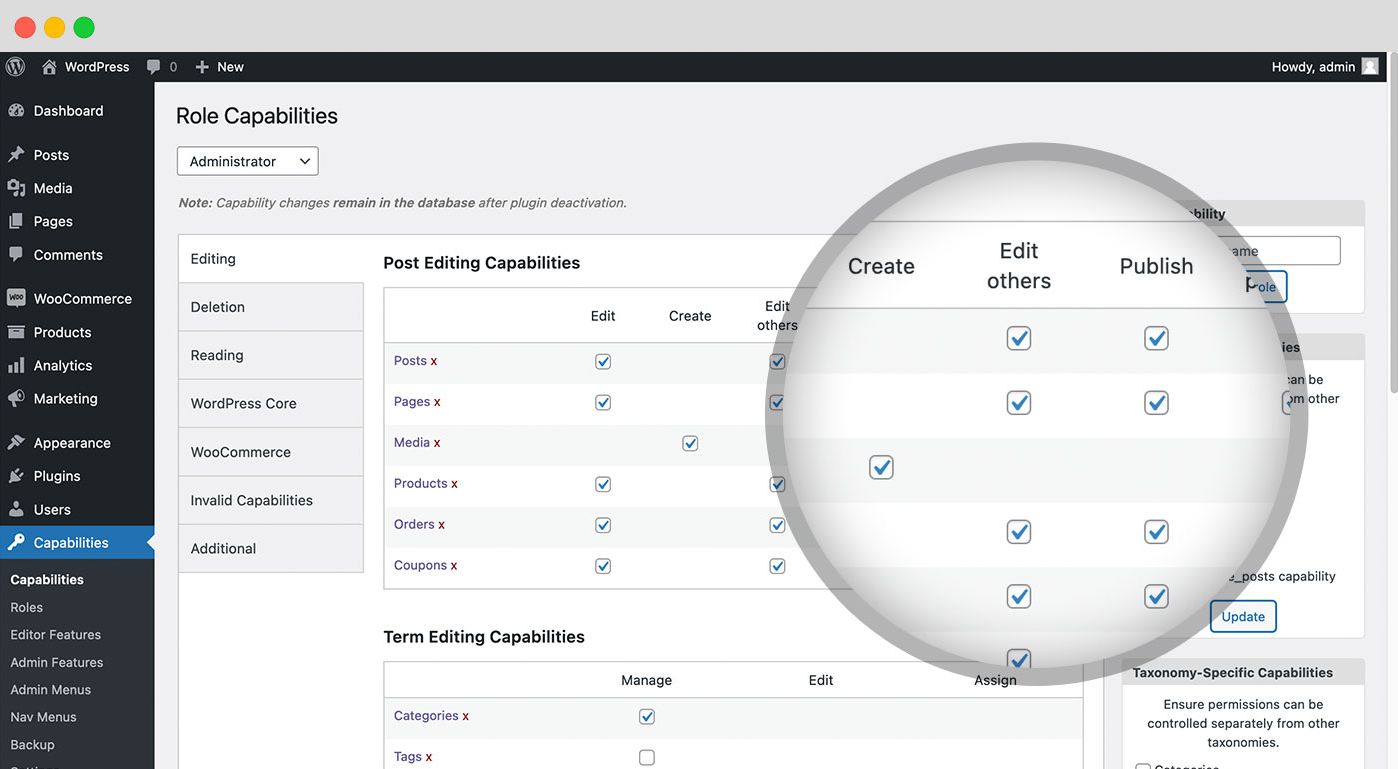
Content permissions: With Capabilities, you can choose who can Publish, Read, Edit and Delete content.
-
Multi-site support: Capabilities can control permissions on a single site or across your whole network.
-
Custom Statuses: With Capabilities Pro, you can decide which user roles are able to send posts to each status.
-
Enforce Taxonomy-Specific Capabilities: You can give “Manage”, “Edit” and “Assign” permissions for all your taxonomies.
-
Permission backups: Every time you change your permissions, the PublishPress Capabilities plugin will automatically create a backup.
-
Media Library Permissions: PublishPress Capabilities enables you to decide who can upload, edit and delete files from your site’s Media Library.
About this plugin
PublishPress Capabilities is a user role editor for WordPress. You can edit user roles, create new ones, and control every capability and permission on your site — without writing code.
You can manage all your WordPress user roles, from Administrators and Editors to Authors, Contributors, Subscribers and custom roles. Each user role gets exactly the capabilities your site needs, and every change is backed up automatically so you can roll it back.
Beyond roles, PublishPress Capabilities cleans up what each role actually sees. You can decide what authors see when they’re writing posts, hide any feature on the block editor or Classic Editor screens, and remove items from the WordPress dashboard, toolbar and Profile screen.
The Key Features of PublishPress Capabilities
- Roles: Edit, create, or duplicate any WordPress user role.
- Capabilities: Control all WordPress and plugin capabilities from one screen.
- Editor Features: Decide what users see when they’re writing posts in the block editor or the Classic Editor.
- Admin Features: Remove items from the WordPress admin, toolbar, and dashboard widgets.
- Admin Styles: Customize the admin area with your own branding, per user role.
- Admin Menus: Edit admin menu links and control who can access them.
- Profile Features: Hide features for users on the “Profile” screen.
- Redirects: Control where users are sent when they log in, log out, or register.
- Frontend Features: Modify your site’s frontend by hiding elements or adding CSS, targeted by role.
- Navigation Menus: Restrict access to navigation menus by user role or logged-in status.
- Automatic Backups: Every permissions change is backed up, so any mistake can be rolled back.
- User Testing: Safely test any user’s account without resetting their password.
- Admin Notices: Organize all the messages and advertisements in your admin area.
1. Roles
PublishPress Capabilities gives you detailed control over all the permission levels on your WordPress site. You can edit user roles on your site, from Administrator and Editor to Contributor and Subscriber.
With PublishPress Capabilities you can create or copy any existing WordPress user role. These roles can be customized in exactly the same way as the default WordPress roles. These new roles can be added to single sites or to an entire multisite network.
Click here to see how to manage user roles.
2. Capabilities
With the Capabilities plugin, you can choose who can Publish, Read, Edit and Delete content. You can choose permissions for posts, pages, custom content types, categories, tags, and more.
Click here to see how to manage capabilities.
Many WordPress users have sites with custom post types. This can be done using custom code, a theme, or with a plugin. No matter how your post type is created, PublishPress Capabilities lets you enforce and assign distinct capabilities for your post type.
PublishPress Capabilities enables you to add extra permissions to the taxonomies on your site. This feature includes the default Categories and Tags, but also applies to other taxonomies. For example, in WooCommerce you can apply custom permissions to Product categories, Product tags, and Product shipping classes. You can enforce and assign “Manage”, “Edit” and “Assign” distinct capabilities for all your taxonomies.
Click here to learn about taxonomy permissions.
3. Editor Features
PublishPress Capabilities has an option called “Editor Features” allows you to clean up the post editing screen. You can decide what users see when they’re writing posts. You can hide anything on the Gutenberg or Classic Editor screens. You can hide boxes inside the sidebar such as Tags, Categories, or Excerpt. You can hide the “Publish” button. You can even hide the post title, body, or permalink. This is a great alternative to plugins such as Adminimize.
Click here to learn about hiding editor features.
WordPress has a feature called “metaboxes”. This is a strange name, but you have seen them often if you use WordPress. When a user edits a post, the edit screen has several default boxes: Status & visibility, Featured image, Categories, Tags, etc. These boxes are metaboxes. Plugins can add also add their own metaboxes. The Pro version of the PublishPress Capabilities plugin allows you to hide metaboxes for specific user roles.
Click here to learn about hiding metaboxes.
4. Admin Features
Admin Features allows you to hide items in the WordPress admin area and toolbar. You can decide what users see in your WordPress dashboard. You can use this option to hide all the links in the toolbar including “About WordPress”, “Visit Site” and more. You can also hide dashboard widgets such as “At a Glance”, “Quick Draft”, and “WordPress Events and News”.
Click here to learn about removing toolbar items and dashboard widgets.
5. Admin Styles
The Admin Styles feature allows you to customize the WordPress admin area with your own branding. You can change the color scheme and visual features for the admin screens. It’s also possible to have different settings for different user roles.
Click here to learn about customizing the admin area with your own branding..
6. Admin Menus
With PublishPress Capabilities you can edit all your admin menu links. You can also restrict access to admin menu screens by user roles. This is useful because many plugin do not have any way to control who can access their admin screens.
Adding new menu links, submenu links, and separators is available in PublishPress Capabilities Pro. In the free version, the Add New form previews this feature with an upgrade panel.
Click to see how to block Admin menu access.
7. Profile Features
“Profile Features” allows you to hide features in the “Profile” screen. You can decide what users see in their accounts. This “Profile” area is used as a dumping ground for the settings of many different plugins.
Click here to learn about the Profile Features option.
8. Redirects
PublishPress Capabilities has a “Redirects” screen that allows you to control where users are sent before and after logging in to your site. There are four options available:
* Login Redirect: Where users are sent when they log in.
* Logout Redirect: Where users are sent when they log out.
* Registration Redirect: Where users are sent when they register on your site.
* First Login Redirect: Where users are sent when they log in to your site for the first time.
Click to see how to redirect users.
9. Frontend Features
The “Frontend Features” screen allows you to modify the features that show on the frontend of your website. You can choose to hide IDs or classes, add CSS styles, or add body classes. All of these changes can be targeted to specific user roles.
Click here to learn about frontend changes.
10. Navigation Menu Restrictions
PublishPress Capabilities enables you to restrict access to navigation menus by roles, logged in and logged out users. This is useful because a default WordPress site does not give you way to control the visibility of your links.
Click to see how to block frontend menu access.
11. Automatic Backups. PublishPress Capabilities is Safe to Use
PublishPress Capabilities is completely safe to use. Every time you change your site’s permissions, this plugin will take a backup that you can restore if anything goes wrong. You can use these backups to migrate your roles and permissions from one site to another.
This security feature is also very helpful if you want to test out changes on your site, or if you’ve installed a new plugin that has changed your site’s permissions.
Every time you change your permissions, the PublishPress Capabilities plugin will now automatically create a backup. If you make a mistake, go to the “Backup” menu link and you’ll be able to roll back to a previous version.
Click here to see how to backup permissions.
12. User Testing / User Switching
If you run a WordPress website which allows users to log in, you probably spend a lot of time answering account questions or solving website bugs for your users. Site administrators often have to browse their site and see exactly what the user sees. They need to test the user’s account without resetting their password. This is possible with PublishPress Capabilities.
Click here to learn about user testing.
13. Admin Notices
This feature helps organize messages and advertisements in your WordPress admin area. It helps remove clutter from your WordPress experience. This feature will organize all these admin notices into a new area in the top-right corner of your screen. This “Admin Notices” area will show all the notices in a clean, organized area. Nothing is changed about the notices so you can deal with them as normal. The only difference is that you won’t be pestered by these notices on your main admin dashboard.
Click here to learn about Admin Notices.
Support for Media Library Permissions
PublishPress Capabilities enables you to decide who can upload, edit and delete files from your site’s Media Library. By default, only Administrators are able to delete files in your Media Library. Subscribers and Contributors are not even allowed to upload files. You can customize these permissions for the Media Library and also the Featured Image box.
Click here to learn about Media Library permissions.
Support for WooCommerce Permissions
We mentioned earlier that PublishPress Capabilities has special support for WooCommerce taxonomies. This is true for the rest of WooCommerce also. With PublishPress Capabilities you can control permissions for WooCommerce products, orders and coupons.
Click here to learn about WooCommerce permissions.
Support for WordPress Multisite
PublishPress Capabilities allows you to control permissions on a single site or across your whole network. Every time you update permissions in PublishPress Capabilities, you can choose to sync those changes across your multisite network.
Click here to learn about multisite permissions.
PublishPress Capabilities Pro
Upgrade to Capabilities Pro
This plugin is the free version of PublishPress Capabilities. With Capabilities Pro you can also edit admin menu links, hide metaboxes for specific roles, block admin pages by URL, and manage access to posts, pages, media and custom post types. Click here to control access to your WordPress site with Capabilities Pro!
Join PublishPress and get the Pro plugins
The Pro versions of the PublishPress plugins are well worth your investment. The Pro versions have extra features and faster support. Click here to join PublishPress.
Join PublishPress and you’ll get access to these Pro plugins:
- PublishPress Authors Pro allows you to add multiple authors and guest authors to WordPress posts.
- PublishPress Blocks Pro has everything you need to build professional websites with the WordPress block editor.
- PublishPress Capabilities Pro is the plugin to manage your WordPress user roles, permissions, and capabilities.
- PublishPress Checklists Pro enables you to define tasks that must be completed before content is published.
- PublishPress Future Pro is the plugin for scheduling changes to your posts.
- PublishPress Permissions Pro is the plugin for restricted content and advanced WordPress permissions.
- PublishPress Planner Pro is the plugin for managing and scheduling WordPress content.
- PublishPress Revisions Pro allows you to update your published pages with teamwork and precision.
- PublishPress Series Pro enables you to group content together into a series.
- PublishPress Shortlinks Pro allows you to create custom URLs for your posts and external links.
- PublishPress Statuses Pro enables you to create additional publishing steps for your posts.
Together, these plugins are a suite of powerful publishing tools for WordPress. If you need to create a professional workflow in WordPress, with moderation, revisions, permissions and more… then you should try PublishPress.
Bug Reports
Bug reports for PublishPress Capabilities are welcomed in our repository on GitHub. Please note that GitHub is not a support forum, and that issues that aren’t properly qualified as bugs will be closed.
Questions
- How do I add a new user role in WordPress?
Go to Capabilities > Roles in your WordPress admin menu. You can create a new role from scratch, or copy an existing role and adjust it — copying is usually faster, because you start from a working set of capabilities instead of an empty one.
Once the role exists, open Capabilities and choose it from the dropdown in the top-left corner. Check the capabilities that role should have and save. On a multisite network you can also choose whether the new role is added to one site or the whole network.
- How do I avoid locking myself out of the WordPress admin?
Changing permissions is the one part of WordPress where a mistake can shut you out of your own site, so PublishPress Capabilities is built to make that recoverable:
- Every change is backed up automatically, before it is applied. Go to Capabilities > Backup > Restore to roll back to any of the last 20 automatic backups, including the one taken when you first installed the plugin.
- Your own role is protected from changes that would remove your access to the Capabilities screens.
- Reset to WordPress defaults is available as a last resort under Capabilities > Backup > Reset Roles.
If you are about to make a large change, take a manual backup first from the Backup tab. You can also export roles from one site and import them into another.
- Does PublishPress Capabilities work with the block editor and the Site Editor?
Yes. The plugin is tested against the current WordPress release, and the Editor Features screen lets you hide features in both the block editor and the Classic Editor — sidebar panels such as Tags, Categories and Excerpt, the Publish button, and even the post title, body or permalink, per role.
- How do I hide admin menu items for a user role?
Many plugins add admin menu links with no way to control who sees them. PublishPress Capabilities adds an Admin Menus screen where you can mark any top-level or sub-menu link as blocked for a given role.
In the free version, you can hide a large amount of the admin without touching menus: use Admin Features to remove toolbar items and dashboard widgets, Profile Features to strip the Profile screen, and the Capabilities screen to remove the capability a plugin’s menu depends on — which hides the menu as a side effect.
- How do I Backup and Restore WordPress User Permissions?
PublishPress Capabilities is a user role editor that offers you the ability to backup and restore your WordPress user permissions. This feature is very helpful if you want to test out changes on your site, or you’ve installed a new plugin that has changed your site’s permissions.
Changing permissions in WordPress can be a tricky task. It’s possible to lock yourself or others out of some important features. So, we’ve built a way to keep your site safe.
Every time you change your permissions, the PublishPress Capabilities plugin will automatically create a backup. If you make a mistake, go to the “Backup” menu link and click the “Restore” tab. Here you can browse through the most recent 20 automatic backups. The plugin also saves a backup from when you first installed PublishPress Capabilities. And you can click the “Backup” tab to manually create backups.
Click the yellow “Restore Selected Roles” button and you’ll be able to roll back to a previous version.
Whenever you choose a backup, the plugin will show all the permissions in that backup. Important changes in permissions are highlighted:
- A green role title means the role does not exist in your current set.
- A green capability is set in the role backup, but not the current role.
- A stuck-through capability is set in the current role, but not the role backup.
- How Do I Restore Permissions to the WordPress Defaults?
If you really need to clean up and refresh your site, PublishPress Capabilities does allow you to restore the default WordPress permissions. Go to Capabilities > Backup and click the “Reset Roles” tab. Before you take next step, make sure to read this warning:
“WARNING: This will delete and/or modify stored role definitions. If you have installed any plugin that adds new roles or capabilities, these will be lost. It is recommended to use this only as a last resort!”
If you want to proceed, click the “Reset to WordPress defaults” link. PublishPress Capabilities will ask you if you’re really sure you want to do this. Click “OK” to continue. Once the process is complete, you’ll see the message, “Roles and Capabilities reset to WordPress defaults”.
- How can I recover if I cannot access wp-admin?
With PublishPress Capabilities active, run these commands through your host’s WP-CLI terminal. No WordPress admin login is required:
wp capabilities backup list
wp capabilities backup restore --last
wp capabilities backup restore --id=capsman_backup_initial
wp capabilities reset-roles
Use an ID returned by the list command. Restore and reset ask for confirmation; add –yes to skip it. On multisite, add –url=https://example.com/subsite/ to select a site. Each command affects only that site.
–last selects the newest manual, automatic or initial backup by its recorded date. Manual backups restore roles and backed-up feature settings, just like the admin Restore tool. Automatic and initial backups restore roles only. Reset removes custom roles and capabilities, just like Reset Roles in wp-admin; use it as a last resort. These commands do not change users’ role assignments.
Recovery writes the action and site ID to the PHP error log (wp-content/debug.log when configured with WP_DEBUG_LOG) and stores the latest result in the site’s capsman_last_recovery option. Keep the plugin active while recovering; –skip-plugins skips its commands too.
- What happens to my roles if I deactivate or delete the plugin?
Nothing changes back. WordPress keeps roles and capabilities in its own database option, and PublishPress Capabilities edits that option directly rather than storing a separate copy of your settings. Whatever your roles looked like when you removed the plugin is what they stay — removing it is not a way to undo a change.
If you want the standard WordPress roles back, do it before you remove the plugin:
- Go to Capabilities > Backup > Restore and roll back to a backup from before the change, or
- Go to Capabilities > Backup > Reset Roles to return everything to the WordPress defaults.
Both are in the free version. There is no automatic clean-up on uninstall, which is deliberate — deleting a plugin should not silently rewrite who can do what on your site.
sandywp / also on the shelf
Try another plugin

Content Control – The Ultimate Content Restriction Solution! Restrict Content,…
4.9 · 40K+ installs
Restrict content based on login status, user roles, device type & more. Monetize your content with a paywall or members-only…

Restrict User Access – Ultimate Membership & Content Protection
4.3 · 10K+ installs
Create Access Levels and restrict any post, page, category, etc. Supports bbPress, BuddyPress, WooCommerce, WPML, and more.

PublishPress Permissions: Access Control, Content Permissions, User Access
4.3 · 10K+ installs
The permissions plugin for posts, pages, categories, tags and more. You can control permissions for roles, individual users, and…
Spin up a real WordPress site in seconds.
Test plugins, build a demo, hand a client a link — then squash it and start again. No local setup, no Docker.