sandywp / plugins / blockmeister

BlockMeister
Block Pattern Builder
Visually create custom block patterns. No coding skills needed! Categorize them easily and use keywords for easy discoverability.
Ready in seconds.
v3.1.12 1,000+ installs WP 6.0+ PHP 5.6+
What you get inside
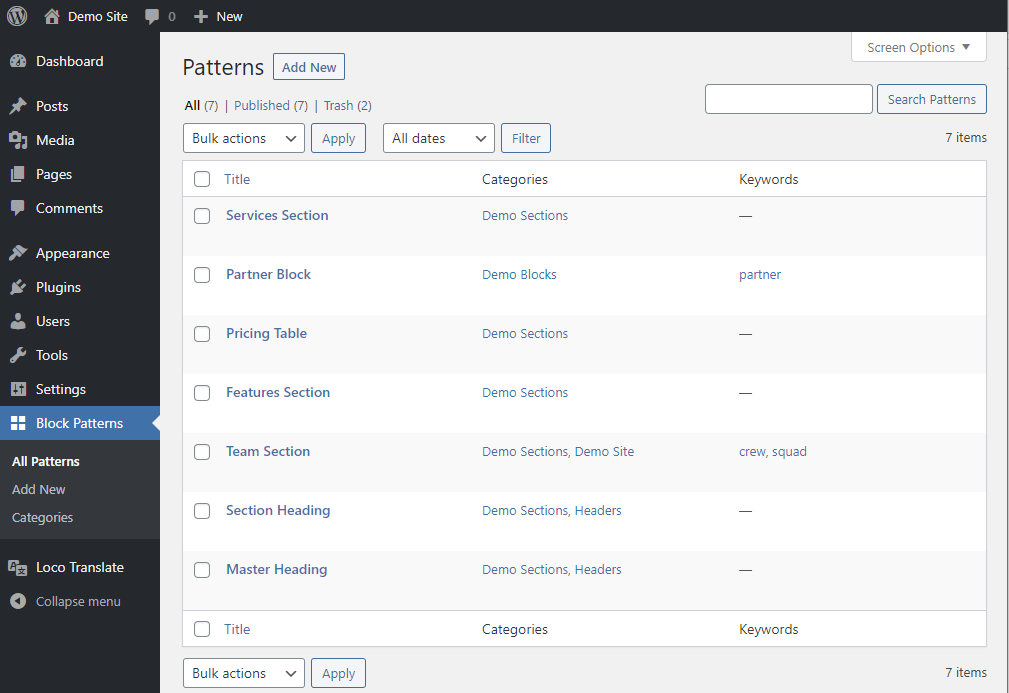
3 screens-
Block patterns list table screen.
-
Categories list table screen.
-
Block pattern settings sidebar.
About this plugin
With BlockMeister creating custom block patterns becomes easy. The patterns can be designed just like you design a blog post or a page with the block editor.
You can assign any (custom) category or keywords. By doing so, your patterns are categorized in a way that makes sense to your users and keywords make it easier to find a pattern. Your custom patterns will be available from the block patterns tab in the inserter panel.
Features
- Visual design custom block patterns using the pattern builder
- Or create a custom pattern from one or more selected blocks in the post editor
- Import patterns made/shared by trusted Pro users [new in 3.0]
- Assign your patterns to one or more categories
- Optionally add any keywords (makes them easy to find in the block inserter)
- Create custom pattern categories
- Set a viewport width to optimize the scaled width of the preview in the block inserter
Pro Features
If you would like even more features like: group locking, cloning, activating or deactivating individual patterns, exporting, importing, controlling which core/third party pattern sets are allowed to load, setting block styles and more, please check out our premium versions here:
Professional Version
Getting Started
- Locate and click on the ‘Block Patterns‘ menu item in the sidebar admin menu.
- Click on the ‘Add New‘ button.
- Give your pattern a name.
- Start writing or choose any blocks you want to be part of your pattern.
- Publish the pattern
- Go to a test page and locate your pattern in the Block Inserter under the pattern tab and click on it.
- The block pattern will now be added to your page. All contained blocks are now independent of the original pattern and can be edited as any regular block.
Questions
- Can I add custom CSS?
Yes, select the block you want to style:
- Open the ‘Advanced’ panel
- Add a ‘Additional CSS class’
- Add the styles for that class to your (child) theme stylesheet or add them via the customizer’s ‘Additional CSS’ section.
OR upgrade to a premium version which comes with a built-in block level CSS editor
- Does the plugin run on older WordPress installations?
The plugin will require either the latest major release or the one before that.
So if the current major release is 6.2 then the plugin requires at least WP 6.1This helps us to keep the code clean and limit the test cases.
- Why did we integrate Freemius?
Freemius is a managed eCommerce platform for selling WordPress plugins and themes.
When you activate or upgrade to v3.0 or higher you will be asked if you would like to opt in to the freemius functionality. To be clear: this is 100% optional!
With Freemius, we have more time to focus on our products and deliver better features for your website while making strategic business decisions that are based on the data you are willing to share as a consumer.
We can also use the data to figure out optimum pricing strategies for our customers and their companies. This promotes business sustainability and offers you long-term support and reliability for your plugin or theme purchase.
We would be thankful when you opt in to this but if not, don’t worry, all plugin features will remain 100% functional!
You can read more about this at the Freemius privacy data practices page.
- What happens to my patterns, after I deactivate the plugin?
- The patterns will no longer be available from the inserter.
- Patterns inserted in posts and pages will not be affected.
- As soon as you re-activate the plugin the patterns will be available again from the inserter.
- What happens to my patterns, after I uninstall the plugin?
- By default all data including your custom patterns will remain in the database, unless you prefer a complete data removal. This can be set on the settings page.
- Patterns already inserted in posts and pages will not be removed, regardless your uninstall preference.
- For test/debug purposes we advise to temporarily deactivate the plugin instead.
sandywp / also on the shelf
Try another plugin

Starter Sites & Templates by Neve
4.7 · 100K+ installs
Access 100+ Gutenberg templates and ready-to-use starter sites for WordPress. All designs work with the Neve theme. One-click…
-
Build any WordPress site without Elementor or Divi. 57 Gutenberg blocks, 700+ ready-made patterns & 50+ FSE templates. No…

1K+ installs
Build better WordPress websites faster with our custom block patterns for the Block Editor (Gutenberg).

Spin up a real WordPress site in seconds.
Test plugins, build a demo, hand a client a link — then squash it and start again. No local setup, no Docker.