sandywp / plugins / add-admin-css

Add Admin CSS
Easily define additional CSS (inline and/or by URL) to be added to all administration pages.
Ready in seconds.
v2.5.1 10,000+ installs WP 5.5+
What you get inside
1 screen-
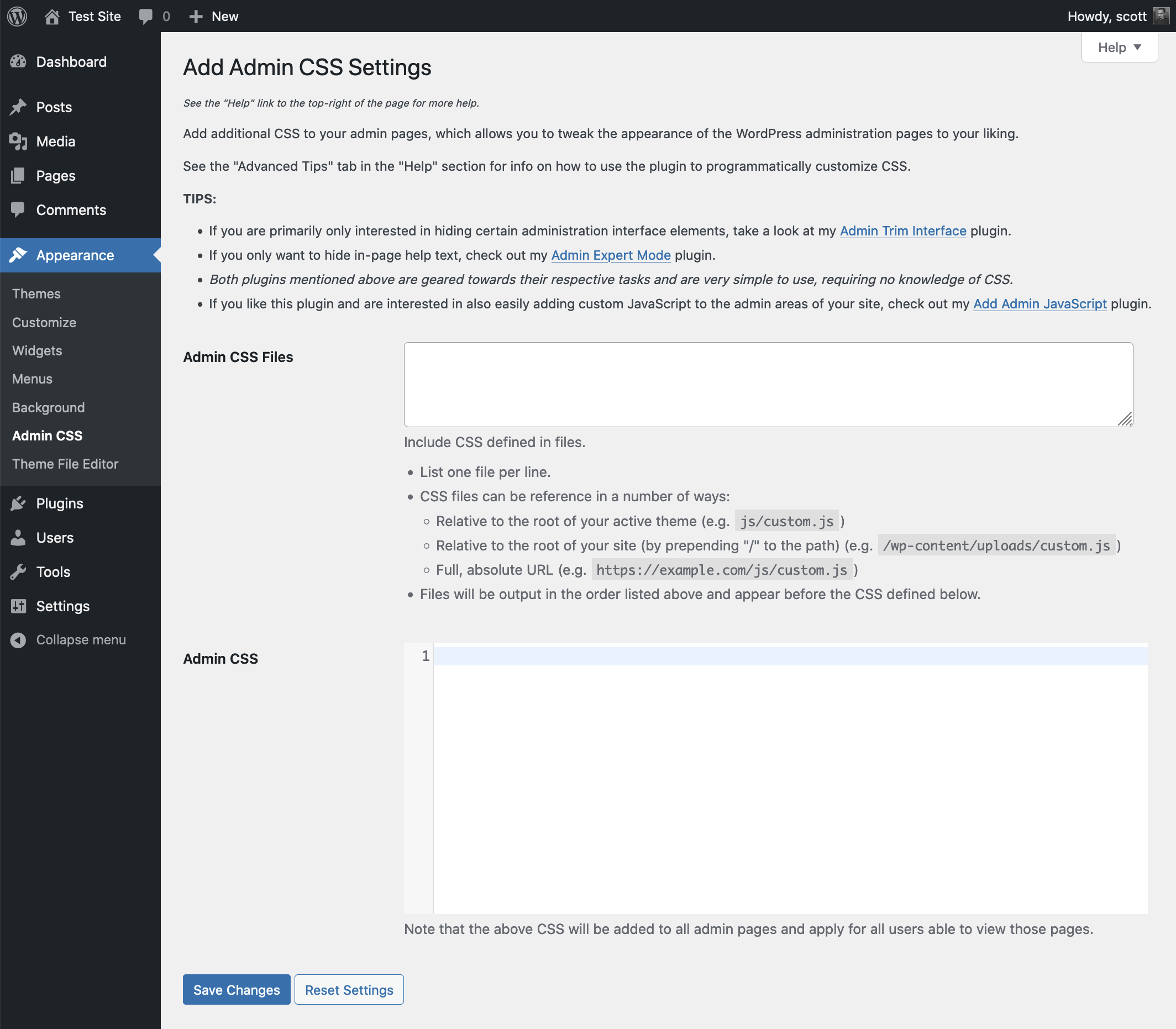
A screenshot of the plugin's admin settings page.
About this plugin
Ever want to tweak the appearance of the WordPress admin pages by hiding stuff, moving stuff around, changing fonts, colors, sizes, etc? Any modification you may want to do with CSS can easily be done via this plugin.
Using this plugin you’ll easily be able to define additional CSS (inline and/or files by URL) to be added to all administration pages. Hooks are provided to customize the output of the CSS, the CSS files, and if/when the CSS should even be output (see Hooks section).
Links: Plugin Homepage | Plugin Directory Page | GitHub | Author Homepage
Developer Documentation
Developer documentation can be found in DEVELOPER-DOCS.md. That documentation covers the hooks provided by the plugin.
As an overview, these are the hooks provided by the plugin:
c2c_add_admin_css: Filter to customize the CSS that should be added directly to the admin page head.c2c_add_admin_css_files: Filter to customize the list of CSS files to enqueue in the admin.c2c_add_admin_css_disable_css: Filter to customize if the CSS defined via this plugin should be output or not.
Questions
- Can I add CSS I defined via a file, or one that is hosted elsewhere?
Yes, via the “Admin CSS Files” input field on the plugin’s settings page.
- Can I limit what admin pages the CSS gets output on?
By default, the CSS is added for every admin page on the site and for every user.
One option, if you wish to only use CSS and you want to limit use of CSS to certain admin pages, is to preface your selectors with admin page specific class(es) on the ‘body’ tag to ensure CSS only applies on certain admin pages. (e.g.
body.edit-php h1 { color: purple; }).Otherwise, programmatically you have full control over that behavior via the
'c2c_add_admin_css_disable_css'filter (see Hooks section). You’d hook that filter, determine the context, and decide if the CSS should be output or not. You could check what page is being loaded and/or who is the current user.- Can I limit what users the CSS applies to?
By default, the CSS is added for every admin page on the site and for every user.
Programmatically you have full control over that behavior via the
'c2c_add_admin_css_disable_css'filter (see Hooks section). You’d hook that filter, determine the context, and decide if the CSS should be output or not. You could check who is the current user and/or what page is being loaded.There is currently no way to do this purely with CSS or through any other setting provided by the plugin.
- How can I edit the plugin’s settings in the event I supplied CSS that prevents the admin pages from properly functioning or being seen?
It is certainly possible that you can put yourself in an unfortunate position by supplying CSS that could hide critical parts of admin pages, making it seemingly impossible to fix or revert your changes. Fortunately, there are a number of approaches you can take to correct the problem.
The recommended approach is to visit the URL for the plugin’s settings page, but appended with a special query parameter to disable the output of its CSS. The plugin’s settings page would typically be at a URL like
https://example.com/wp-admin/themes.php?page=add-admin-css%2Fadd-admin-css.php. Append&c2c-no-css=1to that, so that the URL ishttps://example.com/wp-admin/themes.php?page=add-admin-css%2Fadd-admin-css.php&c2c-no-css=1(obviously change example.com with the domain name for your site).There are other approaches you can use, though they require direct database or server filesystem access:
- Some browsers (such as Firefox, via View -> Page Style -> No Style) allow you to disable styles for sites loaded in that tab. Other browsers may also support such functionality natively or through an extension. Chrome has an extension called Web Developer that adds the functionality.
- If you’re familiar with doing so and have an idea of what CSS style you added that is causing problems, you can use your browser’s developer tools to inspect the page, find the element in question, and disable the offending style.
- In the site’s
wp-config.phpfile, define a constant to disable output of the plugin-defined CSS:define( 'C2C_ADD_ADMIN_CSS_DISABLED', true );. You can then visit the site’s admin. Just remember to remove that line after you’ve fixed the CSS (or at least change “true” to “false”). This is an alternative to the query parameter approach described above, though it persists while the constant remains defined. There will be an admin notice on the plugin’s setting page to alert you to the fact that the constant is defined and effectively disabling the plugin from adding any CSS. - Presuming you know how to directly access the database: within the site’s database, find the row with the option_name field value of
c2c_add_admin_cssand delete that row. The settings you saved for the plugin will be deleted and it will be like you’ve installed the plugin for the first time. - If your server has WP-CLI installed, you can delete the plugin’s setting from the commandline:
wp option delete c2c_add_admin_css
The initial reaction by some might be to remove the plugin from the server’s filesystem. This will certainly disable the plugin and prevent the CSS you configured through it from taking effect, restoring the access and functionality to the backend. However, reinstalling the plugin will put you back into the original predicament because the plugin will use the previously-configured settings, which wouldn’t have changed.
- How do I disable syntax highlighting?
The plugin’s syntax highlighting of CSS (available as of WP 4.9) honors the built-in setting for whether syntax highlighting should be enabled or not.
To disable syntax highlighting, go to your profile page. Next to “Syntax Highlighting”, click the checkbox labeled “Disable syntax highlighting when editing code”. Note that this checkbox disables syntax highlighting throughout the admin interface and not just specifically for the plugin’s settings page.
- Does this plugin have unit tests?
Yes. The tests are not packaged in the release .zip file or included in plugins.svn.wordpress.org, but can be found in the plugin’s GitHub repository.
sandywp / also on the shelf
Try another plugin

4.8 · 1M+ installs
Loginizer is a WordPress security plugin which helps you fight against bruteforce attacks.

4.4 · 900K+ installs
Redux is a simple, truly extensible, and fully responsive options framework for WordPress themes and plugins. It ships with an…

4.6 · 300K+ installs
Lets you edit the WordPress admin menu. You can re-order, hide or rename menus, add custom menus and more.
Spin up a real WordPress site in seconds.
Test plugins, build a demo, hand a client a link — then squash it and start again. No local setup, no Docker.