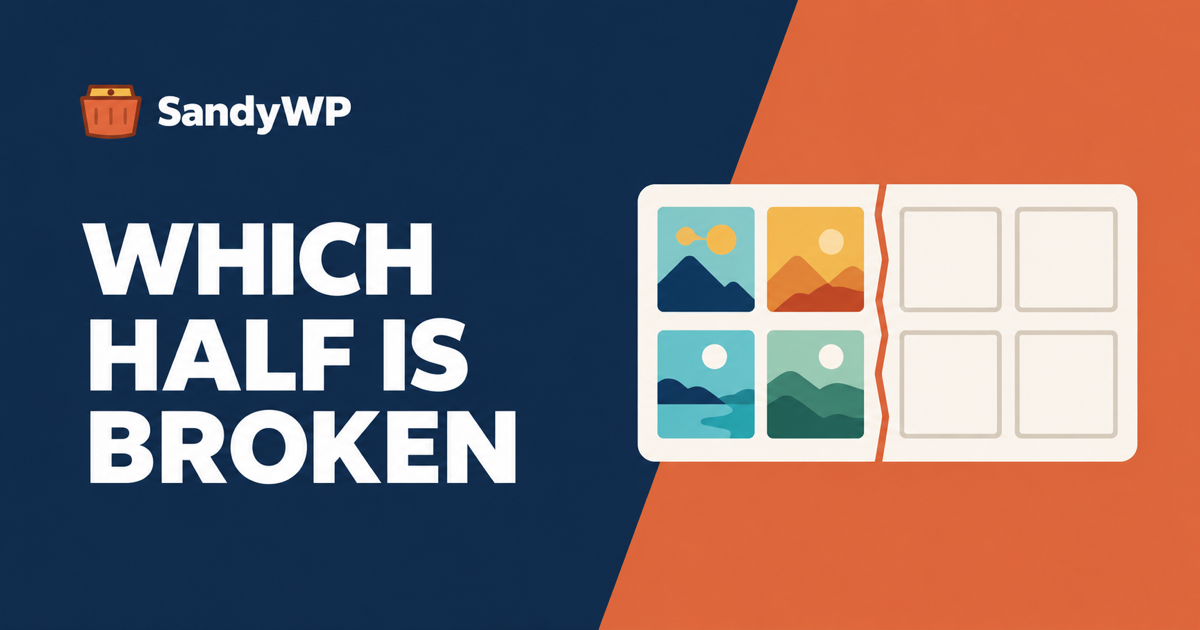
Open wp-admin/upload.php?mode=list before you change anything. The list view and the grid view read the same database rows through completely different code, so whichever one still works tells you which half of the problem you have.
If the list shows your files and the grid is empty, nothing is wrong with your uploads folder, your permissions or your caches. The grid's own data request is failing, and the next ten minutes should be spent in the browser's network tab, not in FTP.
Every guide currently ranking for this phrase starts with caches, plugin deactivation and a 744/644 permission reset. Those fix some cases.
None of the ones we read tells you how to find out which case you have first, and two of the three never mention the list view at all.
Why the two views disagree
The list view is a plain server-rendered table. WP_Media_List_Table::prepare_items() calls wp_edit_attachments_query(), runs WP_Query, and prints the HTML with the page.
The grid view is a JavaScript app. It loads empty, then asks admin-ajax.php for the files with action=query-attachments, and draws whatever comes back as JSON.
That request lands in wp_ajax_query_attachments() in wp-admin/includes/ajax-actions.php. Three things happen there that never happen on the list view, and each of them can empty the grid while leaving the list intact.
1. A filter can rewrite your query. Line 3066 is $query = apply_filters( 'ajax_query_attachments_args', $query );. Any plugin can hook that and restrict the query, usually to limit authors to their own uploads.
The list view never calls this filter, so it keeps showing everything.
2. Items that fail preparation are dropped silently. Each post goes through wp_prepare_attachment_for_js(), which returns null if the row is not really an attachment, and then the handler runs $posts = array_filter( $posts );. A dropped item produces no error and no gap, it is simply not in the grid.
3. The response passes through one more filter. wp_prepare_attachment_for_js() ends on apply_filters( 'wp_prepare_attachment_for_js', $response, $attachment, $meta ), so a plugin gets a final chance to mangle every item after core is done with it.
Add the fact that the grid cannot work at all without JavaScript. Core says so on the screen: upload.php prints "The grid view for the Media Library requires JavaScript" with a link to the list view when scripting is off.
One more detail worth knowing before you debug. The view is sticky per user, stored as the media_library_mode user option, so a colleague on the same site may genuinely not see the problem you see.
Read the actual request
If the grid is the broken half, open the browser's network tab, reload upload.php, and look for the admin-ajax.php request.
Three outcomes, three different problems:
- HTTP 500, or a response that is not JSON. A plugin is fataling, or printing output, during that request. Turn on debug mode and read
debug.log; the fatal will be there with the file and line. {"success":false}with no data. The handler's first line isif ( ! current_user_can( 'upload_files' ) ), so this is a capability problem. Note thatupload.phpitself dies with a visible "Sorry, you are not allowed to upload files" message in that case, so a blank grid plus a working page usually means a role plugin removed the cap after the page loaded its own check.- A
200with"success":trueand an empty array. Core ran the query and genuinely found nothing matching. That is theajax_query_attachments_argsfilter, or apost_statusthe query will not match.
The response also carries X-WP-Total and X-WP-TotalPages headers with the count core believes in. If X-WP-Total says 400 and you see nothing, the items were dropped during preparation, not during the query.
When the files themselves are missing
If both views are empty, or both show rows with broken thumbnails, the problem is below WordPress and the usual advice applies. Check that wp-content/uploads exists, is readable, and actually contains the year folders.
wp option get upload_path
wp option get upload_url_path
ls -la wp-content/uploads/
Those two options matter more than their obscurity suggests. _wp_upload_dir() in wp-includes/functions.php reads upload_path and falls back to WP_CONTENT_DIR . '/uploads' only when it is empty or exactly wp-content/uploads.
A UPLOADS constant in wp-config.php overrides both.
A site that was moved between hosts with a different directory layout often carries a stale absolute upload_path, and then WordPress writes and reads from a folder that no longer exists.
The case nobody explains properly: thumbnails pointing at the old domain
This is the one that looks like a permissions problem and is not. If the grid lists your files but every thumbnail is broken, and the broken image URLs point at a domain you no longer use, the attachment rows have lost their _wp_attached_file meta.
wp_get_attachment_url() in wp-includes/post.php reads _wp_attached_file, builds the URL from the upload directory, and then does this when that produced nothing:
// If any of the above options failed, Fallback on the GUID as used pre-2.7,
// not recommended to rely upon this.
if ( ! $url ) {
	$url = get_the_guid( $post->ID );
}
The GUID is the absolute URL the file had when it was first uploaded. On a site that has since moved or changed domain, that is the old address, and the browser dutifully requests it.
This is exactly what happens when files are copied into wp-content/uploads over FTP or SFTP and nothing creates the attachment rows, and when a partial database import brought wp_posts across but not all of wp_postmeta. Fixing permissions will never help, because the URL in the page is wrong before permissions are consulted.
Confirm it in one query rather than guessing:
wp db query "SELECT p.ID, p.post_title FROM wp_posts p \
  LEFT JOIN wp_postmeta m ON m.post_id = p.ID AND m.meta_key = '_wp_attached_file' \
  WHERE p.post_type = 'attachment' AND m.meta_id IS NULL LIMIT 20"
Rows coming back are attachments with no file path recorded. If that list is long, the right fix is to re-import the missing meta from the source database, not to regenerate anything.
If the paths are present and correct but the resized files are gone, that is the separate case wp media regenerate is for, and our notes on thumbnail sizes cover what it does and does not rebuild.
A diagnostic order that does not waste your afternoon
- Switch to list view. If it works, the files are fine and the grid is the suspect.
- Open the network tab and read the
admin-ajax.phpresponse. Status code, thenX-WP-Total, then the payload. - If the response is a fatal, turn on
WP_DEBUG_LOGand read the log. You get a filename. - If the response is an honest empty array, look for a plugin filtering
ajax_query_attachments_args. Role, membership and multi-author plugins are the usual authors. - Only if both views are empty should you go near permissions, the upload path and the uploads folder.
- If thumbnails point at an old domain, check
_wp_attached_filebefore anything else.
Doing step 4 without taking the site down
Step 4 is the one that normally means deactivating plugins on a live site during business hours, which is why people skip it and start resetting permissions instead.
Clone the site into a throwaway copy and do it there. Our Cloner plugin only reads production to build the archive, so nothing on the live site is touched, and the copy lands as a disposable sandbox you can break freely.
Then deactivate in halves rather than one at a time, over SSH with WP-CLI preinstalled:
wp plugin deactivate --all
# grid works? reactivate half
wp plugin activate plugin-a plugin-b plugin-c
Three or four rounds of halving finds the culprit among thirty plugins. Going one at a time takes thirty.
One honest warning if you use the Cloner for this. Its trim options can skip the media library to make the archive smaller, and a clone with media skipped produces exactly the broken thumbnails you are trying to debug.
Leave media in for this particular test.
When a sandbox is the wrong tool
A copy will not reproduce anything that lives outside the site. If your images are served from S3, a CDN or an offload plugin pointing at external storage, the sandbox will either reach the same bucket or reach nothing, and neither tells you much about the real problem.
Hotlink protection, mod_security rules and CDN image optimisation are host configuration, not site configuration. They do not travel with a clone, so they have to be tested where they live.
If a curl -I on one image URL returns 403 from production and 200 from the sandbox, the host's rules are your answer and you can stop debugging WordPress.
Server-level file ownership is the same story. A sandbox gives you a safe place to run wp media regenerate and watch it fail, but it will not reproduce a production uploads folder owned by the wrong user.
The short version
The grid and the list disagree because they are two different code paths over the same rows, and that disagreement is free diagnostic information nobody is using.
Check the list view first, then read the admin-ajax.php response.
Touch permissions last, and only once both views agree that the files are gone.
If you want somewhere to test the deactivation round without a maintenance window, a disposable WordPress sandbox takes a minute to create and costs nothing to throw away.