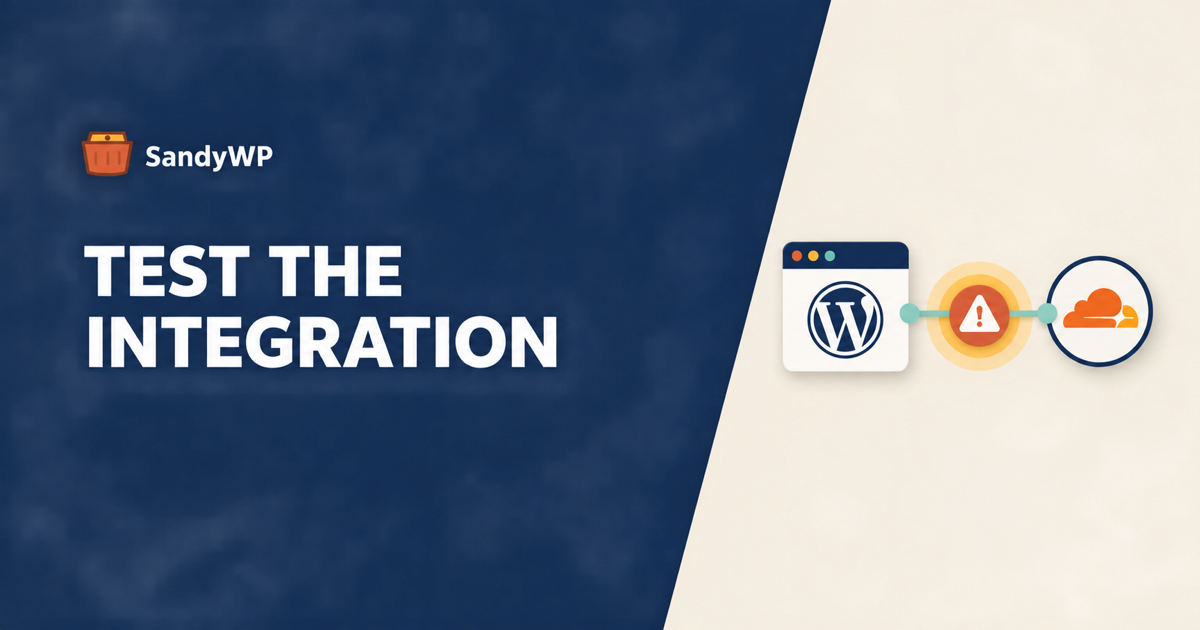
WordPress 7.1 can look healthy while a plugin integration is broken. The current official 7.1 issue list names a WP Rocket fatal on its Cloudflare path, fixed in WP Rocket 3.23.2.2, so the useful test is not “does the homepage load?” but “did the workflows and integrations this site depends on survive?”
What the first 7.1 issue teaches you
The WordPress support page currently reports no theme issues and calls out WP Rocket versions up to 3.23.2.1. WP Rocket’s own incident note identifies a TypeError in its Cloudflare integration and says the fix is in version 3.23.2.2.
That is not evidence that every WordPress 7.1 site is broken. It is evidence that compatibility lives in a conditional code path, and a homepage check may never execute that path.
The difference matters. A cache plugin can render a page correctly while its Cloudflare connection fails when someone purges a cache, changes a setting, or opens the integration screen in wp-admin. A form plugin can render its form while its webhook fails after submission.
WordPress 7.1 also changes admin behavior that a front-end check cannot see. The media-library dev note makes infinite scrolling the default in the grid and media modal, with a per-user opt-out and the existing media_library_infinite_scrolling filter still available.
The official 7.1 accessibility post calls that change a known accessibility regression. You do not need to decide whether the product decision is right to test whether your editorial workflow still works for the people who use it.
Define compatibility before you test
“Compatible with WordPress 7.1” is too vague to be a test result. Write down the combination and the actions that must work.
Start with the versions:
- WordPress core version before and after the update.
- PHP version before and after the update.
- Active plugin and theme versions, including must-use plugins and drop-ins.
- External integrations enabled in the copy, such as a CDN, SMTP provider, payment gateway, or CRM.
Keep the WordPress update separate from a PHP update when you can. The WordPress 7.1 server compatibility guide says 7.1 runs on PHP 7.4 through 8.5, but that is a statement about WordPress itself, not a guarantee for every plugin and integration in your stack.
Then write the workflows. A useful list usually includes logging in, editing a real post, saving a form, uploading an image, purging a cache, receiving a webhook, and checking one logged-out page.
The point is to name the side effects. “The page looked right” is an observation. “A logged-out visitor submitted the form and the CRM received one lead” is a test.
A post-release test routine
The safest time to discover a 7.1 incompatibility is while the production site is still untouched. Use a copy with the same data and plugin stack, then change one important variable at a time.
1. Copy the site you actually need to protect
A clean WordPress 7.1 install is useful for plugin authors, but it cannot tell you whether your customer’s data and existing integrations work after the update. A cloned site gives you the real options, content, theme, and plugin interaction that a fresh install does not have.
SandyWP Cloner copies a WordPress site you control into a new sandbox. The source site is read while the archive is packaged and restored, so the test copy can be changed without writing back to production.
Treat the copy as sensitive. It can contain user records, order data, API keys, and uploaded files, so keep access narrow and delete it when the test is over.
2. Record the baseline before changing core
Open the copy and record the versions you are about to test. With the SandyWP CLI, you can run WP-CLI inside a ready sandbox:
sandywp ssh my-site --cmd "wp core version"
sandywp ssh my-site --cmd "wp plugin list"
Save the output somewhere alongside your test notes. If the result changes, you need to know whether WordPress changed, a plugin changed, or both changed at once.
If you use an integration that has a version-specific workaround, record its setting as well. For the WP Rocket issue, that means checking whether the copy is running a version at or below 3.23.2.1 and whether the Cloudflare integration is enabled.
3. Update the copy to WordPress 7.1
Run the core update inside the sandbox, not against the live site:
sandywp ssh my-site --cmd "wp core update --version=7.1"
You can also launch a clean WordPress 7.1 sandbox with a directory plugin, theme, or your own plugin ZIP. Use that route when you maintain the plugin and want to separate your code from a customer site.
Do not update every plugin at the same time if the goal is to learn what WordPress 7.1 changed. You can run a second pass with current plugin versions, but the first pass should leave the cause legible.
4. Turn on evidence before you click
Enable WP_DEBUG and WP_DEBUG_LOG before exercising the site. SandyWP Debug mode exposes those flags per sandbox and puts the debug.log viewer next to the controls.
Keep the browser console open too. PHP logs can show a fatal, warning, or deprecation, but they will not explain every JavaScript failure in the block editor, media modal, or a plugin’s admin screen.
5. Exercise the paths that a homepage skips
Run the same actions you listed before the update. Add the paths that are most likely to be hidden behind a button or an admin screen.
Admin and editor: open an existing post with real blocks and custom fields, edit a value, save, reload, and confirm it persisted. Insert each custom block your site uses. Open the media library, upload an image, select it in the editor, scroll through the grid, and check that keyboard navigation still makes sense.
Integrations: open each integration screen and perform its main action. For a cache or CDN connection, purge a known page and confirm the new response. For a form or webhook, submit a test record and confirm the downstream system received exactly one event. Do not call a successful page render proof that an integration works.
Front end: test one logged-in path and one logged-out path. Check a page that bypasses the cache, a page that is cached, and the real conversion path that matters to the site.
Logs and responses: watch debug.log, the browser console, and the HTTP response. A 500, a redirect loop, a JavaScript exception, or a request that never reaches the external service is a finding even if the homepage looks normal.
6. Re-run after the fix
When you find a failure, save the exact error, URL, user role, plugin versions, and integration settings. Then change one thing and run the same action again.
For a WP Rocket copy, that could mean updating to 3.23.2.2 and repeating the Cloudflare action. For a custom plugin, it could mean testing the same editor flow with a patched build.
Save a clean result as a Template if you need to repeat the test with another version. A Template captures the sandbox’s WordPress and PHP versions, plugins, themes, files, settings, and database, which is more useful than trying to reconstruct the starting state from memory.
What this test cannot prove
A disposable copy tests application behavior. It does not reproduce production traffic, your host’s object cache, an edge cache, WAF rules, a host-installed must-use plugin, or every property of a real CDN account.
It also does not prove email deliverability, payment authorization, OAuth callbacks, or the behavior of a licensed plugin tied to the production domain. Use a staging site on the same host or a canary for those checks.
The same limit applies to performance. One person clicking through a cloned site cannot tell you how a query behaves under production concurrency.
If you maintain the plugin
Start with a clean 7.1 site from the WordPress 7.1 launcher, install your plugin, and run its own test guide. Then repeat the important checks with the plugins and theme your users actually run.
The clean install answers “does my plugin work by itself?” The cloned stack answers “does my plugin work when the rest of the site is present?” You need both answers before calling the release compatible.
The short version
WordPress 7.1 compatibility is not a homepage screenshot. The current WP Rocket issue is a useful reminder that the failure may sit behind a CDN button, an admin screen, an editor interaction, or a webhook.
Clone the real site, record the exact stack, update only the copy to 7.1, turn on logs, and run the workflows that create side effects. If the test passes, you have evidence for this site and this stack, not a blanket promise that every WordPress 7.1 installation is safe.
Further reading: test your site on WordPress 7.1 before updating and upgrade testing.